



Write and debug .wm rules
Understand how Web Media Projection rule fields map a source page into WebDAV folders, item metadata, and media files in Zwind Browser.
A .wm file is the rule that Web Media Projection reads from a WebDAV folder. The rule tells Zwind which page to load, which DOM nodes are media entries, how to name each entry, what kind of media to keep, and whether Browser should show item folders or a flat media list.
This guide explains those fields from the WebDAV Server side: what you edit in Text Editor, what you see in Browser, and where to re-run parsing when a rule stops matching a site. For a compact field reference, see the ZWMP .wm rule syntax overview. For command-style debug output, see Debugging .wm rules.
The screenshots use the English app UI and a local fixture page.
Read the rule in groups
Open the .wm marker file in Text Editor. A rule can use key=value or key: value lines. Blank lines and lines beginning with # are ignored. If the first non-empty line is a bare URL, Zwind treats it as source.
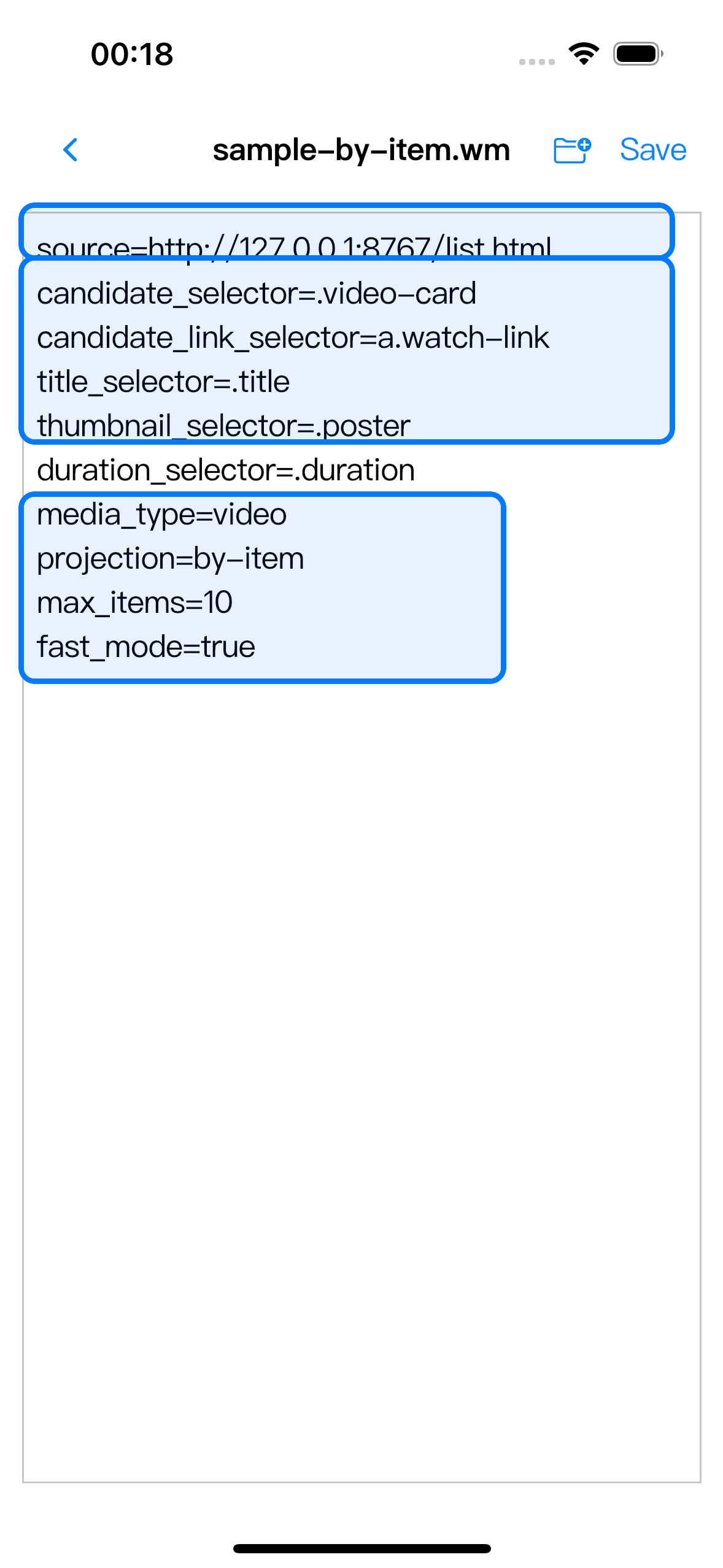
In the example:
| Field group | What it decides |
|---|---|
source | The listing page Zwind loads first. If this URL is invalid or unreachable, selector fields are not used yet. |
candidate_selector | The repeated item container on the source page. In the fixture, each .video-card becomes one candidate. |
candidate_link_selector | The link inside each candidate. This becomes the item’s detail URL unless later detail-hop fields replace or expand it. |
title_selector | The text used for Browser folder names, media file names, and item metadata. Zwind prefixes item folders with stable indexes such as 001-.... |
thumbnail_selector | The image URL used for thumbnail.url or thumbnail metadata when the item exposes artwork. |
media_type | The media kinds Zwind keeps. video keeps video, HLS, and DASH; audio keeps audio; image also accepts images, photo, or photos; all also accepts any or media. Unknown values fall back to video. |
projection | by-item creates one folder per item; flat puts discovered media files directly inside the .wm projected directory. Unknown values fall back to by-item. |
| Browser runtime fields | fast_mode=true uses static page parsing for pages whose useful HTML is already in the response. Leave fast mode off, and use fields such as selector_wait_timeout, force_desktop_mode, force_network_sniff, network_sniff_timeout, or play_button_selector, when the page needs browser-style loading or player network sniffing. |
Add detail links when one click is not enough
candidate_link_selector normally points from the listing card to the detail page. Some sites add another layer, such as an episode list or an embedded player page. Add detail_url_selector when Zwind must follow links found on the detail page before discovering media.
Use detail_url_mode=single when the selector should choose one next page for the same item. Use detail_url_mode=expand when the selector represents multiple child entries, such as episodes; in by-item projection, those children appear as nested item folders. Additional hops use numbered keys such as detail_url_selector_2 and detail_url_mode_2.
Check the projected root
After saving the rule, return to Browser and open the .wm marker. Browser shows the marker as a projected directory.
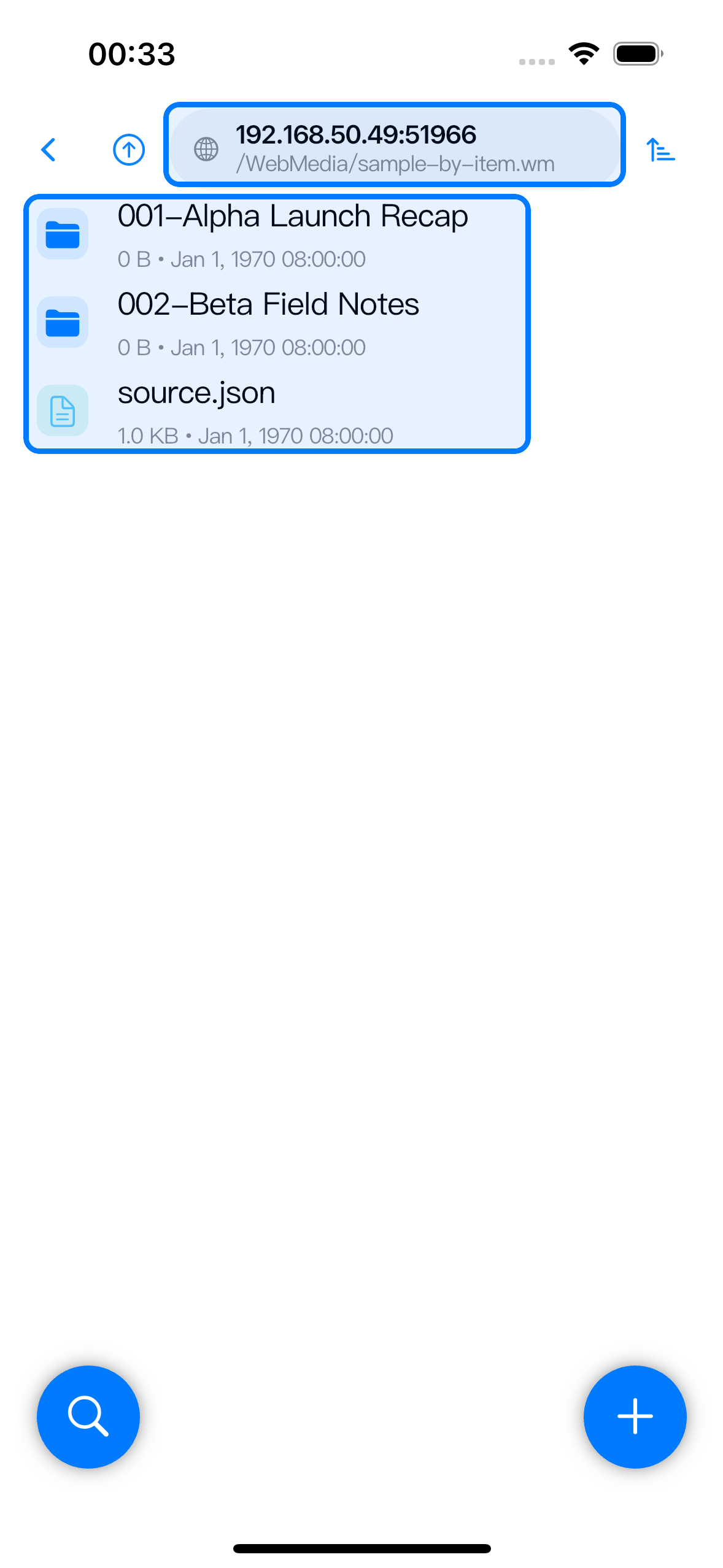
In by-item mode, the projected root contains:
| Browser output | Which rule fields feed it |
|---|---|
001-Alpha Launch Recap, 002-Beta Field Notes | candidate_selector finds items; candidate_link_selector gives each item a detail URL; title_selector names the folders. |
source.json | A resolver report for the source page: normalized rule fields, item count, and the items Zwind extracted. |
If projection=flat, the item folders are replaced by media files at this level, plus source.json. Use flat mode when the WebDAV client expects a simple file list; use by-item mode when you need item metadata and helper links kept with each entry.
Check one item folder
Open an item folder to see how the detail page and media discovery resolved.
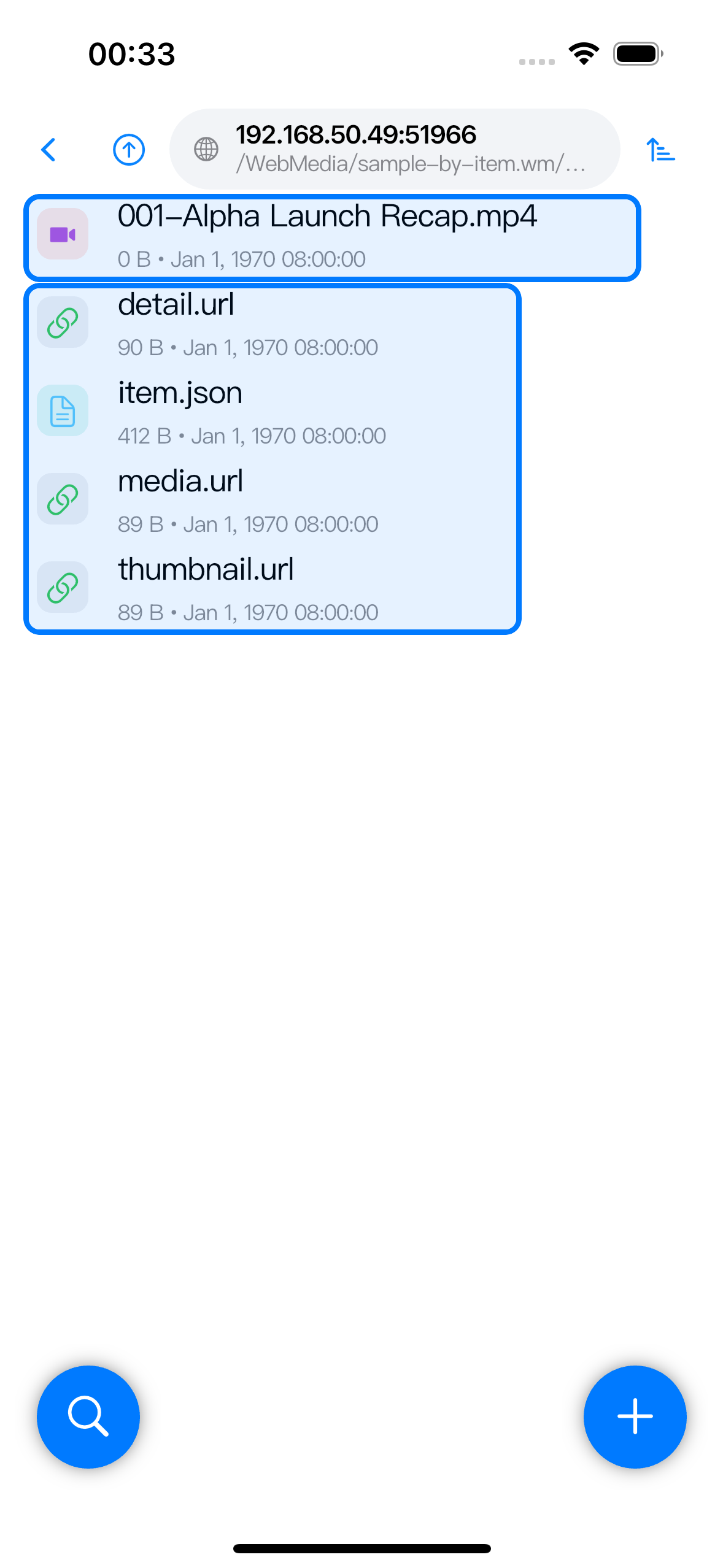
Common files in a by-item folder:
| File | Why it appears |
|---|---|
Media file, such as 001-Alpha Launch Recap.mp4 | A media URL matched the selected media_type. The filename comes from the item title plus the detected media extension. |
item.json | Item metadata, detail status, discovered media URLs, and any parse error attached to this item. |
detail.url | The detail page selected by candidate_link_selector or by the last detail-hop step. |
media.url | The primary discovered media URL as an Internet Shortcut file. |
thumbnail.url | The artwork URL from thumbnail_selector, when present. |
discovery.txt | Appears instead of media files when Zwind could resolve the item but did not find a media URL matching media_type. |
Re-parse after changing a rule
Browser caches Web Media results. After editing a .wm file, changing selector fields, or checking a site that has changed its page structure, open the Web Media path and use the bottom-right action menu.
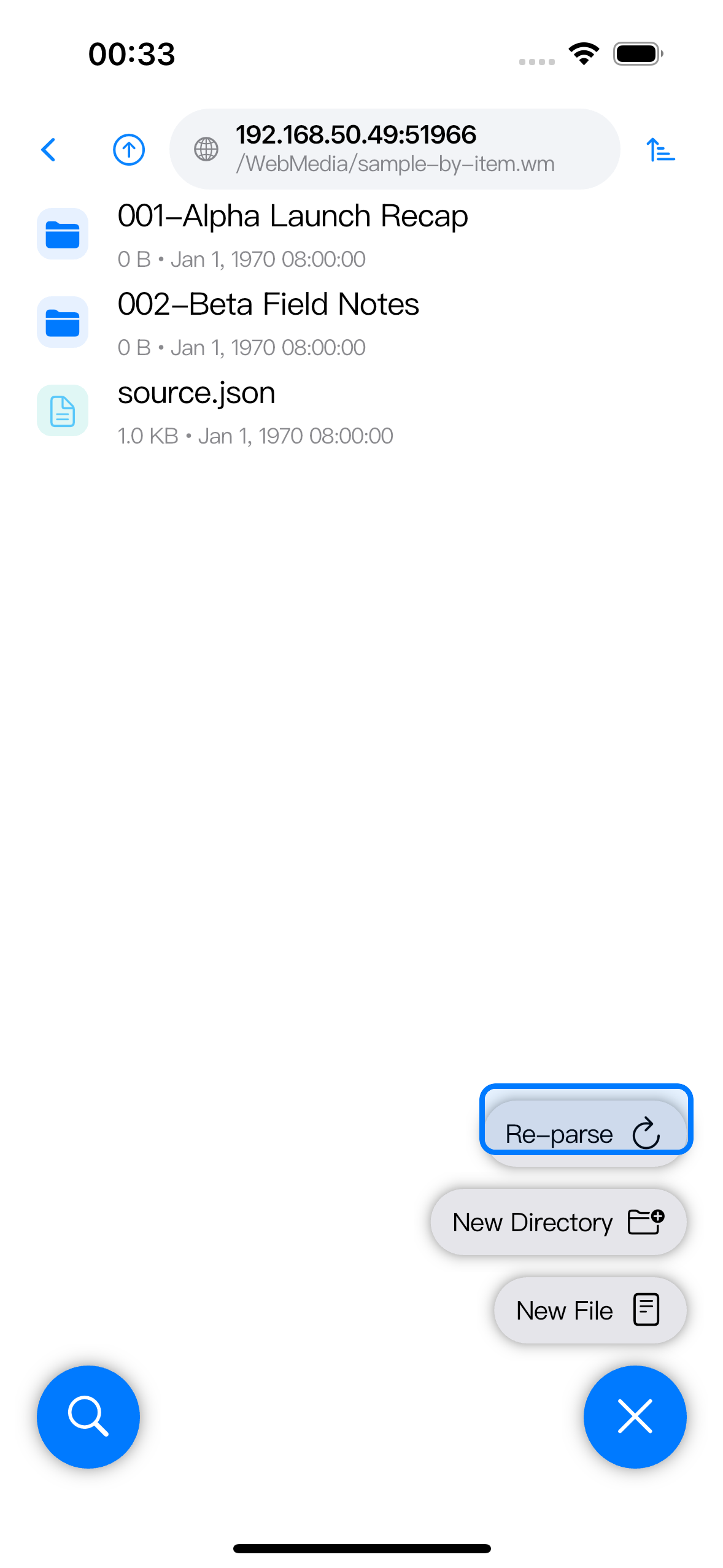
Re-parse clears the cached result for the current Web Media scope and runs parsing again. At the .wm root it refreshes the source page and item list. Inside an item folder it refreshes that item’s detail/media discovery. If the current item is an expanded container, Re-parse refreshes the child expansion.
When a browser-backed parsing run records a report for the current Web Media path, Browser can show a Web Media Debug card. Use Copy report to share the latest source/detail status, selector counts, final URL, and error text with the rule maintainer. Use Open browser only when the reported browser session is still available.