



Configure a Quark Drive server
Create a QuarkDrive server in Zwind, paste a Quark cookie, start the server, and open the Quark Drive folder in Browser.
Use QuarkDrive when you want a Zwind server entry to expose the files in a Quark Drive account. Zwind stores the Quark cookie in the server configuration and uses that session when it reads the cloud drive.
Prepare the Quark cookie
The Quark Cookie is an account session credential. Anyone who has a working cookie can act as that signed-in session, so use a trusted tool or workflow for your own account and paste only the cookie value into Zwind.
The value normally looks like cookie fragments separated by semicolons, for example __puus=...; kps=.... Do not paste a full Cookie: header label, request URL, browser command, or unrelated text around it.
If the cookie later expires, the server entry can stay in place. You only need to get a fresh cookie and replace the old value in Quark Cookie.
Choose QuarkDrive storage
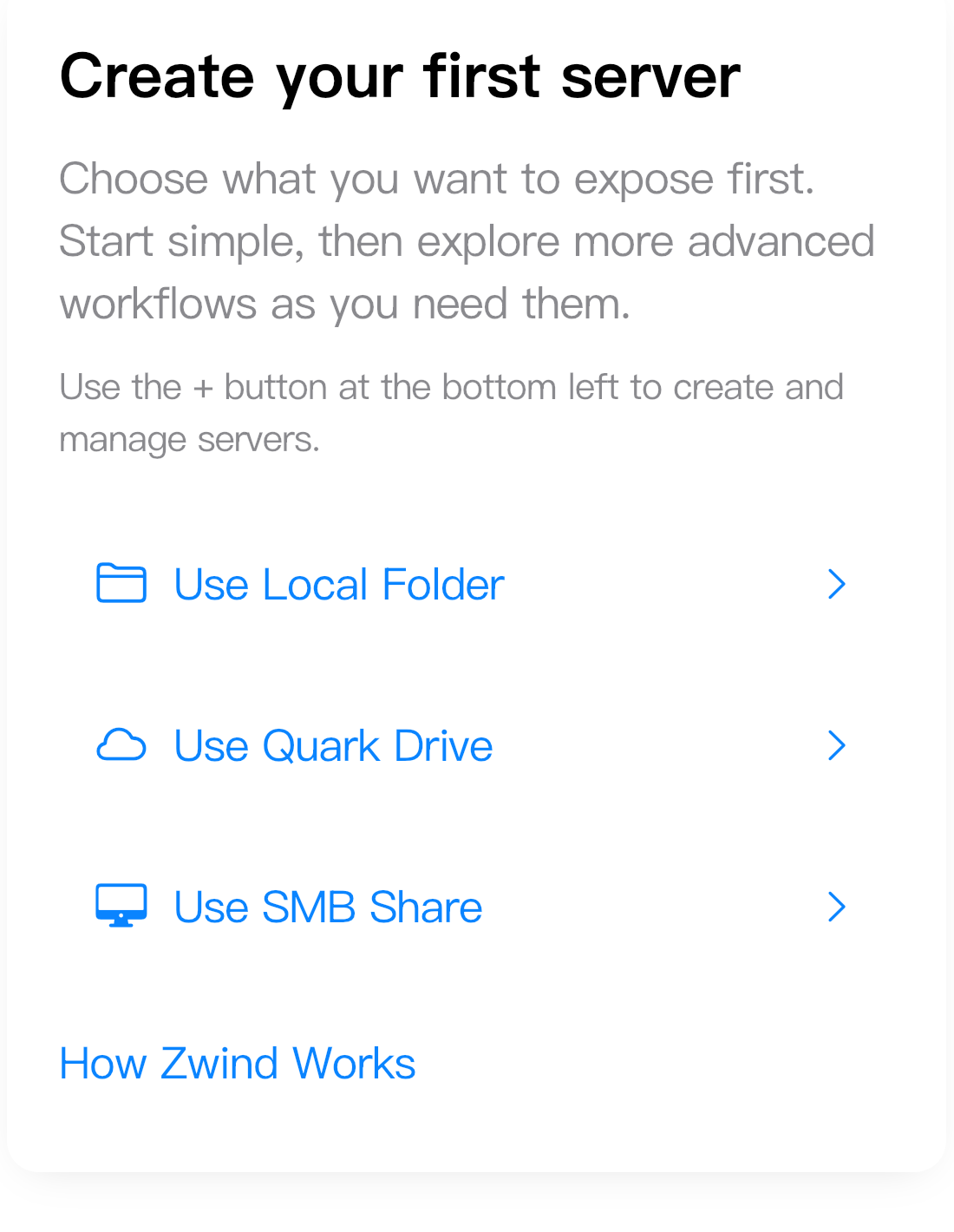
On a fresh Home screen, tap Use Quark Drive. If you already have a server, tap the + button at the bottom left and create a new server, then choose QuarkDrive as the storage type.
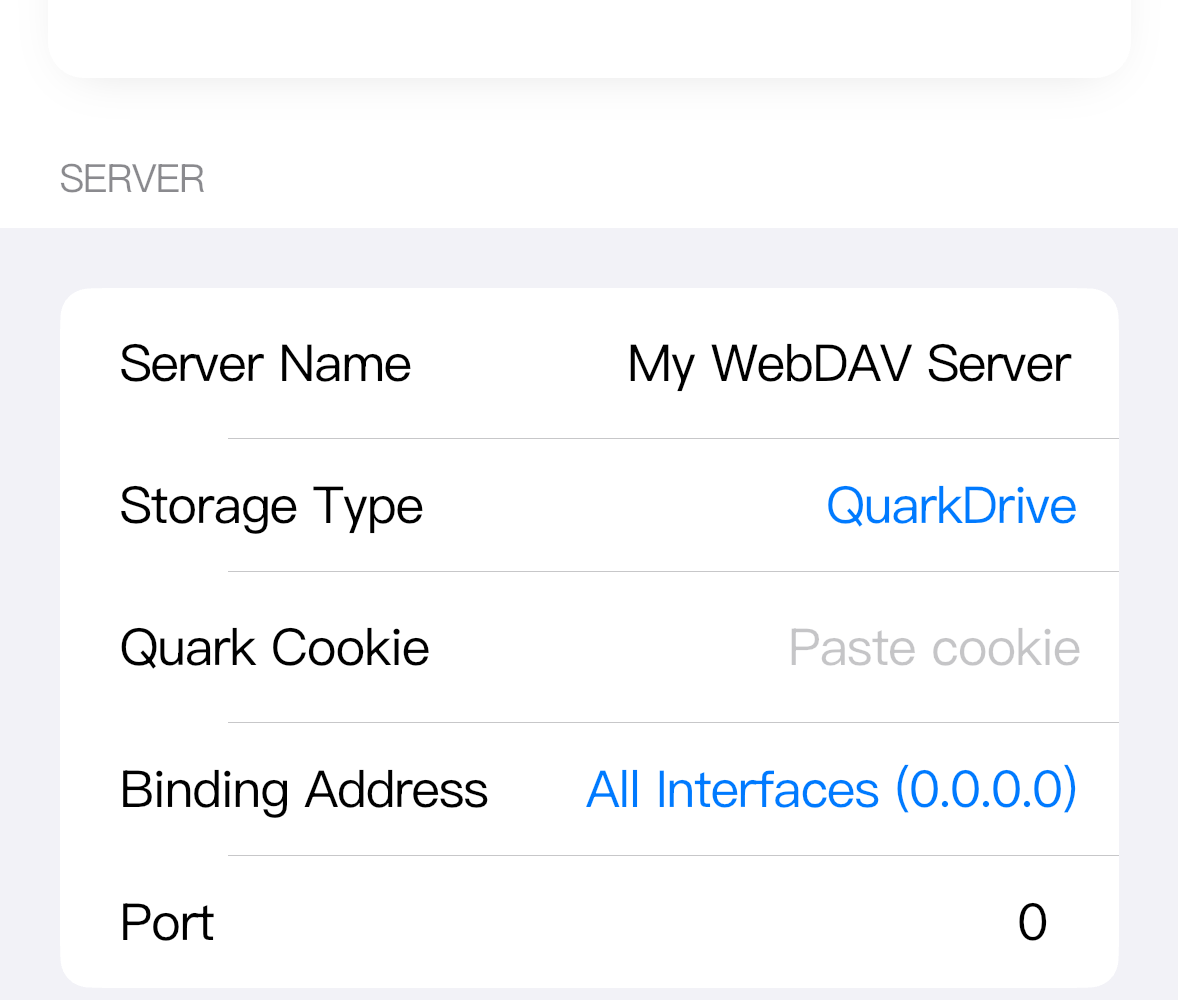
On the configuration screen, confirm that Storage Type is QuarkDrive. The form should show Quark Cookie under the common server fields.
Paste the cookie and save
Paste the cookie into Quark Cookie. The screenshot uses a short placeholder; use the real cookie from your own Quark session.
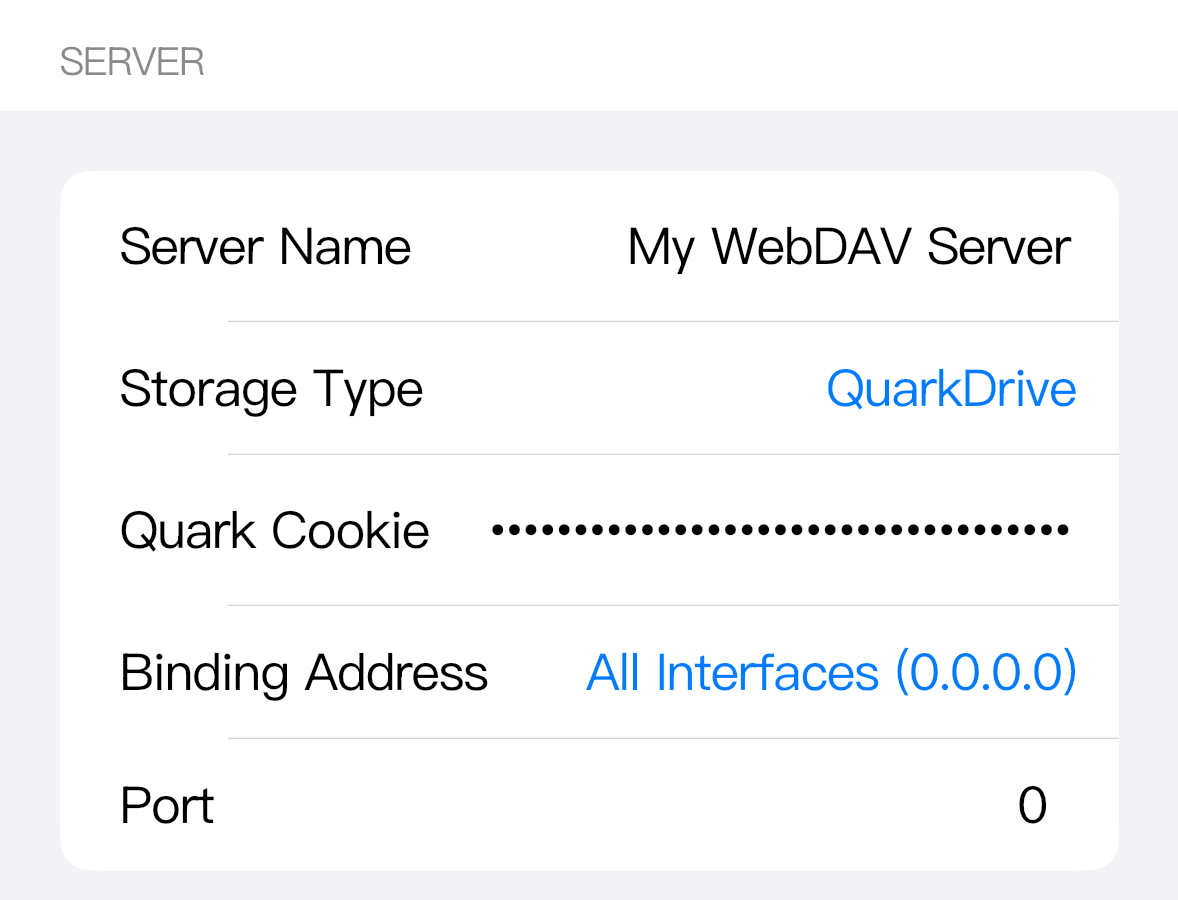
Keep the default Port value 0 if you want Zwind to pick an available port when the server starts. Tap Save. If Save is still disabled, check that Quark Cookie is not empty.
Start the server and browse Quark Drive
After saving, the server appears on Home with a virtual root folder named /QuarkDrive. Tap Start Server to start it.
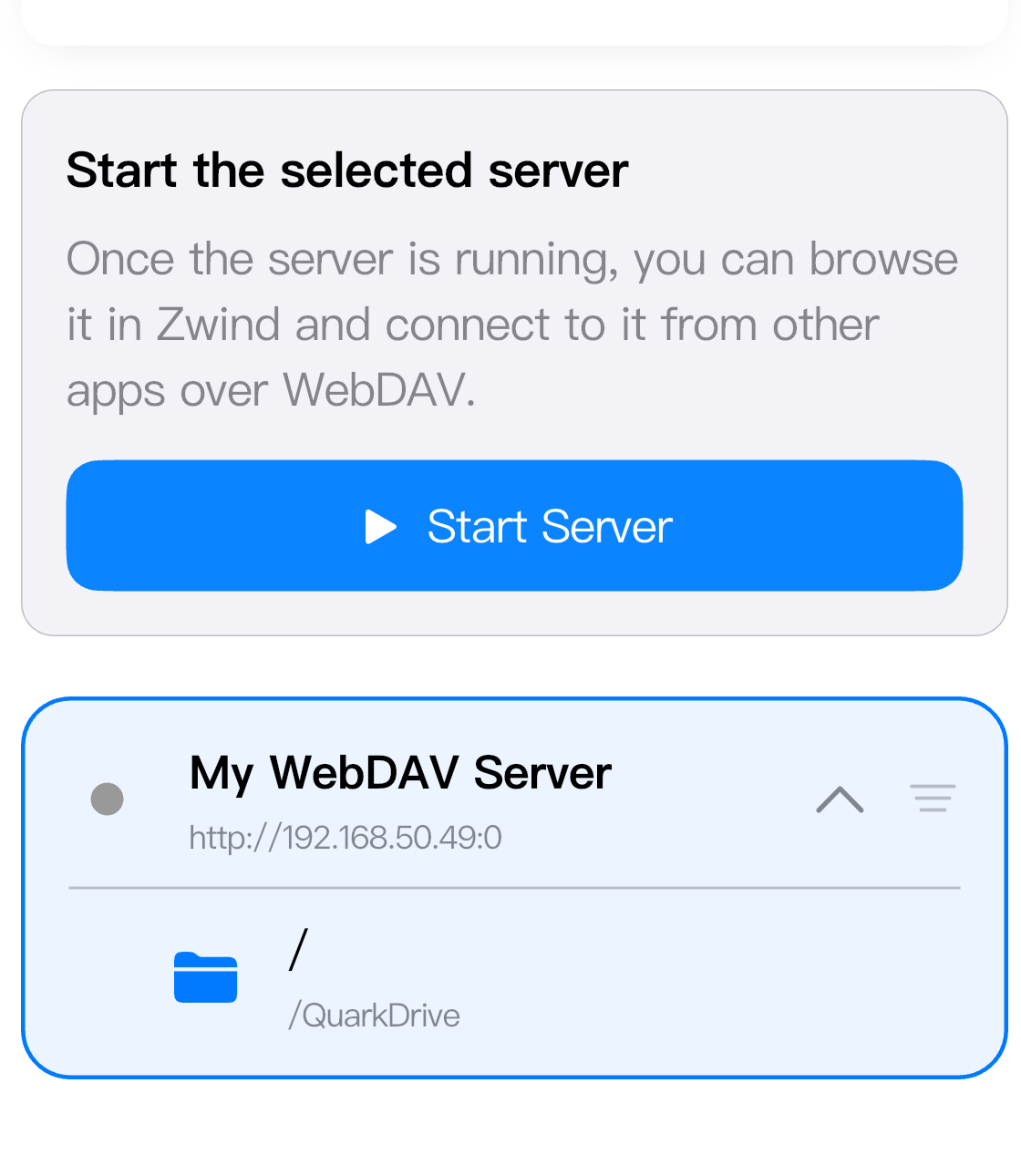
When the server is running, open the server menu at the bottom right and choose Browse Files. Browser opens the server root; open /QuarkDrive to browse the cloud drive folders and files available to the cookie’s Quark account.
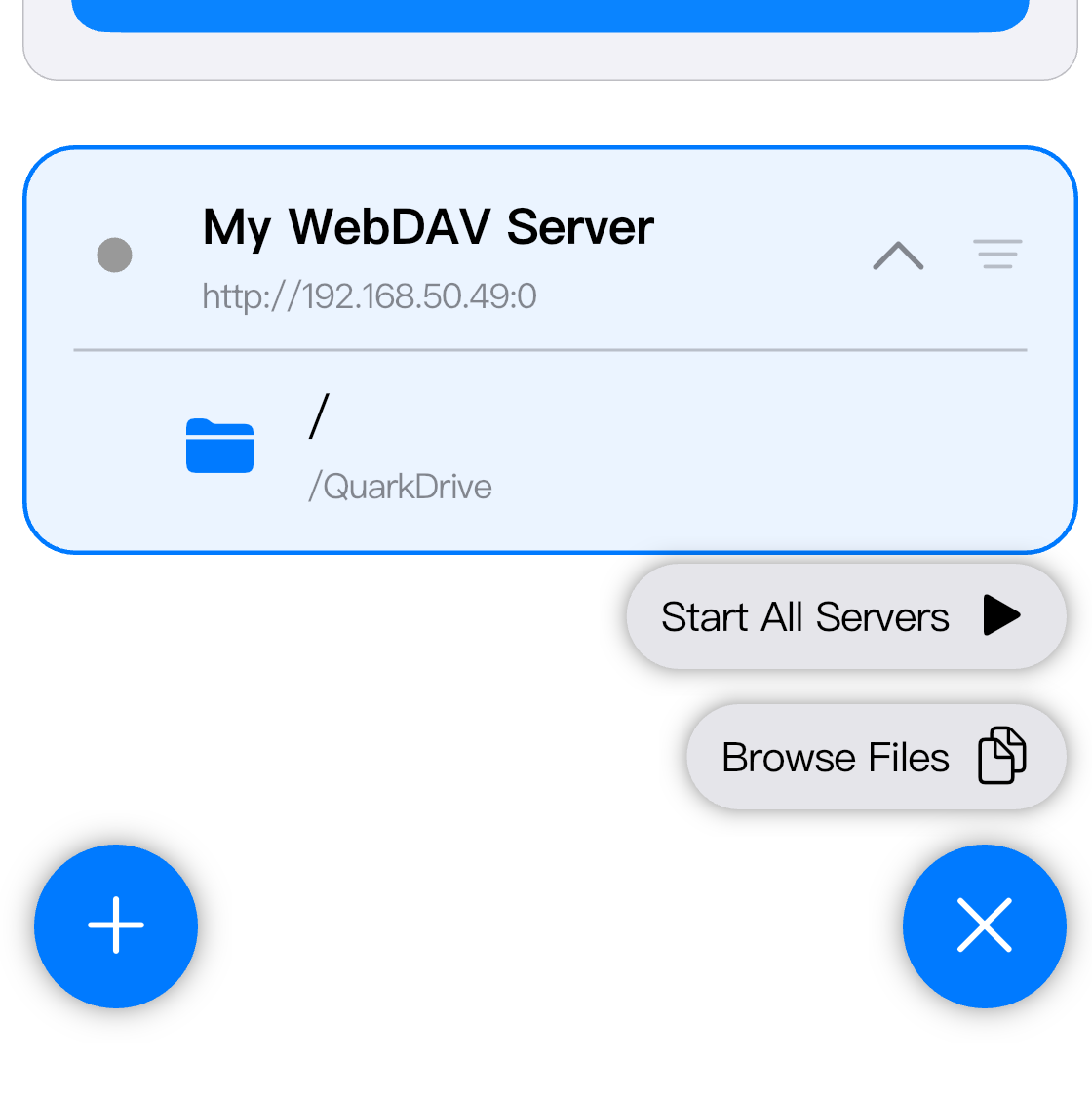
If the cookie is a placeholder or has expired, the form can still be saved, but Browser will not be able to list the real Quark Drive contents.
Replace an expired cookie
When Quark signs out the session or the cookie expires, open Home, select the QuarkDrive server, and tap Edit. Replace the old Quark Cookie value with a fresh cookie, then tap Save.
If the server was already running, stop and start it again before browsing. Then reopen Browse Files and refresh the Browser directory.
When Quark Drive cannot be accessed
Check the failure by category:
| What you see | What to check |
|---|---|
| Save is disabled | Quark Cookie is empty. Paste the cookie value, not only spaces or a label. |
| Server starts, but Browser cannot list /QuarkDrive | The cookie is expired, incomplete, or from a signed-out session. Replace it with a fresh cookie. |
| Browser waits or reports a connection/network error | The device cannot reach Quark’s service from the current network. Try again on a network that can open Quark Drive normally. |
| Browser opens but the expected folders are missing | The signed-in Quark account does not have access to those files, or the cloud drive folder is empty for that account. Confirm the same account in the Quark app or website. |