



Use Media General Search
Search files from the current Browser directory by keyword, media type, preview size, file size sorting, and date or name sorting.
Media General Search opens from Browser and searches from the directory you are currently viewing. It walks that directory and its subfolders, then lets you narrow the results by file name keyword, media type, preview size, and sorting.
The screenshots use the English app UI.
Open search from the current directory
Open Browser, go to the folder you want to search, then tap the floating search button.
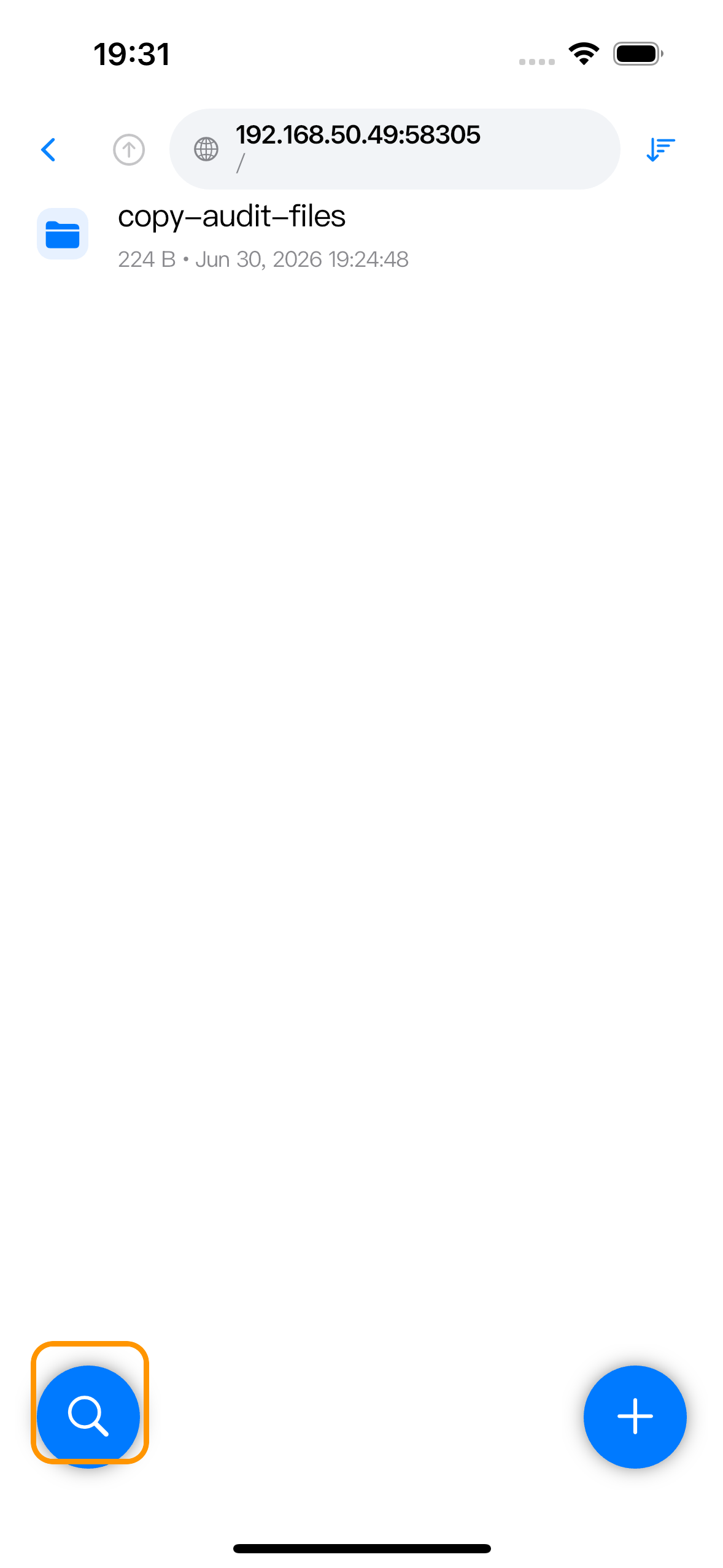
The search screen shows Current directory at the top; this is the root of the search session. It does not search every server or every app folder unless you started from that wider directory.
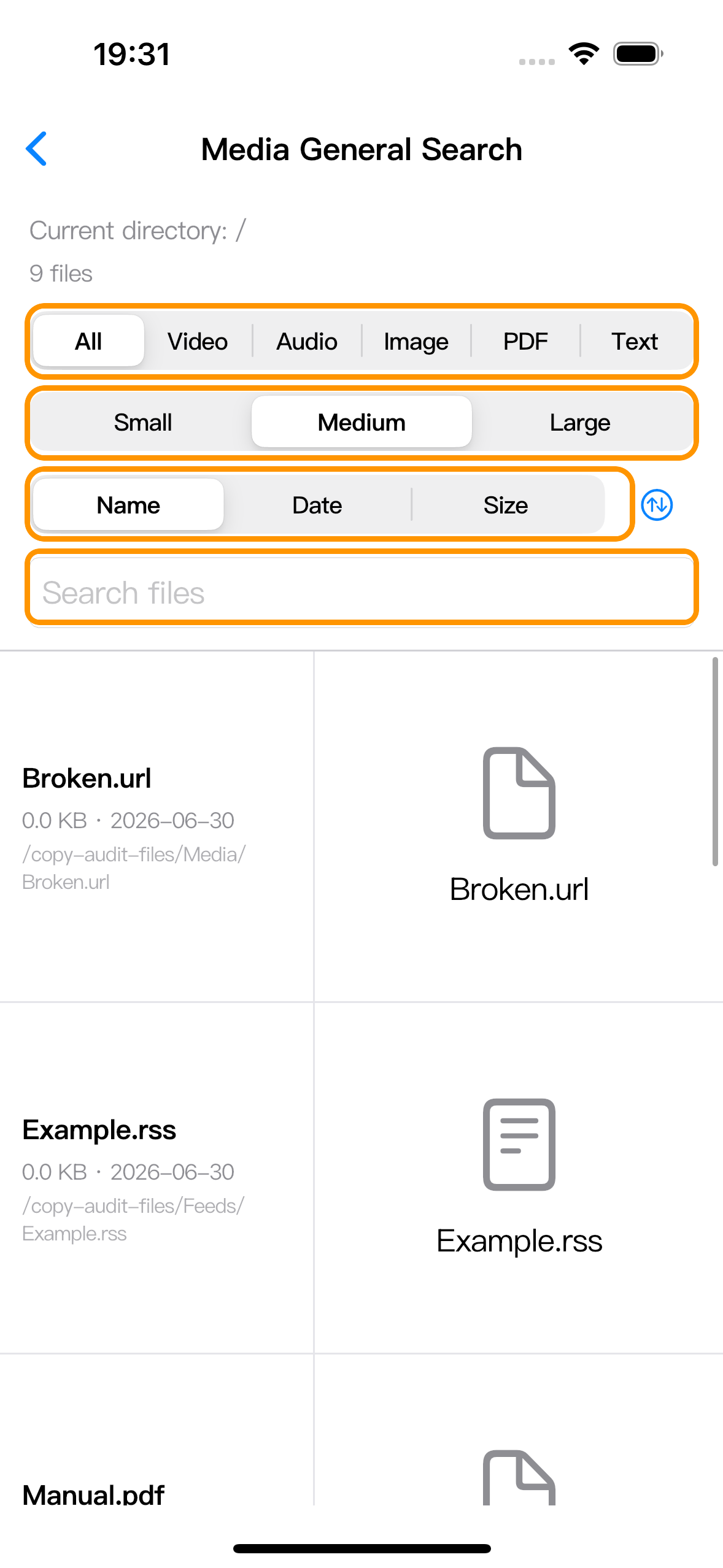
Zwind adds files as it scans the current directory tree. Folder entries are used for traversal, but the results list contains files. Each row shows the file name, file size, modified date, full path, and a preview area.
Filter by keyword and media type
Use Search files to match text in the file name. The keyword filter is applied to the files already found under the current directory and its subfolders.
Use the media type segmented control to choose what stays visible:
| Label | What remains visible |
|---|---|
| All | All file categories found by the scan. |
| Video | Files Zwind classifies as video by extension or content handling. |
| Audio | Audio files. |
| Image | Image files. |
| PDF files. | |
| Text | Text-like files such as plain text, JSON, RSS, WM rules, logs, CSV, YAML, XML, OPML, INI, and CFG. |
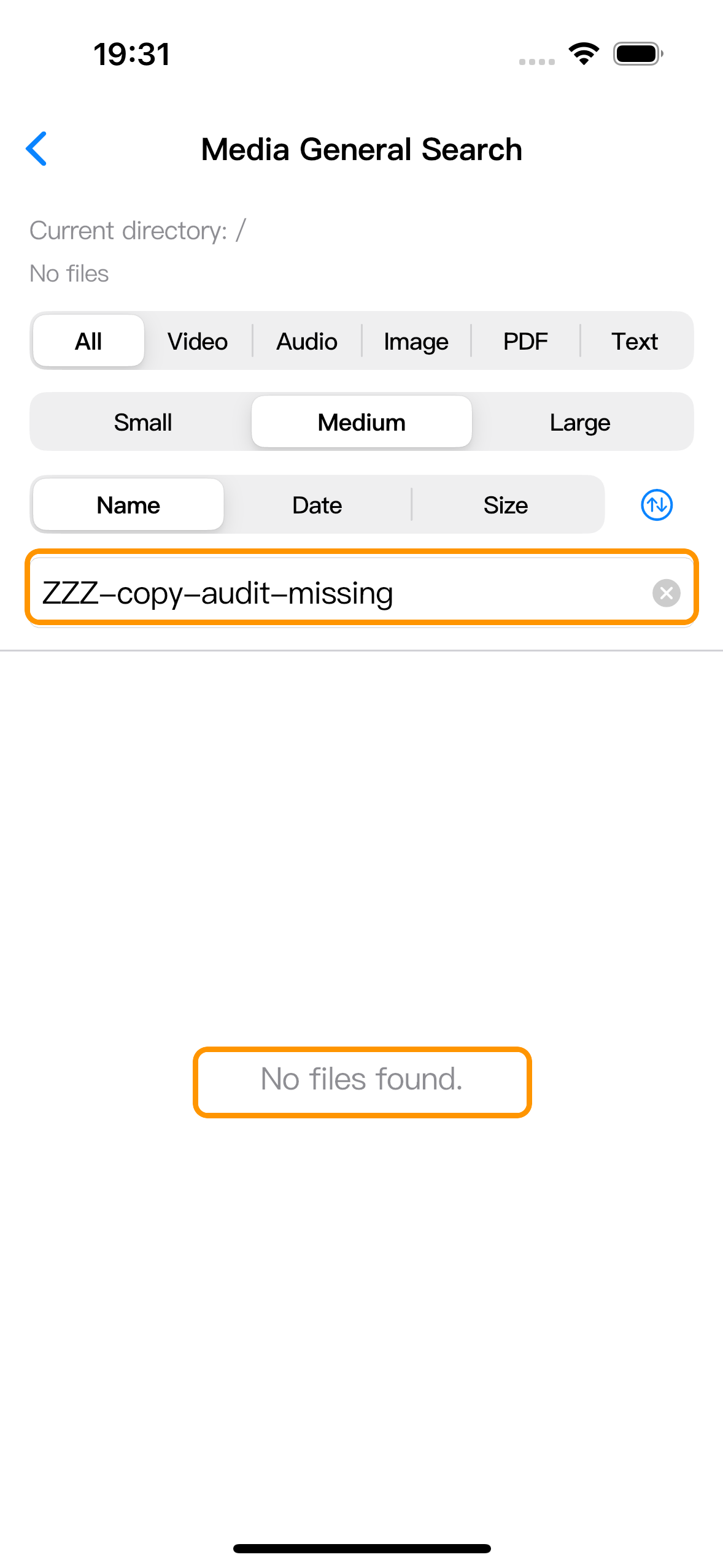
When the keyword and type filters leave no matches, the list changes to No files found.
Choose preview size and sorting
The Small, Medium, and Large control changes the row height and preview area size. It is a preview-size control; it does not filter files by byte size.
Use the sort control below it to choose:
| Label | Sorts by |
|---|---|
| Name | File name. This is the default field. |
| Date | Modified date. |
| Size | File size in bytes. |
Tap the circular arrow button beside the sort fields to switch ascending and descending order. The file size is always shown in each result row, so sorting by Size is the way to bring larger or smaller files together in the current UI.
Understand previews
Image files load an image preview from the WebDAV URL. Video files generate frame previews in the row; Zwind samples the video about every five minutes, up to the current preview limit, and shows a progress message while frames are being prepared.
For audio, PDF, text, and other non-image/non-video files, the preview area shows a category icon and the file name. If a video preview cannot be generated, the row shows Preview unavailable for this file or an error message. Tap Tap to retry on the failed entry or frame to try generating that preview again.
Preview generation is separate from opening the file. Retrying a preview does not rename, move, or edit the WebDAV item.
Open a result or show it in its parent folder
Tap a result row to open the file with Zwind’s default opener. Long-press a result row to open its action sheet.
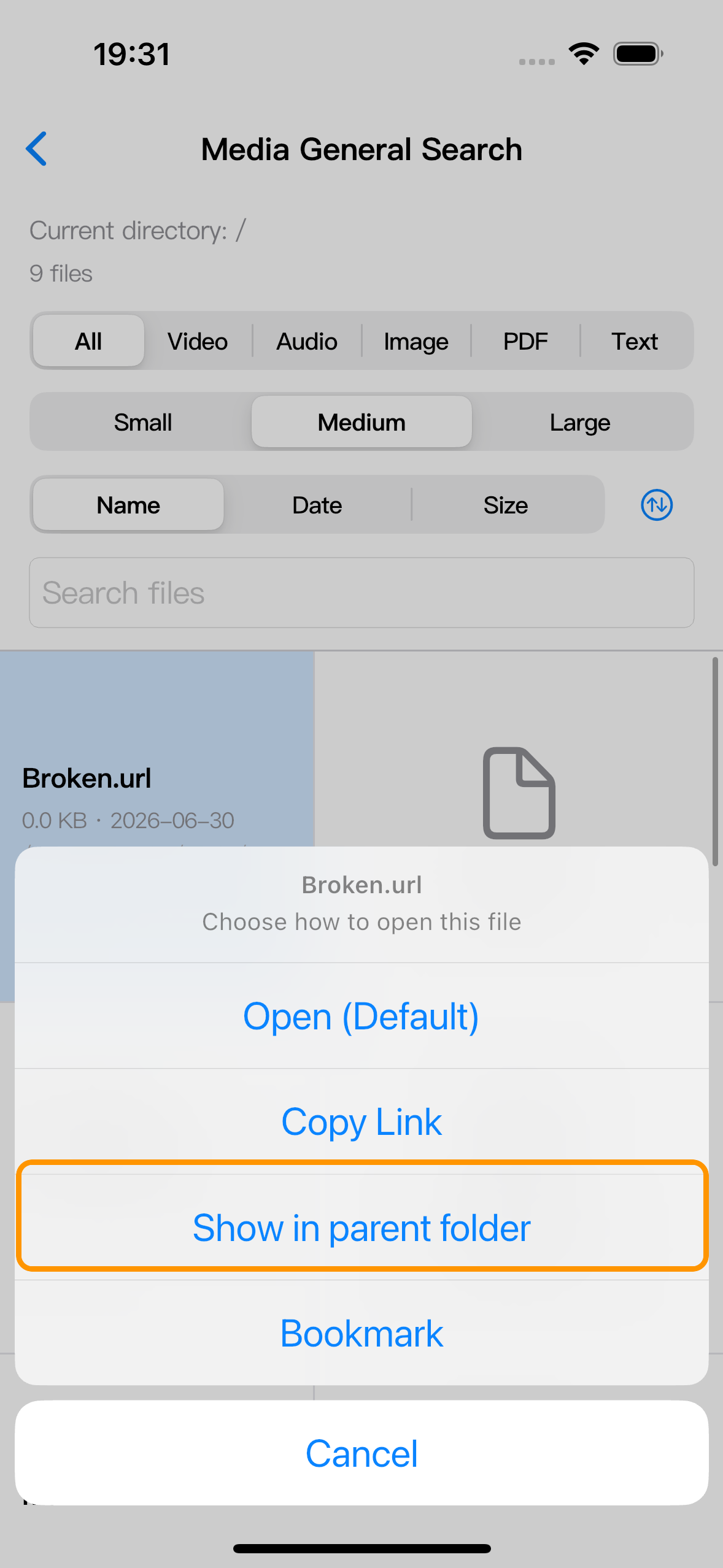
The result action sheet includes these common actions:
| Action | What it does |
|---|---|
| Open (Default) | Opens the file using the same default opener Browser would use for that file type. |
| Copy Link | Copies the WebDAV file URL. |
| Show in parent folder | Opens Browser at the file’s parent directory, so you can see the result next to neighboring files. |
| Bookmark | Saves the file URL to Zwind bookmarks when the bookmark feature is available. |
Some file types add extra open choices. Video files can show Open in Video Player (FFmpeg). Audio and video files can show Open in Music Player. Text files can show Open in Text Editor.
Use Show in parent folder when the result came from a subfolder and you want to continue normal Browser operations such as opening nearby files, copying, moving, renaming, or deleting from the actual directory listing.