



Export, import, and sync configuration
Use Zwind Settings to export configuration files, import YAML backups, understand the automatic pre-import backup, and set iCloud configuration sync boundaries.
Zwind can move its saved WebDAV setup between devices in two ways. Export Configuration creates a YAML file you can store or send to another device. Import Configuration reads that YAML file and applies it to the current app. iCloud Sync keeps supported configuration fields in sync between iOS devices signed in to the same iCloud account.
The screenshots use the English app UI. The iOS share sheet and file picker follow the device language, so those two screenshots show Chinese system labels such as 存储到“文件” for Save to Files and 取消 for Cancel.
Open the Configuration settings
On Home, tap the gear button to open Settings, then scroll to Configuration. This section contains Export Configuration, Import Configuration, and iCloud Sync.
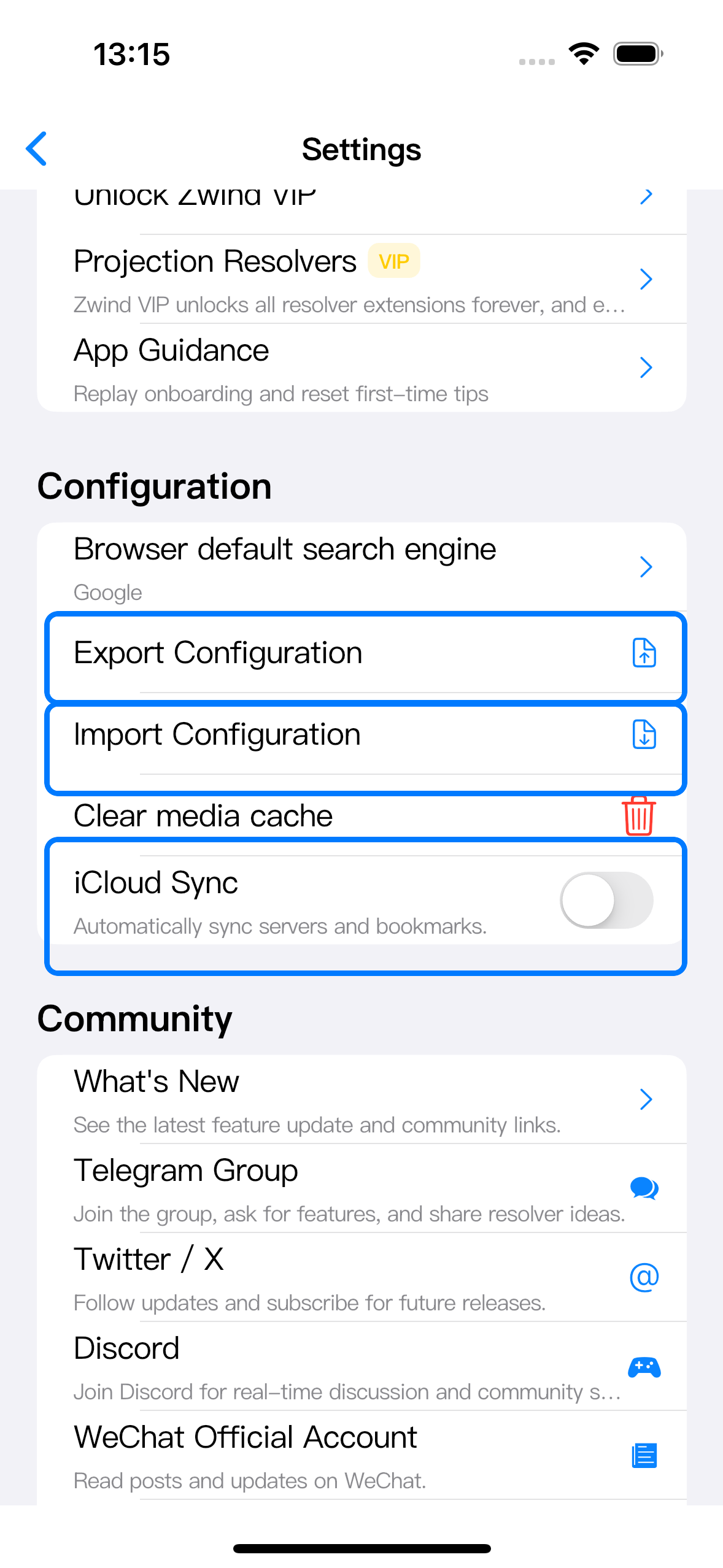
Export a configuration file
Tap Export Configuration. Zwind creates a YAML file named like zwind_config_YYYYMMDD_HHMMSS.yaml and opens the iOS share sheet. Use Save to Files when you want a file you can later import on this or another device.
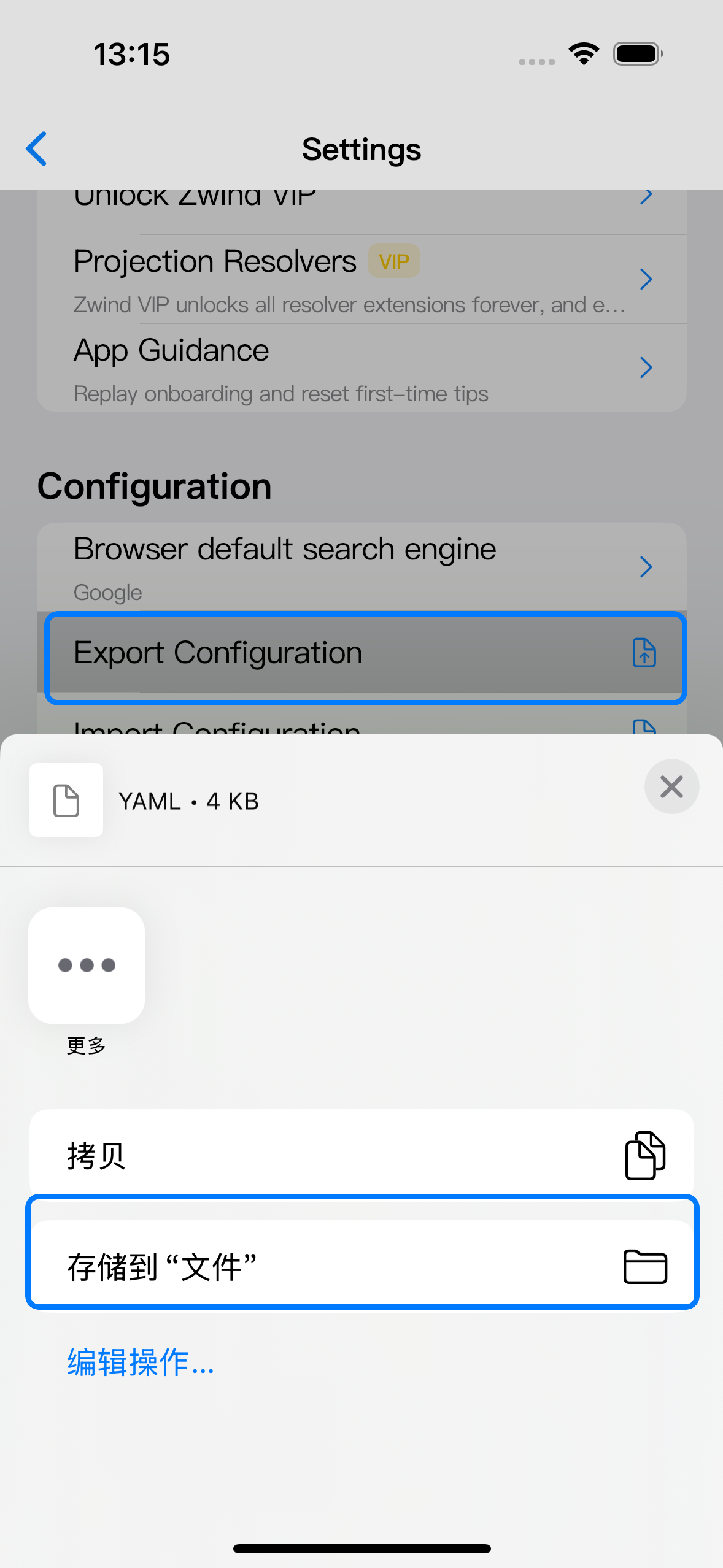
The exported YAML is a configuration snapshot. It is useful for moving setup to another device, keeping a rollback file before changing many settings, or sending a configuration to another Zwind install that should use the same server and bookmark list.
The file includes saved server configuration, data folder entries, resolver bindings, WebDAV bookmarks, Browser quick links, and the Browser default search engine. Restorable secrets such as WebDAV passwords, SMB passwords, Quark cookies, server lock passwords, bookmark credentials, and resolver secret fields are stored in the file in encoded form. Treat the YAML as a private configuration file; anyone who can import it may restore those saved credentials into Zwind.
The export does not include local files, media cache, app logs, purchase entitlements, system permissions, or whether a server is currently running.
Import a configuration file
Tap Import Configuration and choose a .yaml or .yml file in the iOS file picker.
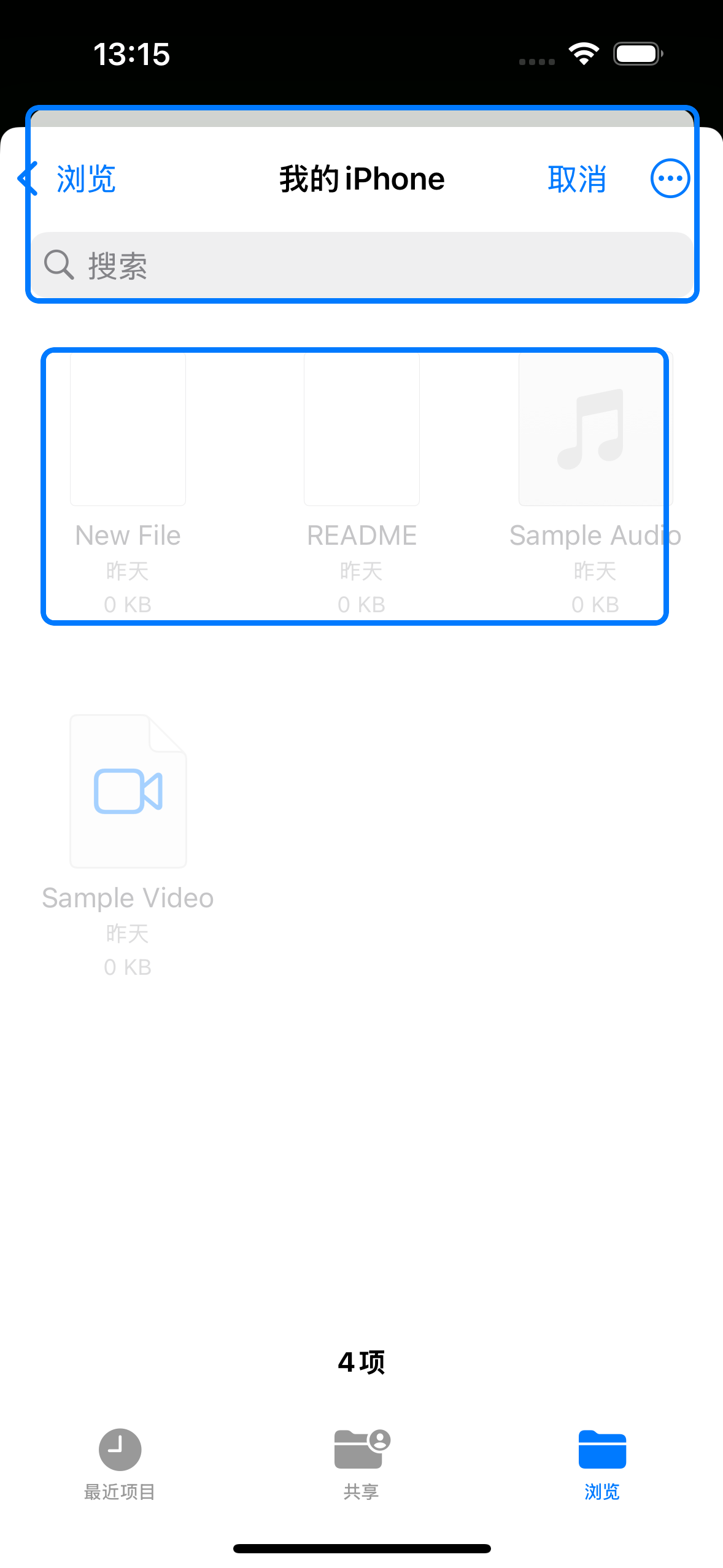
When you import, Zwind first writes a backup of the current configuration to its app support directory. The success message shows a path like config_backups/zwind_config_backup_YYYYMMDD_HHMMSS.yaml. That backup is the current app configuration before the import was applied. If the imported file replaces the wrong setup, that backup is the rollback source; for a user-visible rollback file, export the current configuration to Files before importing another YAML file.
Import applies the YAML as a replacement, not as a merge:
| Imported area | What happens |
|---|---|
| Servers | The current server list is replaced by the servers list in the file. Imported servers start in the stopped state. |
| Bookmarks | The current WebDAV bookmarks are replaced by the file’s bookmarks list. |
| Browser quick links | Replaced when the file contains browserQuickLinks. |
| Browser default search engine | Updated when the file contains browserSearchEngine. |
Data folder entries restore their saved paths and iOS folder bookmarks, but the import does not copy the folder contents. If a restored local folder, iCloud Drive folder, SMB share, Quark account, or Emby endpoint is no longer reachable from the device, the server may save successfully but browsing that source can still fail until the underlying access is valid again.
Import also does not restore iOS local network permission, Files provider permission prompts, keychain state, purchase entitlements, cache contents, logs, or the enabled state of iCloud Sync.
Turn on iCloud Sync
In Settings > Configuration, turn on iCloud Sync on each iOS device that should participate. The switch is available on iOS; other platforms show the feature as unavailable.
When iCloud Sync is on, Zwind syncs the supported configuration payload through iCloud. In the current app, that payload uses the same configuration structure as export, without the generated timestamp. It covers server configuration, WebDAV bookmarks, Browser quick links, and the Browser default search engine.
The sync payload does not include local file contents, media cache, app logs, server running state, VIP or resolver purchase state, system permissions, keychain items outside the exported configuration, or proof that an external SMB, Quark, Emby, RSS, or Web Media source is reachable from another device.
Multi-device boundaries
Use iCloud Sync for configuration that can be represented in Zwind’s YAML format: server entries, bookmarks, quick links, and search engine preference.
Expect these boundaries when multiple devices are involved:
| Situation | Expected behavior |
|---|---|
| One device edits a server or bookmark | Other synced devices can receive the updated configuration payload. |
| Two devices edit different server or bookmark lists before sync catches up | The later incoming payload can replace the earlier local list; Zwind does not merge individual server or bookmark edits. |
| A server points to a local Files folder | The server entry can sync, but the folder content and iOS access grant are device-specific. The receiving device may need its own accessible folder. |
| A server points to SMB, Quark, Emby, RSS, or Web Media sources | The configuration can sync, but network reachability, account validity, cookies, endpoints, and upstream rules are checked on each device when used. |
| A server was running on the first device | Running state is not synced. Start the server on the receiving device after confirming its source access. |
If you want a stable handoff between devices, export a YAML file after the source device has the desired server and bookmark list, then import that file on the target device or enable iCloud Sync only on devices that should share the same configuration set.