



Play WebDAV videos with Video Player
Open WebDAV media from a file or folder, choose FFmpeg, AVPlayer, or Web Player, and use playlists, subtitles, playback speed, and Picture in Picture.
Zwind Video Player can play media URLs from the built-in Browser, a selected video file, or a folder of video files. Use it when you want the app to stream from your WebDAV server without handing the file to another app.
The screenshot uses the English app UI.
Open a video from Browser
In Browser, tap a video file to use Zwind’s default video opening path. The default path chooses a player based on the file and source: HLS .m3u8 and supported Web Media results prefer AVPlayer, while other formats commonly start with the FFmpeg player.
Long-press the video file when you want to choose the player yourself.
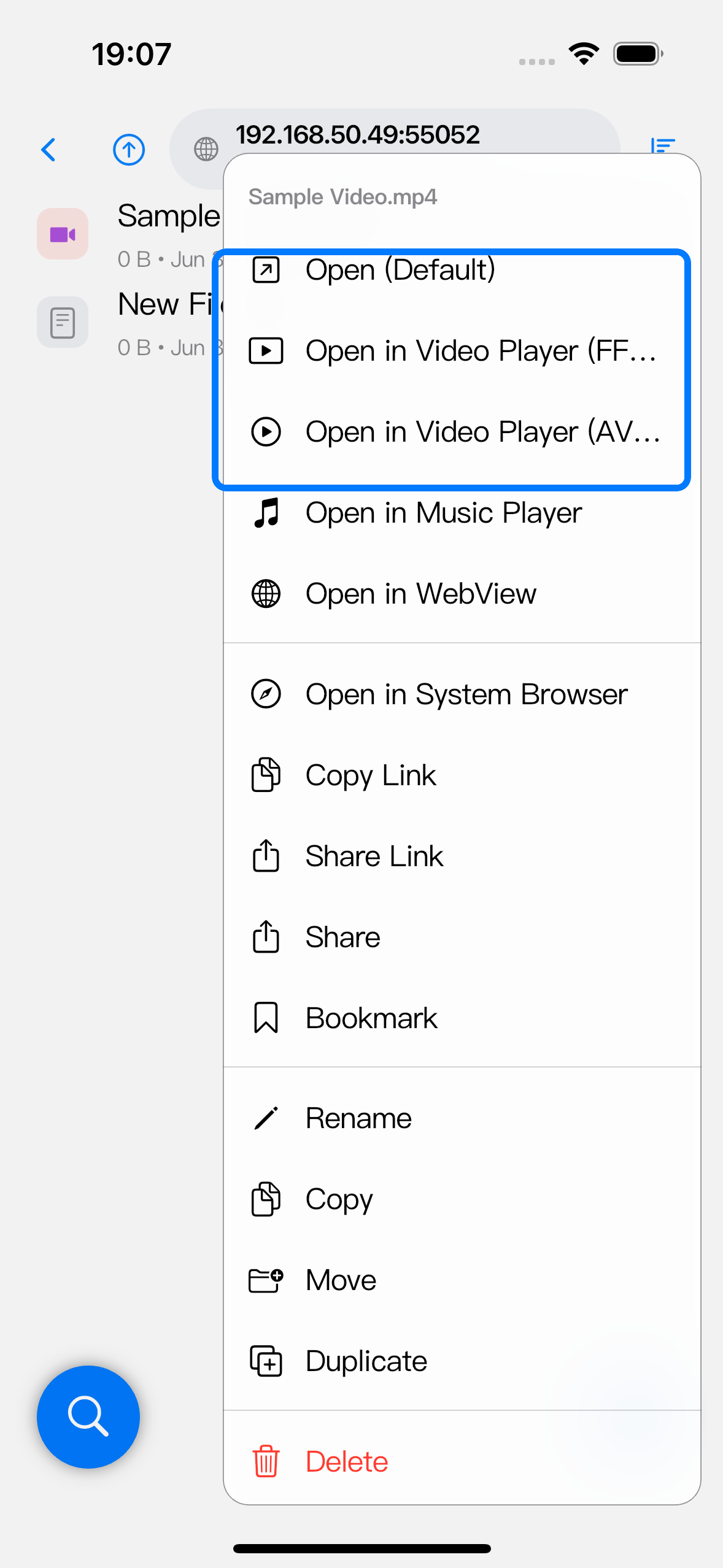
Video files can show these actions:
| Action | What it does |
|---|---|
| Open (Default) | Lets Zwind choose the player for the file and build the nearby video playlist. |
| Open in Video Player (FFmpeg) | Starts the FFmpeg-based player directly. |
| Open in Video Player (AVPlayer) | Starts Apple’s native AVPlayer path when the format is supported. |
| Open in WebView | Opens the WebDAV URL in Zwind’s WebView instead of the Video Player chrome. |
| Open in System Browser | Sends the media URL to iOS. Use this when you want another installed app or Safari to handle the URL. |
Open a folder as a playlist
Long-press a folder in Browser and choose Open in Video Player. Zwind loads playable videos from that folder into Video Player. This is the fastest way to watch a directory of episodes, camera clips, or projected media items without opening each file one by one.
From inside Video Player, open Options and choose Choose Folder to add another folder to the current playback queue. If the selected folder contains no playable video entries, the player keeps the current item and shows the folder-loading result instead of replacing playback with an empty queue.
Choose FFmpeg, AVPlayer, or Web Player
Open the Video Player options menu to switch playback engines after a video has opened:
| Player | Best fit | Notes |
|---|---|---|
| Use FFmpeg Player | Containers and codecs that need broader format handling, such as many .mkv, .webm, or non-Apple-friendly files. | Embedded subtitle selection and subtitle display controls are currently available here after FFmpeg is ready. |
| Use AVPlayer | Apple-native formats such as .mp4, .m4v, .mov, and HLS .m3u8. | Uses the native iOS playback stack and supports the Video Player’s iOS Picture in Picture button when the current video allows it. Unsupported formats show a disabled switch reason. |
| Use Web Player | Media URLs that behave better as a browser resource, or a stream that FFmpeg or AVPlayer cannot initialize. | Uses a web-based player inside Video Player. The separate Browser menu action Open in WebView opens the URL in a plain WebView instead. |
If AVPlayer fails to initialize, the error view offers Open Web Player and a FFmpeg retry path. If FFmpeg fails, use Retry FFmpeg, switch to AVPlayer for Apple-supported files, or open Web Player for sources that require browser-style playback.
Use the playlist
When a file opens from Browser, Zwind may include nearby playable video items from the same location. When a folder opens, the folder’s playable videos become the playlist.
In Video Player, open Options and choose Playlist to see the loaded items. The current item has a check mark. Select another row to jump to it.
Use the previous and next track buttons in the player controls when more than one item is loaded. The playback-order item in Options cycles through Sequential, Repeat One, and Shuffle.
Subtitles
Open Options and choose Subtitles to select an embedded subtitle track. Subtitle selection is available after the FFmpeg player is ready; AVPlayer and Web Player currently show the FFmpeg-only reason for subtitle controls.
The same options menu also includes:
| Control | What it changes |
|---|---|
| Subtitle Size + | Increases subtitle font size. |
| Subtitle Size - | Decreases subtitle font size. |
| Subtitle Up | Moves subtitles higher. |
| Subtitle Down | Moves subtitles lower. |
| Reset Subtitle Display | Restores subtitle size and position. |
Use Off in the subtitle sheet to hide embedded subtitles.
Playback speed and Picture in Picture
Tap the speed control in the player chrome to choose 0.50x, 0.75x, 1.00x, 1.25x, 1.50x, or 2.00x. Speed applies to the current player session.
On iOS, the Picture in Picture button appears in the Video Player chrome when the native playback path exposes it for the current video. If the video or current player state cannot start Picture in Picture, Zwind shows Picture in Picture is unavailable for this video or the failure details from iOS.
When playback fails
Use the failure point to choose the next action:
| What you see | What to try |
|---|---|
| AVPlayer cannot open .mkv here or another disabled AVPlayer reason | Use Open in Video Player (FFmpeg) from Browser, or choose Use FFmpeg Player in Video Player. |
| AVPlayer opens an error view | Tap Open Web Player for browser-style playback, or switch to FFmpeg if the file is not Apple-native. |
| FFmpeg reports a playback failure | Tap Retry FFmpeg. If the file is .mp4, .mov, .m4v, or .m3u8, try AVPlayer. If the URL is a web stream, try Web Player or Open in WebView from Browser. |
| Subtitles menu is disabled | Switch to Use FFmpeg Player and wait until the player is ready; embedded subtitle controls are FFmpeg-only. |
| Picture in Picture is unavailable | Use AVPlayer for Apple-supported media, then try Picture in Picture again after the video has initialized. |
| The playlist is missing expected files | Reopen the folder with Open in Video Player, or use Choose Folder inside Video Player so Zwind rebuilds the queue from that folder. |