



Create, edit, and organize files in Browser
Use Zwind Browser to create files and folders, rename, copy, move, duplicate, delete, and share WebDAV items.
Browser can write to a directory when the current source supports WebDAV write operations. Local folders can usually create and edit files. SMB, Quark Drive, and projected sources depend on the upstream service and the resolver behind that path.
The screenshots use the English app UI.
Start from a writable folder
Open Browser and enter the mounted folder you want to change. The root screen lists mounted sources, so create or upload files inside a mounted folder instead of at the server root.
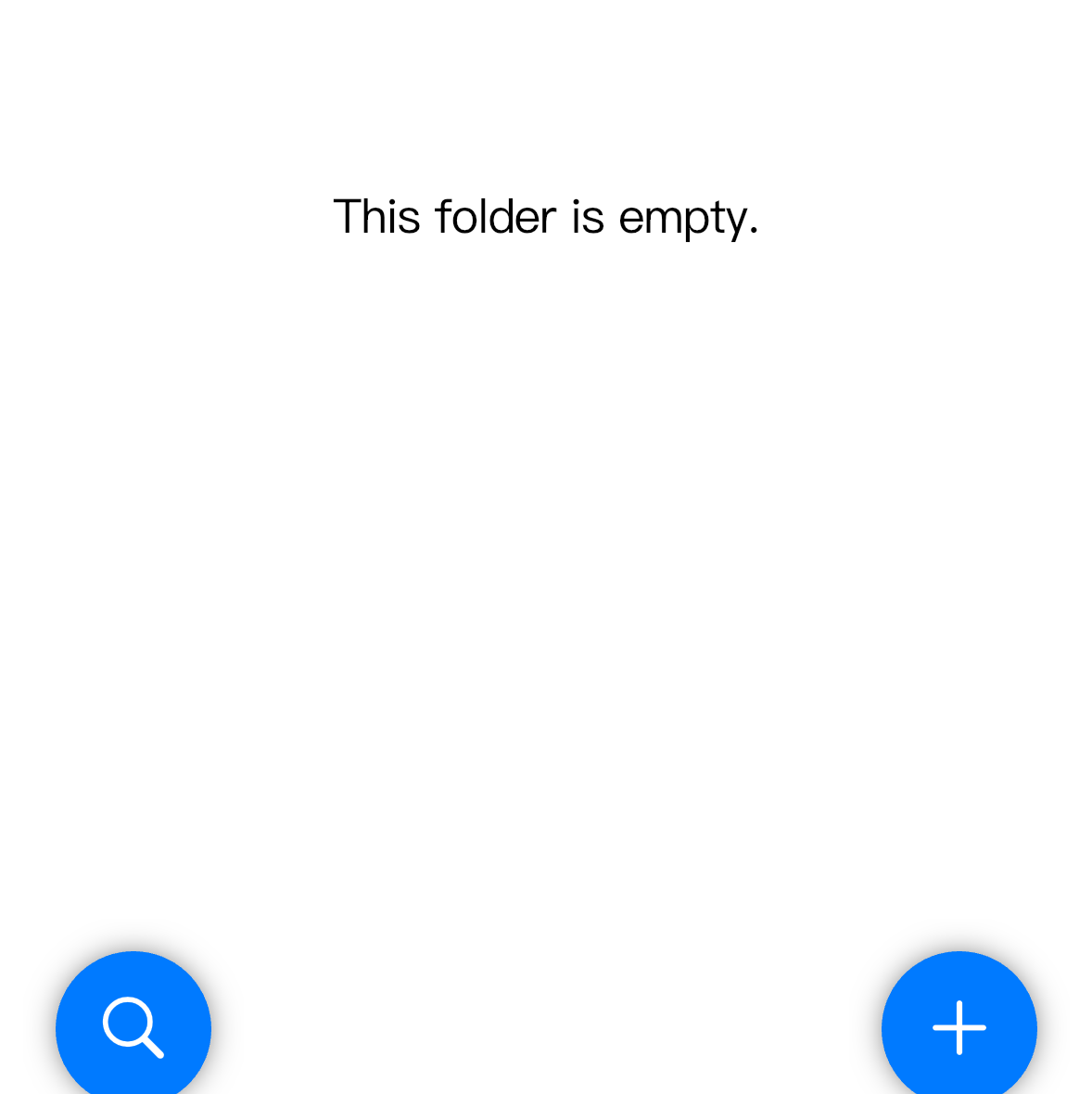
Use the floating + button for actions that create or add something in the current directory. Use a file or folder row’s long-press menu for actions that operate on that selected item.
Create a file or folder
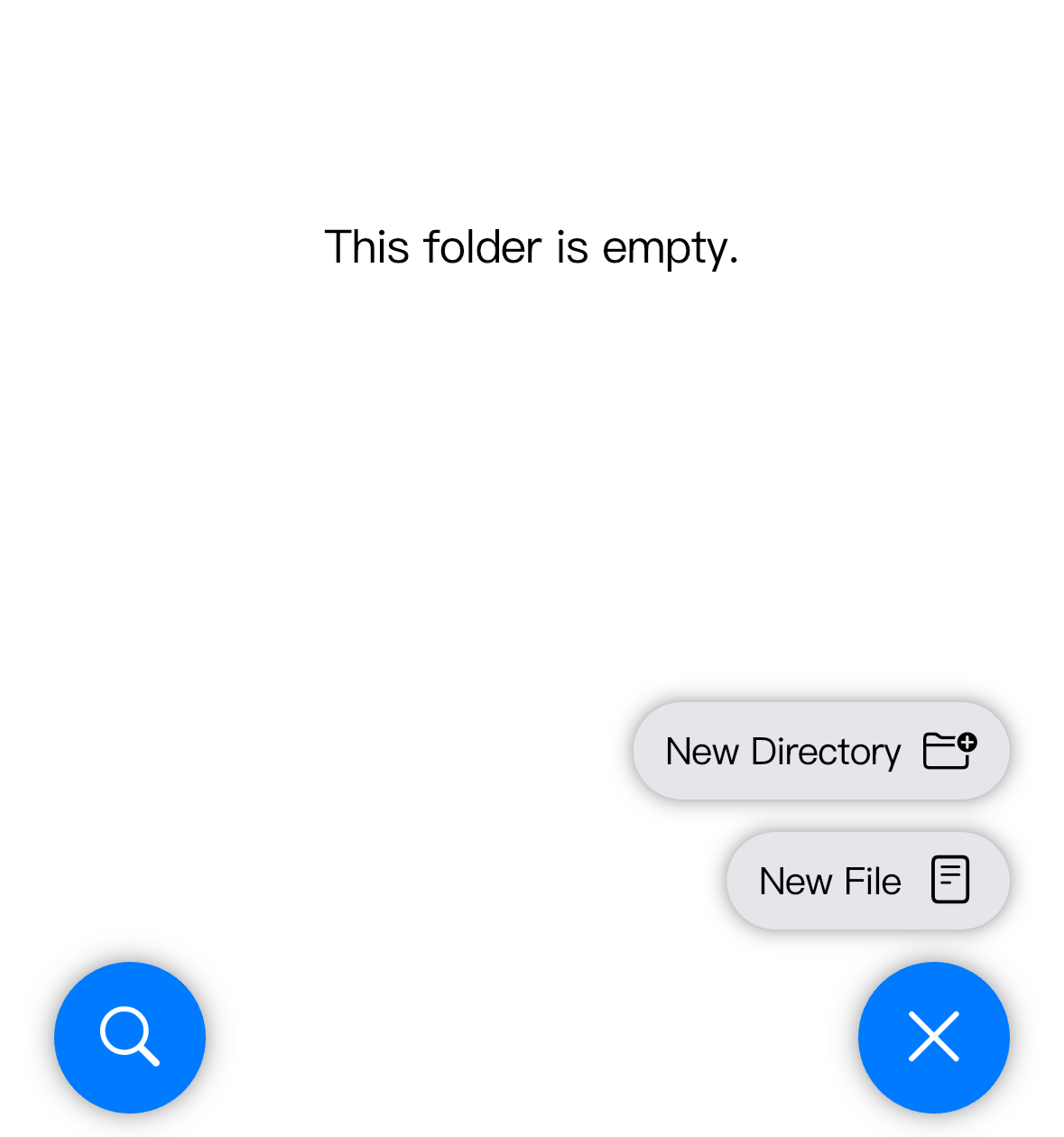
Tap the floating + button. In the menu, choose New Directory for a folder or New File for a text file.
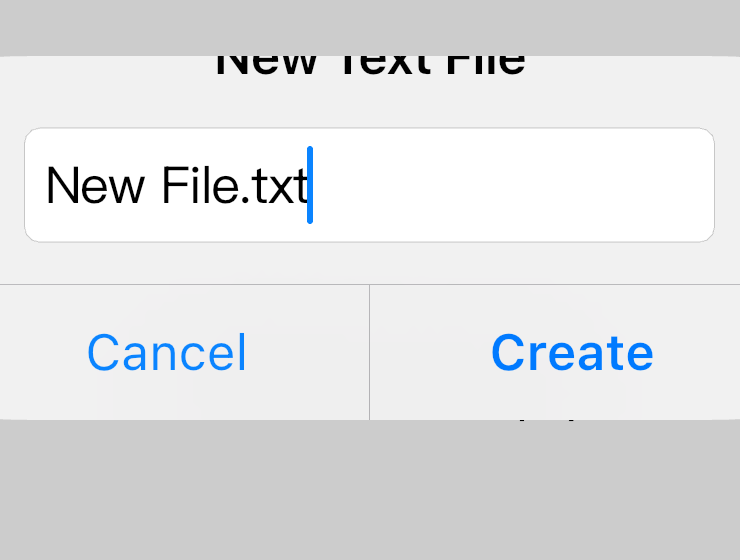
When creating a file, enter the filename and keep the extension you want Zwind and other apps to recognize, such as .txt, .md, .json, or .m3u.
After creation, the new item appears in the current folder. Pull down to refresh if another client changed the same directory at the same time.
Use the file or folder action menu
Long-press a file or folder row to open its action menu.
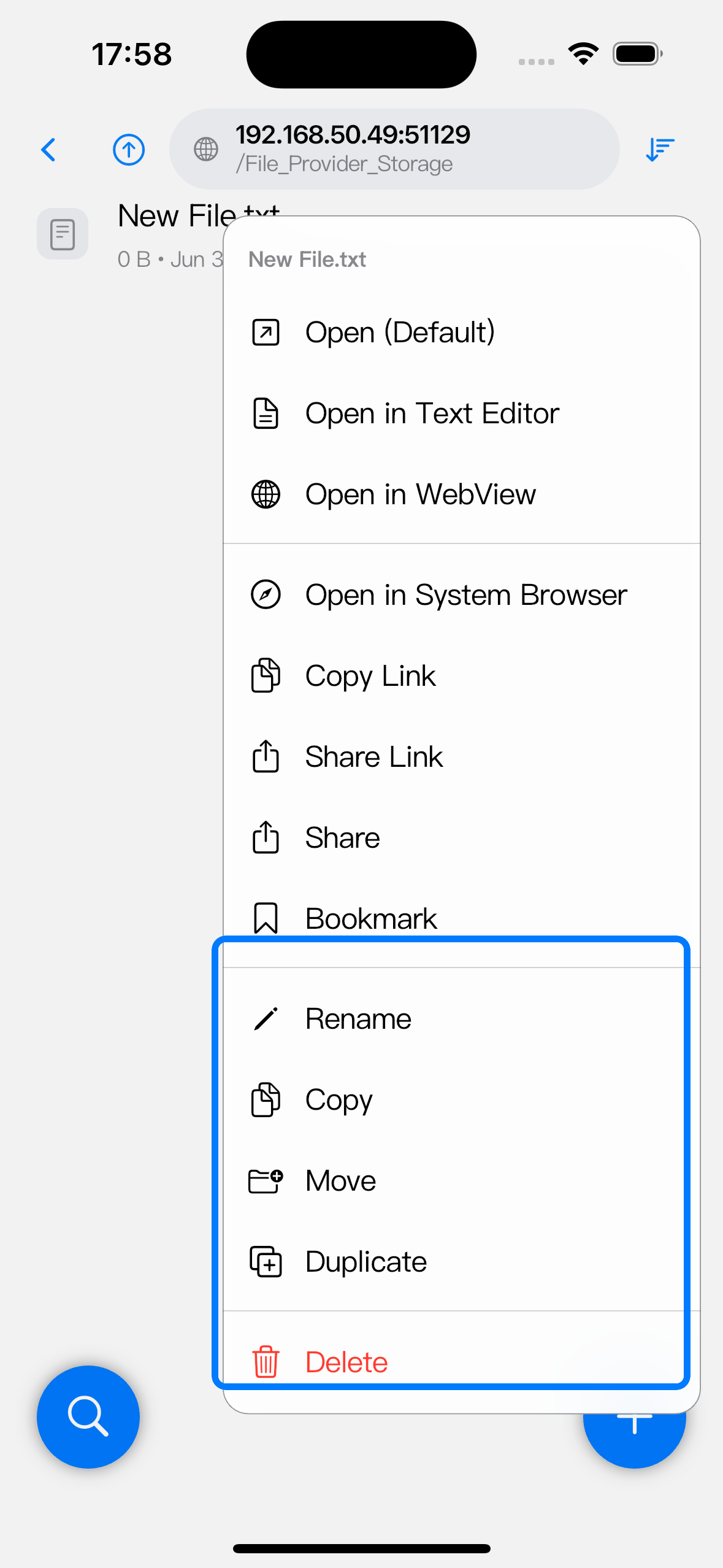
Common actions:
| Action | What it does |
|---|---|
| Rename | Changes the selected item name in the same directory. Keep the extension unless you want to change how the file opens. |
| Copy | Copies the item to another Browser location. |
| Move | Moves the item to another Browser location and removes it from the original folder. |
| Duplicate | Creates another copy in the current folder. Zwind chooses or asks for a name that does not overwrite the existing item. |
| Delete | Deletes the selected item after confirmation. |
| Share | Opens the iOS share sheet for the file or selected item. |
| Copy Link | Copies the WebDAV URL for the selected item. |
| Share Link | Shares the WebDAV URL through the iOS share sheet. |
Some actions are shown only for file types or sources that can support them.
Edit a text file
For text-based files, long-press the file and choose Open in Text Editor. Save writes the edited content back to the same WebDAV item when the source allows updates. If the source is read-only or the upstream service rejects the write, the editor cannot save the change to that path.
Share a file or a link
Use Share when another app needs the file content. Use Copy Link or Share Link when the recipient should open the file through WebDAV.
Links use the server address, port, and item path. If anonymous access is off, the receiving client still needs the server’s WebDAV username and password. If Port is 0, copy the link while the server is running so it uses the current port.
When an operation fails
Use the error location to narrow the cause:
| What fails | What to check |
|---|---|
| New File or New Directory is unavailable | You may be at the server root, in a read-only projection, or in a source that does not support writes. Open a mounted data folder first. |
| Create, rename, copy, move, or duplicate fails | The upstream source may reject writes, the destination may already contain a conflicting name, or the current account may not have write permission. |
| Delete fails | The source may be read-only, the item may already have changed, or the upstream service may reject deletion. Refresh and check the source directly if needed. |
| Share works but another device cannot open the link | Check whether the server is running, whether the URL uses the current port, and whether the other client sent the required WebDAV credentials. |