



Use the Quark Search Import resolver
Bind Quark Search Import to a WebDAV folder, create empty search folders, wait for materialized Quark imports, check updates, and understand migration prompts.
Quark Search Import turns a folder inside a QuarkDrive WebDAV server into a search-driven importer. You bind the resolver to a folder such as /Imports, create an empty child folder whose name is the search term, then open or refresh that folder. Zwind searches cloud-drive share sources and materializes matching Quark resources into your QuarkDrive server.
The screenshots use the English app UI. They show the stable setup and Browser entry points, not a completed real Quark import.
Before you start
You need a QuarkDrive server that can start successfully with a valid Quark Cookie. If the server itself is not ready yet, configure that first in the QuarkDrive server guide.
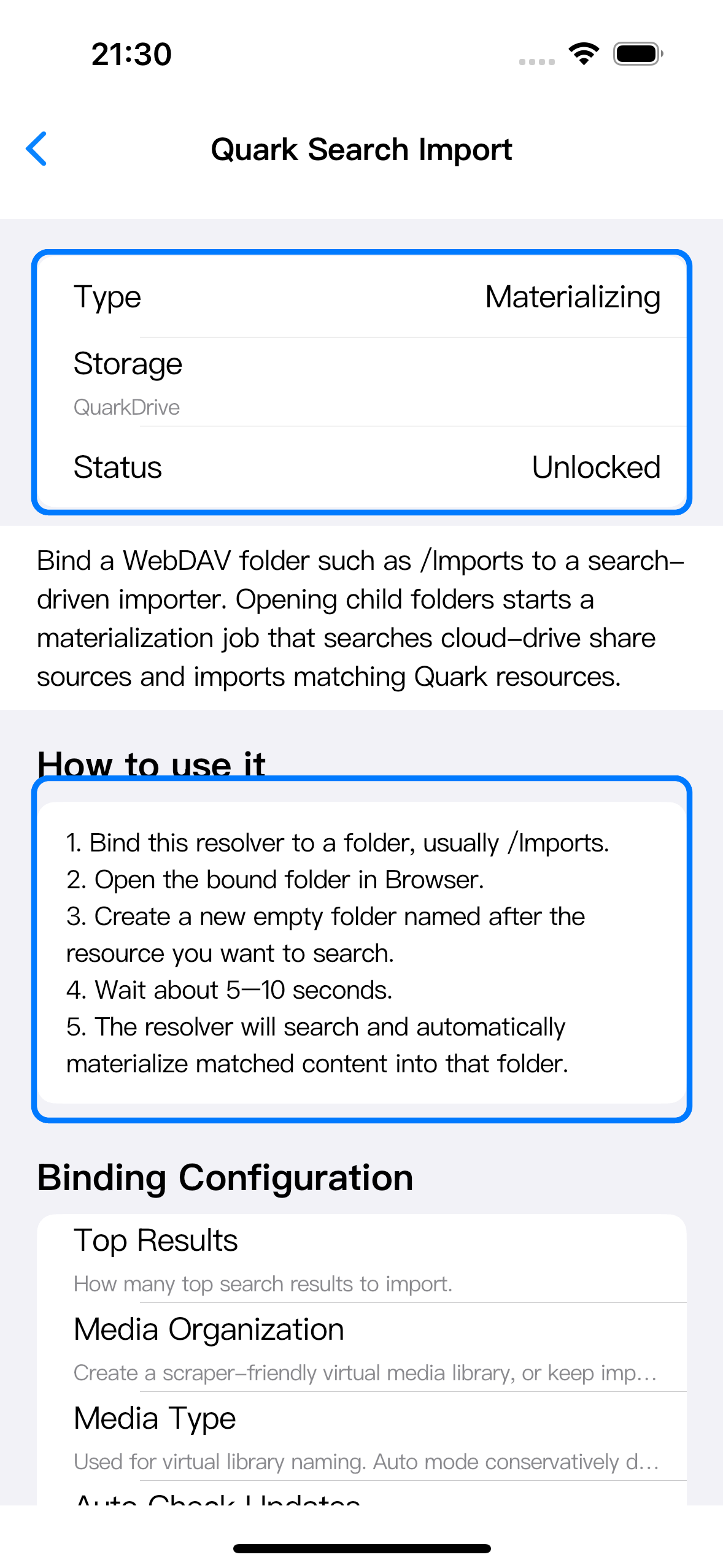
You also need access to Quark Search Import. Open Explore Resolvers, choose Quark Search Import, and check the status. If the resolver is locked, unlock that resolver or Zwind VIP from the lock prompt before saving the binding. If it shows Unlocked, continue.
Bind Quark Search Import to a folder
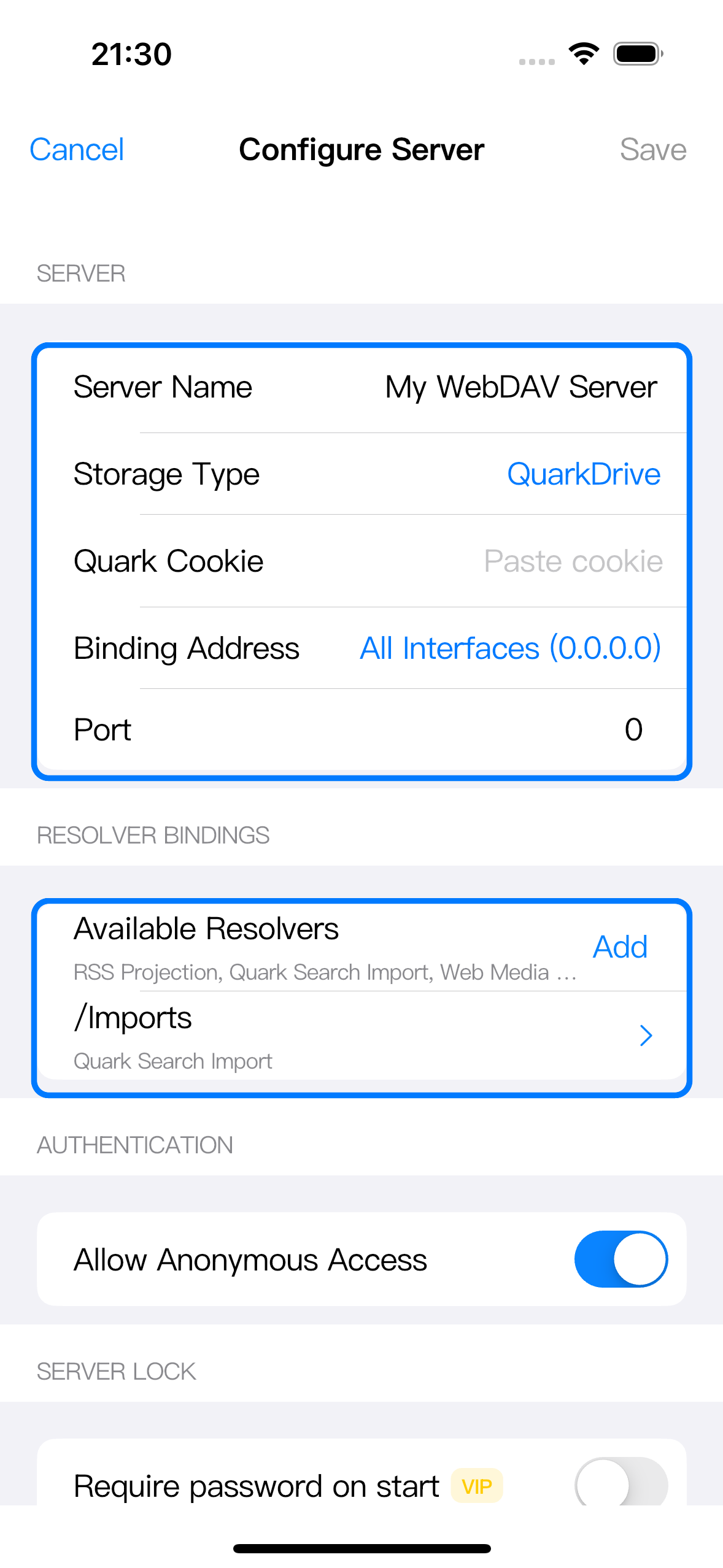
Open the QuarkDrive server settings. In Resolver Bindings, tap Add, choose Quark Search Import, keep it enabled, and set the binding path. A common path is /Imports.
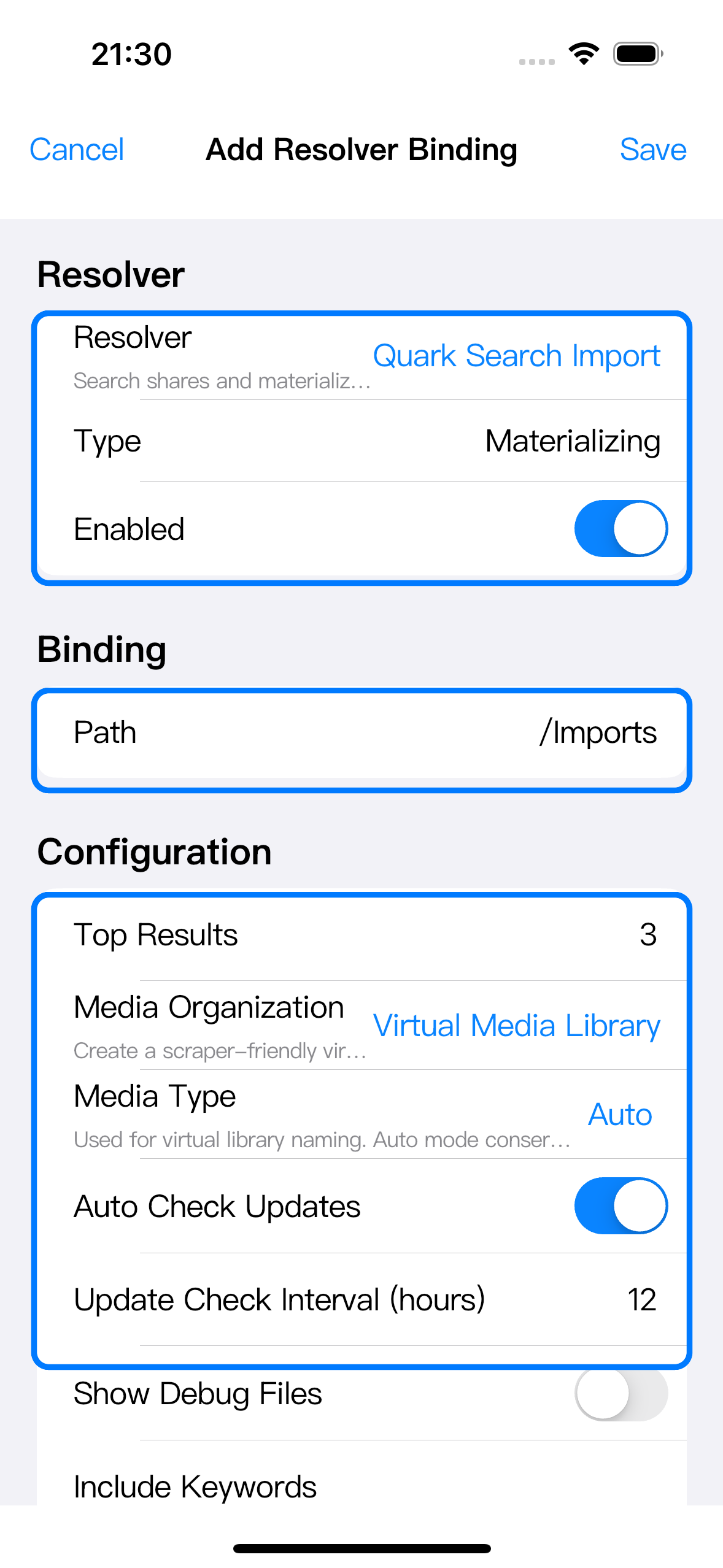
The binding path must be a path this server can expose. If your usable WebDAV path is under a mounted folder such as /Files, bind a folder under it, for example /Files/Imports. If /Imports is available directly in the QuarkDrive server, use /Imports.
Review the visible options before saving:
| Option | What it changes |
|---|---|
| Top Results | How many of the highest-ranked search results Zwind imports for one search folder. |
| Media Organization | Whether Zwind exposes a scraper-friendly virtual media library view or keeps imported resources unchanged. |
| Media Type | Helps the virtual library naming logic choose movie, TV series, anime, variety, or auto detection. |
| Auto Check Updates | Checks already imported shares when this WebDAV server starts, subject to the update interval. |
| Update Check Interval | Minimum time between automatic update checks for the same imported resource. |
Save the binding, then save the server. If the server is stopped, Zwind may say the folder cannot be checked or created yet; save the binding anyway, then create or verify the folder before using it. Start or restart the server after changing resolver bindings so the native WebDAV server loads the new configuration.
Create a search folder
Open Browser for the running QuarkDrive server and enter the bound folder. Create a new empty folder under it. The folder name is the search query, so use the exact resource name you want Zwind to search for, such as Dune 2021.
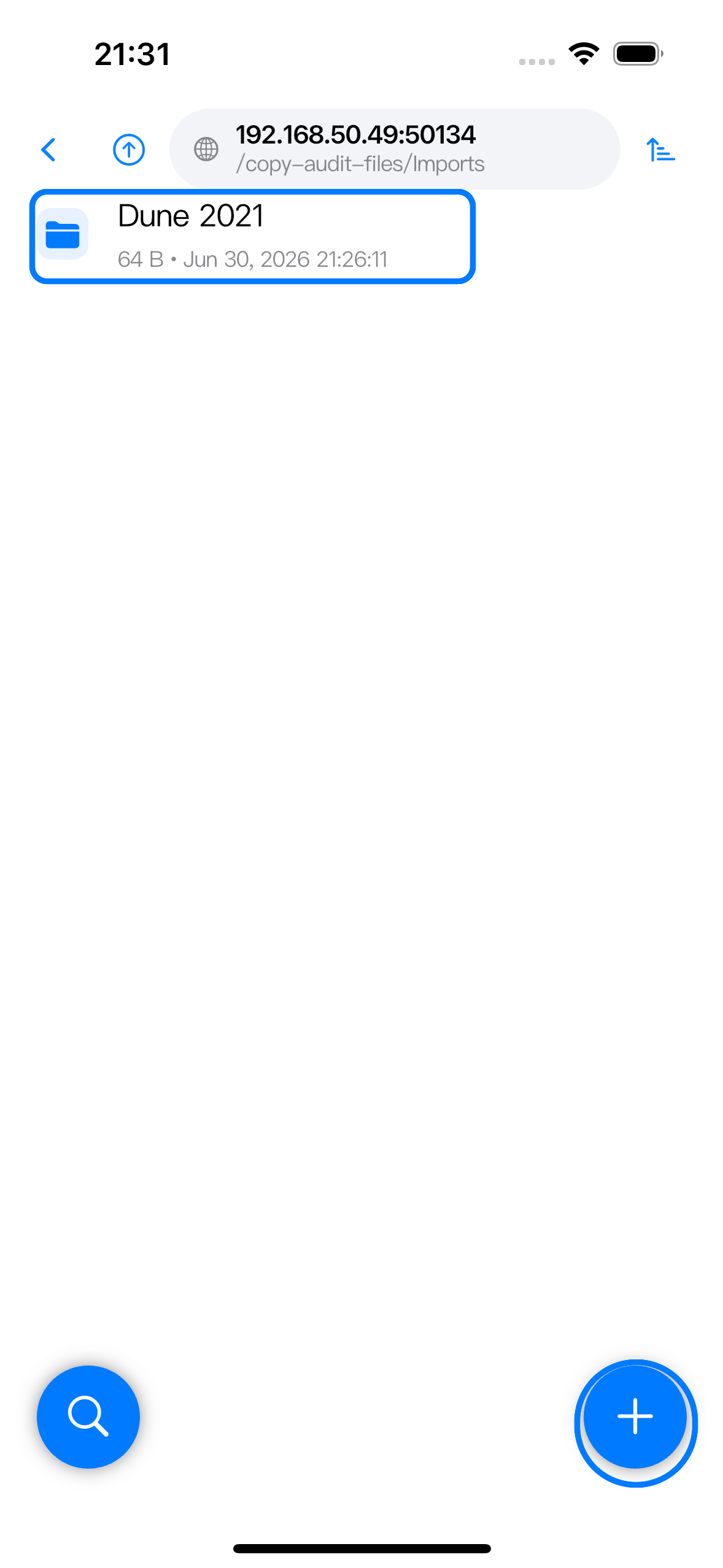
Open the new folder, or refresh and enter it again. That directory access starts the materialization job. Zwind searches share sources, selects matching Quark resources according to the binding settings, and imports them into the folder.
Wait and refresh the result
Search and import work takes time. After opening the search folder, return to Browser and refresh the folder or leave and re-enter it. When the import succeeds, the folder will contain the imported resource layout. Depending on the media organization setting, you may see original imported folders, a virtual media library view, or debug files if Show Debug Files is enabled.
If the folder stays empty or the import fails, check these points:
| Check | What to do |
|---|---|
| Search term | Rename or recreate the empty folder with a more specific title. |
| Quark Cookie | Confirm the QuarkDrive server can start and browse normal QuarkDrive content. |
| Network | Confirm the device can reach Quark and the configured search service. |
| Resolver access | Reopen the resolver detail or binding editor and confirm Quark Search Import is unlocked. |
The result layout depends on your Quark account, the search source, and the selected media organization mode, so the screenshots here stop at the trigger folder instead of showing a specific imported library.
Check imported resources for updates
Inside a Quark Search Import binding, Browser can show Update Imports in the bottom-right action menu. This action checks resources that have already been imported and tracked by this resolver. It is for follow-up updates from existing source shares.
Update Imports does not search every new keyword again. To search a new title, create another empty folder under the bound folder and open it. To retry a failed or poor match, change the folder name or create a new search folder.
If you run Update Imports from inside one imported search folder, Zwind scopes the check to that intent folder when possible. Running it from the binding folder checks the binding scope.
Understand migration prompts
If Browser shows Import Records Found, Zwind has found materialization records that appear to belong to this Quark folder but were created by another server or another resolver binding. This can happen after restoring configuration, changing a binding path, or recreating a server.
Choose Migrate This Folder to attach the current folder to those existing records, so future update checks can track it again. If Migrate Matching Folders in This Binding appears, it applies the same recovery to compatible folders under the current binding.
Migration restores update tracking metadata. It does not re-import files, search new keywords, or duplicate existing resources.