



Configure resolver bindings
Learn how resolver bindings map RSS, Web Media, Emby, and other resolvers to WebDAV paths, how Enabled and unlock status work, and when Zwind creates folders or restarts the server.
A resolver binding tells one WebDAV server where a resolver appears in that server’s directory tree. The binding does not configure every RSS, Web Media, Quark, or Emby behavior by itself; it chooses the resolver, the WebDAV entry path, whether that entry is enabled, and the resolver-level options shown in the Configuration section.
The screenshots use the English app UI.
Check resolver availability
Open Explore Resolvers, choose the resolver you want, and check Storage and Status. Storage lists the server storage types that can use that resolver. Status shows whether the resolver is already unlocked on this device/account.
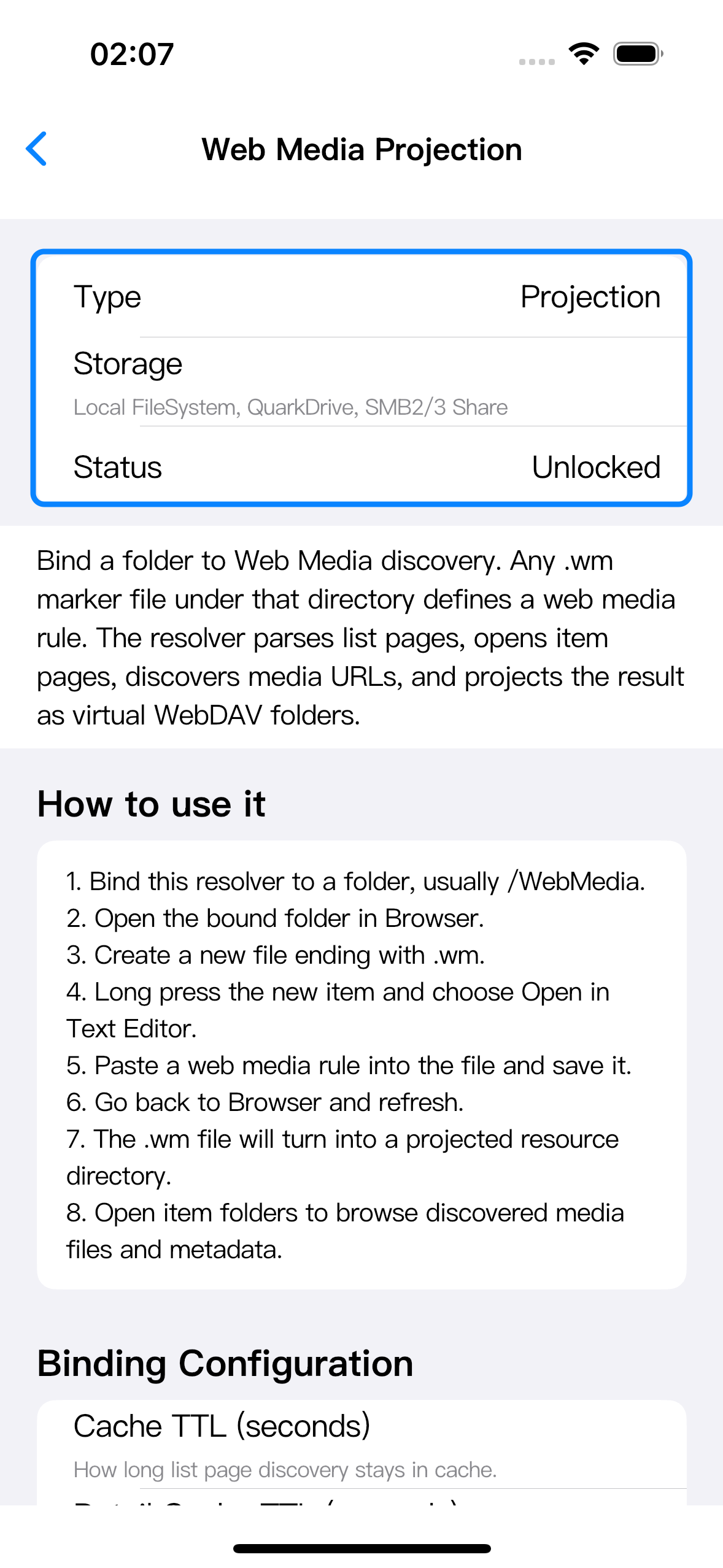
Resolvers that have their own product unlock must be available before their binding can be saved. If a resolver is locked, Zwind shows the resolver unlock sheet when you try to save. Buying that resolver once unlocks that resolver. Zwind VIP unlocks all resolver extensions covered by VIP, and active rewarded VIP access also counts while it is active.
Open Resolver Bindings
Open the server, tap Edit, then find Resolver Bindings on Configure Server. The first row shows the resolvers available for this server’s storage type and the Add entry. Existing bindings appear below it.
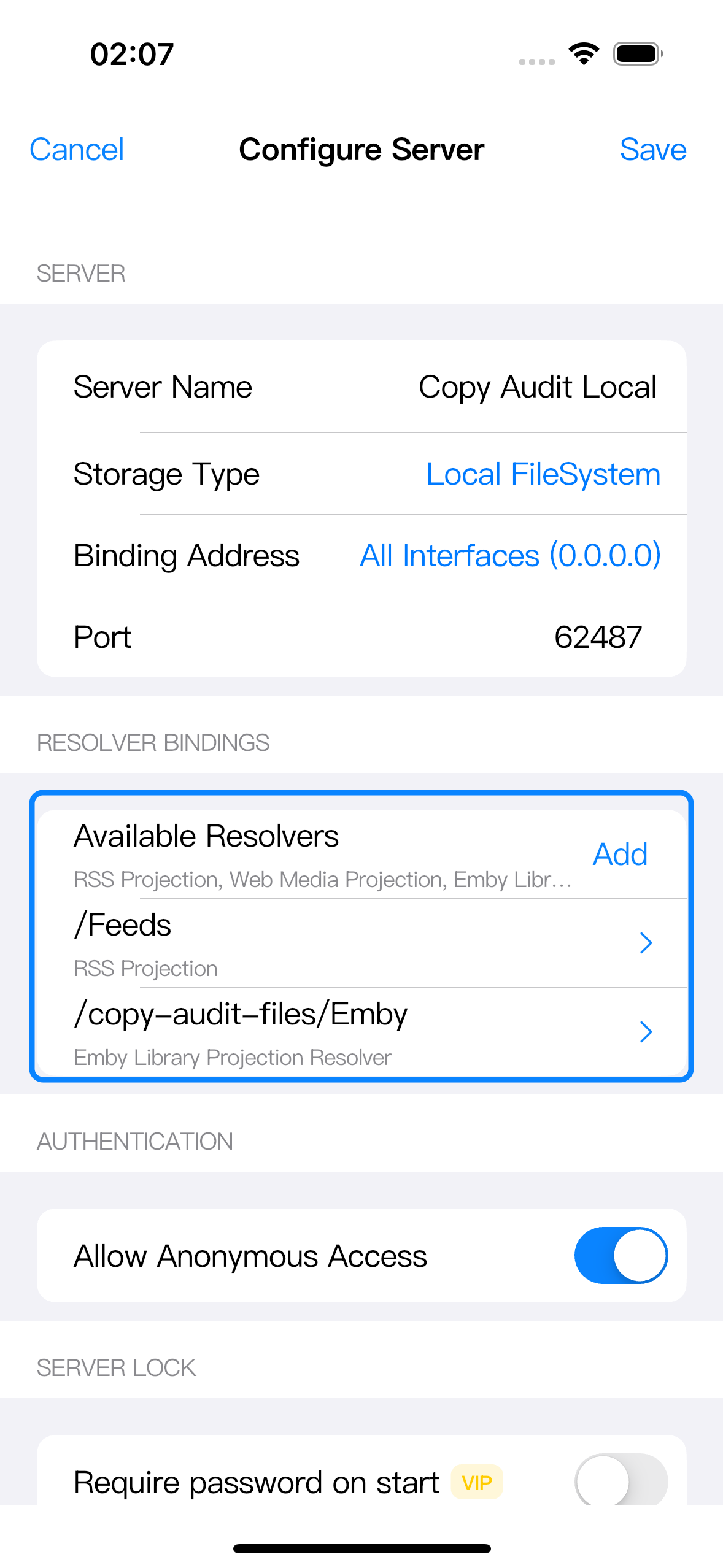
Tap Add to create a binding. Tap an existing binding row, then choose Edit Binding or Remove Binding. A disabled binding can stay saved in the server configuration, but it is not exposed in WebDAV while disabled.
Set Resolver, Enabled, and Path
In Add Resolver Binding or Edit Resolver Binding, choose the resolver, keep Enabled on when the folder should appear in WebDAV, and set Path to the WebDAV entry point for that resolver.
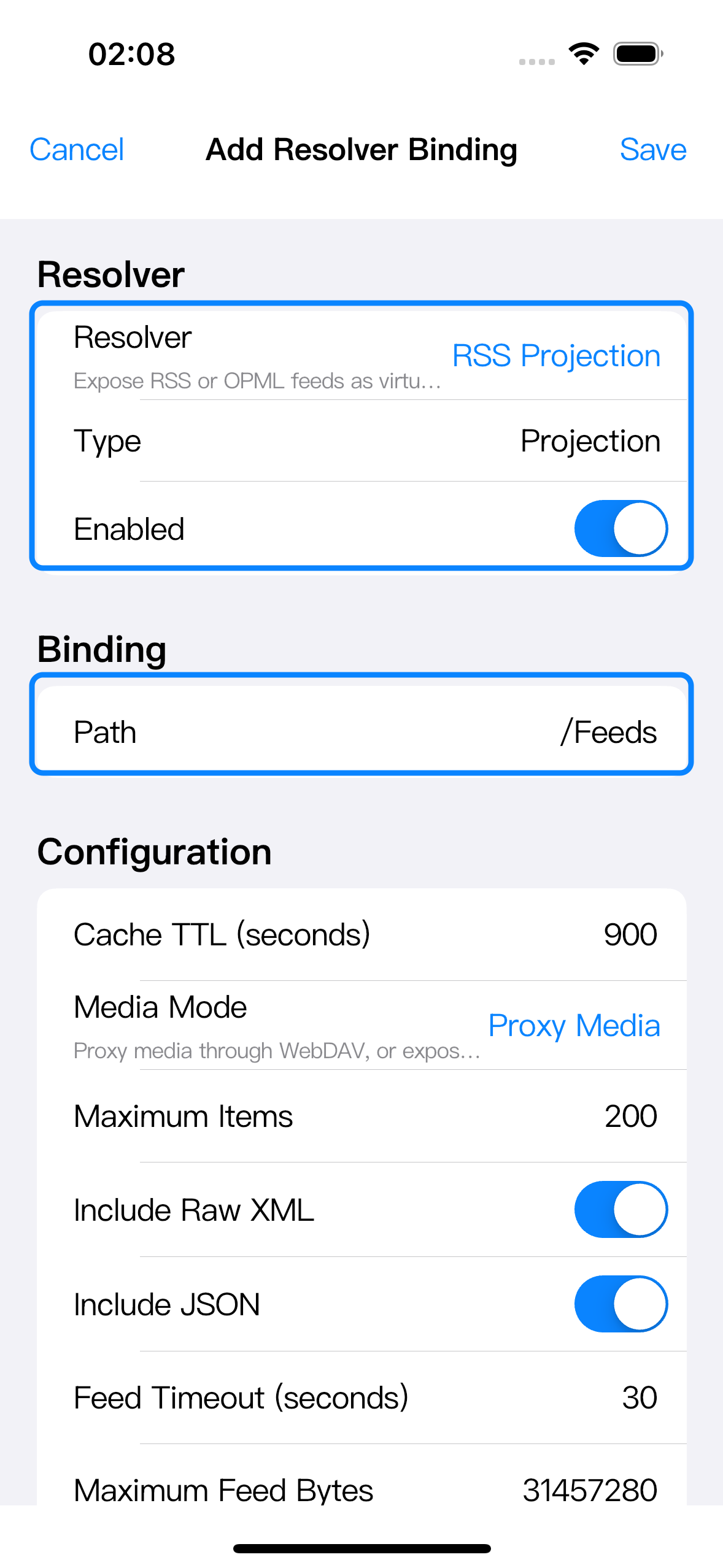
Path is the folder path clients will open. If you bind RSS Projection to /Feeds, WebDAV clients browse the RSS resolver at /Feeds. If you bind Emby to /Media/Emby, clients open /Media/Emby.
Path rules:
| Rule | What it means |
|---|---|
| Use an absolute non-root path | The editor accepts paths like /Feeds, /Files/WebMedia, or /Media/Emby. It rejects / and paths that do not start with /. |
| Keep local paths inside Data Folders | For a Local FileSystem server, the first path segment must match a Data Folder mount name. If the server exposes a data folder as /copy-audit-files, use /copy-audit-files/Feeds, not /Feeds, unless you also have a Data Folder mounted as /Feeds. |
| SMB and Quark paths are inside their storage root | SMB bindings are under the configured share/base path. QuarkDrive bindings are under the Quark storage exposed by that server. |
| Do not enable two bindings at the same path | Zwind blocks saving when another enabled binding already uses the same normalized path. |
Fill the Configuration section
The Configuration section belongs to the selected resolver. It changes when you pick a different resolver.
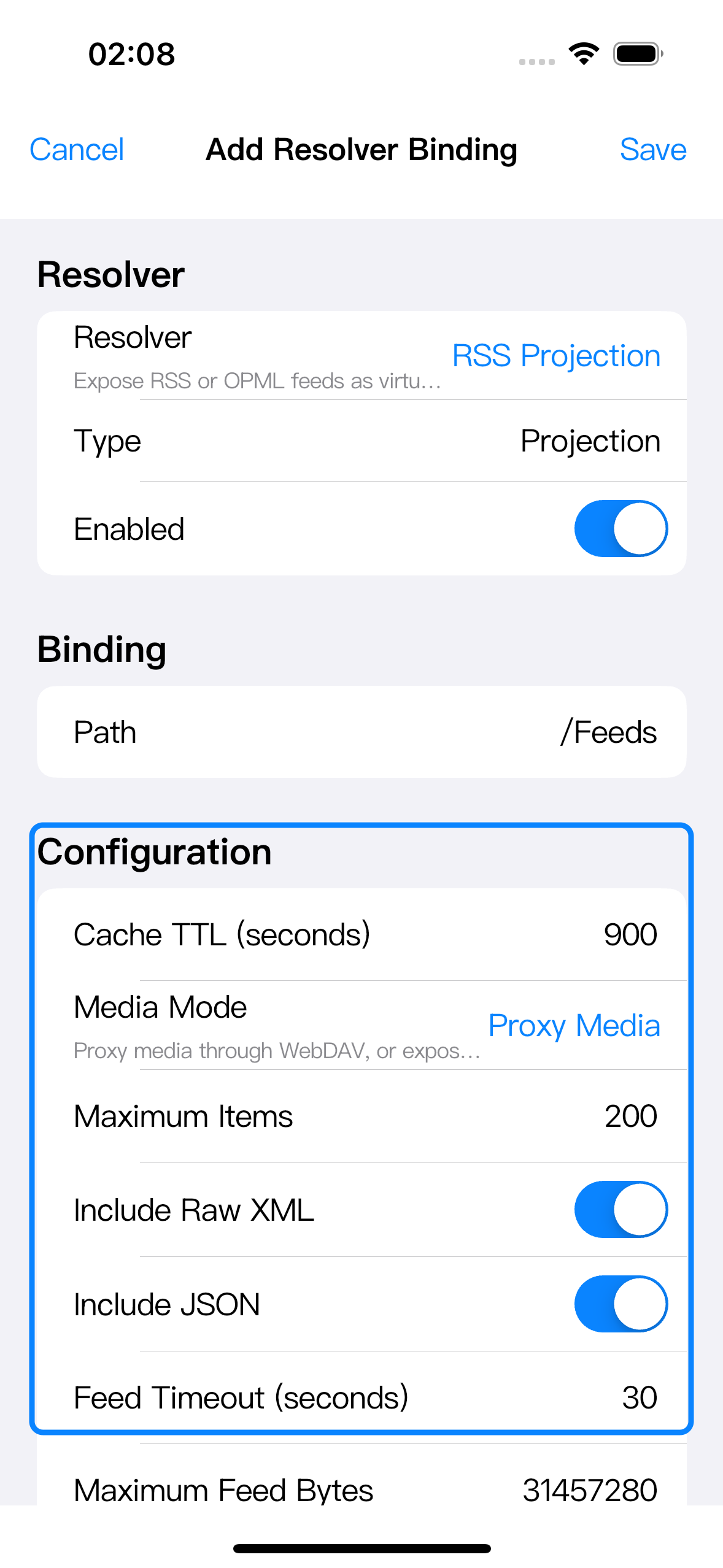
Use this section for resolver-level settings only, such as cache TTLs, media mode, Emby endpoints, Quark import options, or Web Media request behavior. Marker-file content, Emby library browsing, Quark import folders, and .wm rule fields are covered by their own guides.
Required fields are checked when you tap Save. URL fields must be valid http or https URLs where the editor expects URLs. Secret fields, such as passwords or tokens, are stored as binding configuration and are not shown in plain text in the editor.
How folder creation works
When you save a binding from a running server and the path is allowed but the folder does not exist, Zwind asks whether to create that folder.
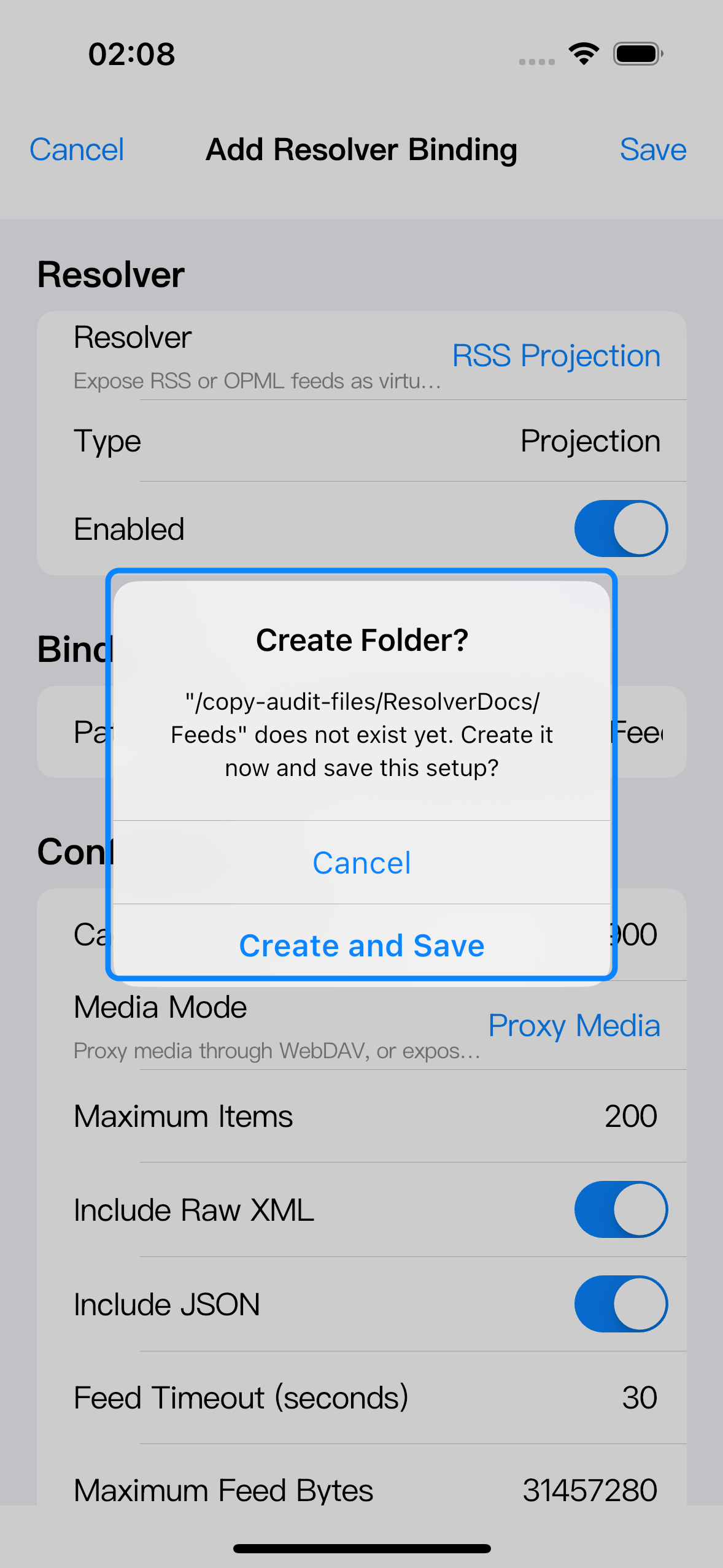
Choose Create and Save to create the missing WebDAV folder and save the binding. Choose Cancel to leave the editor without creating the folder.
Other path outcomes:
| Situation | Result |
|---|---|
| The path already exists as a folder | Zwind saves the binding without asking to create it. |
| The path exists as a file | Zwind blocks the save because a resolver binding path must be a folder. |
| A Local FileSystem path starts outside the server’s Data Folders | Zwind blocks or warns because the path needs a matching Data Folder mount first. |
| The server is stopped and Zwind cannot check the folder | Zwind can save the binding, but you must create the folder before using it. |
For a Local FileSystem server, this means the binding path must line up with the Data Folder mount shown in Browser. A path such as /Documents/Feeds is valid when /Documents is an exposed Data Folder. A root-level path such as /Feeds is valid only when a Data Folder is mounted as /Feeds.
Save and apply the binding
Tap Save in the binding editor to return to Configure Server, then tap Save on the server configuration page. The native WebDAV server reads resolver bindings when it starts.
If the server is already running and you changed resolver bindings from Configure Server, Zwind saves the server and attempts to restart that server automatically. If you configure a binding from Browser for a running server, Zwind also saves the server and attempts to restart it. If restart fails, the app shows a restart failure message and the running server keeps its previous binding state until it is started again successfully.
If the server was stopped, start it after saving. If you saved a binding whose folder could not be checked or created while stopped, create that folder in the exposed storage before opening the binding path from Browser or another WebDAV client.