



Troubleshoot server start and connection issues
Fix Zwind servers that cannot start or cannot be reached from WebDAV clients.
Use this checklist when a Zwind server will not start, or when a WebDAV client cannot connect after the server appears to be running. Start from the server card, then move through port, binding address, iOS permission, network, lock, and credentials.
The screenshots use the English app UI. On a Chinese UI, Running is 运行中, Address is 地址, Binding Address is 绑定地址, Port is 端口, Authentication is 身份验证, and Server Lock is 服务器锁.
Confirm the server is actually running
On Home, the selected server card must show Running and an Address. Use that address as the client URL.
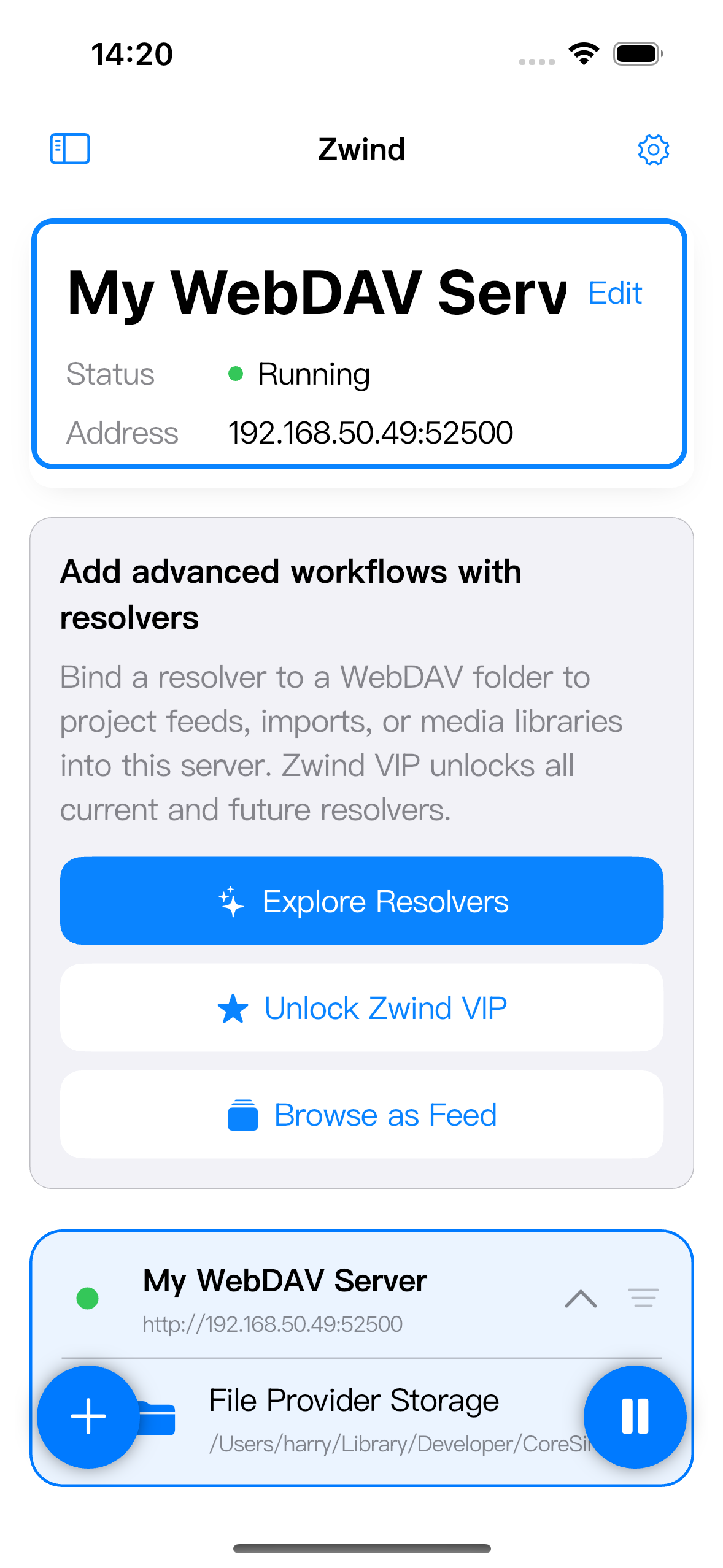
If the server is not Running, do not troubleshoot the third-party client yet. Open Edit and check the start settings first.
If the server is Running but the client still uses an older URL, update the client from the current Address. This matters whenever Port is set to 0, because Zwind may choose a different port after the server restarts.
Fix invalid or occupied ports
Open Edit and check Port in the SERVER section.
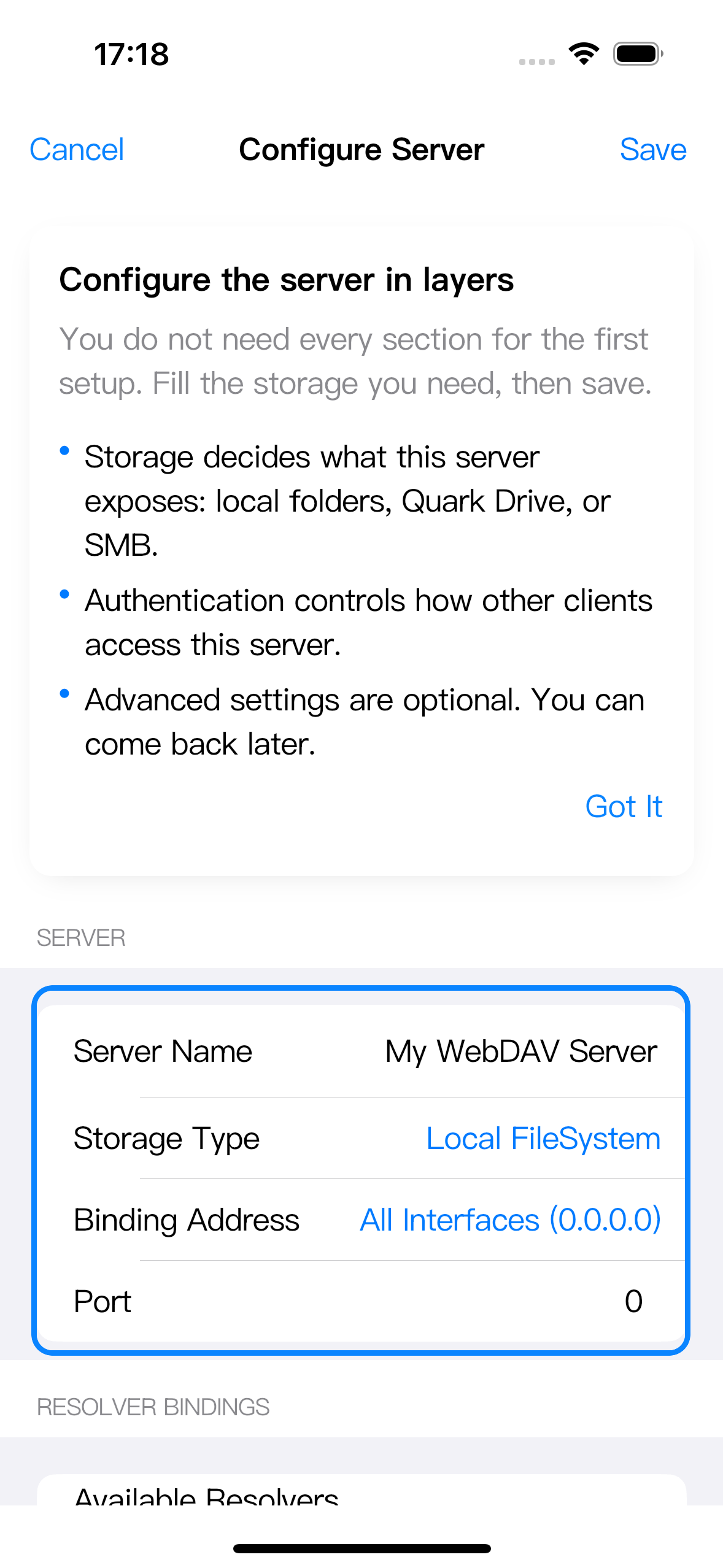
Use these rules:
- Port must be
0or a valid TCP port number from1to65535. - Port set to
0means “choose an available port when starting.” The final port is the one shown on the Running card. - A fixed port such as
8080stays stable, but the server cannot start if another app or another Zwind server is already using that same port on the selected binding address. - If a fixed port fails, either stop the other service using that port, choose a different fixed port, or set Port to
0and then copy the new Running address into the client.
After changing Port, save the server and start it again. Existing client profiles must use the new port.
Choose the right binding address
For a computer, TV, another phone, or a media player on the same Wi-Fi, use All Interfaces (0.0.0.0). This lets Zwind listen on the iPhone or iPad’s Wi-Fi interface.
Use Loopback (127.0.0.1) only when the client runs on the same iPhone or iPad. A different device cannot connect to 127.0.0.1 on your iPhone; on that other device, 127.0.0.1 points back to itself.
Do not type 0.0.0.0 into another device’s WebDAV client. 0.0.0.0 is a listening setting inside Zwind. Clients need the reachable IP shown on the Running card, for example:
http://192.168.50.49:52500If the iPhone or iPad changes Wi-Fi networks, the reachable IP can change. Restart the server and read the current Address again.
Allow iOS Local Network access
iOS can block local network connections until the app is allowed to access devices on the local network. If another device cannot reach a running server, open iOS Settings > Privacy & Security > Local Network, then allow Zwind.
If iOS shows a Local Network permission prompt while you start or use the server, allow it. Denying that permission can make the server look correct inside Zwind while other devices cannot reach it over Wi-Fi.
After changing the permission, stop and start the server again, then retry the client with the current Running address.
Check whether the devices are on the same network
Both devices can have internet access and still be unable to reach each other. Check these cases:
| Situation | What to do |
|---|---|
| iPhone on cellular or hotspot, client on Wi-Fi | Put both devices on the same Wi-Fi, or connect the client to the same hotspot network. |
| One device on guest Wi-Fi | Move both devices to the main Wi-Fi. Guest networks often block peer-to-peer access. |
| VPN enabled on either device | Temporarily disconnect the VPN, or configure it so local LAN traffic is not captured. |
| Router has AP isolation or client isolation | Disable isolation for the Wi-Fi network used by the devices. |
Client uses https:// for a local Zwind URL | Change it back to http:// unless you set up your own HTTPS proxy or tunnel. |
If you can open the Zwind URL from one device but not another, the server is running; focus on the failing device’s network, VPN, URL fields, and credentials.
Separate Server Lock from WebDAV credentials
Authentication controls WebDAV clients. Server Lock controls whether Zwind asks for a password or Face ID before starting the server.
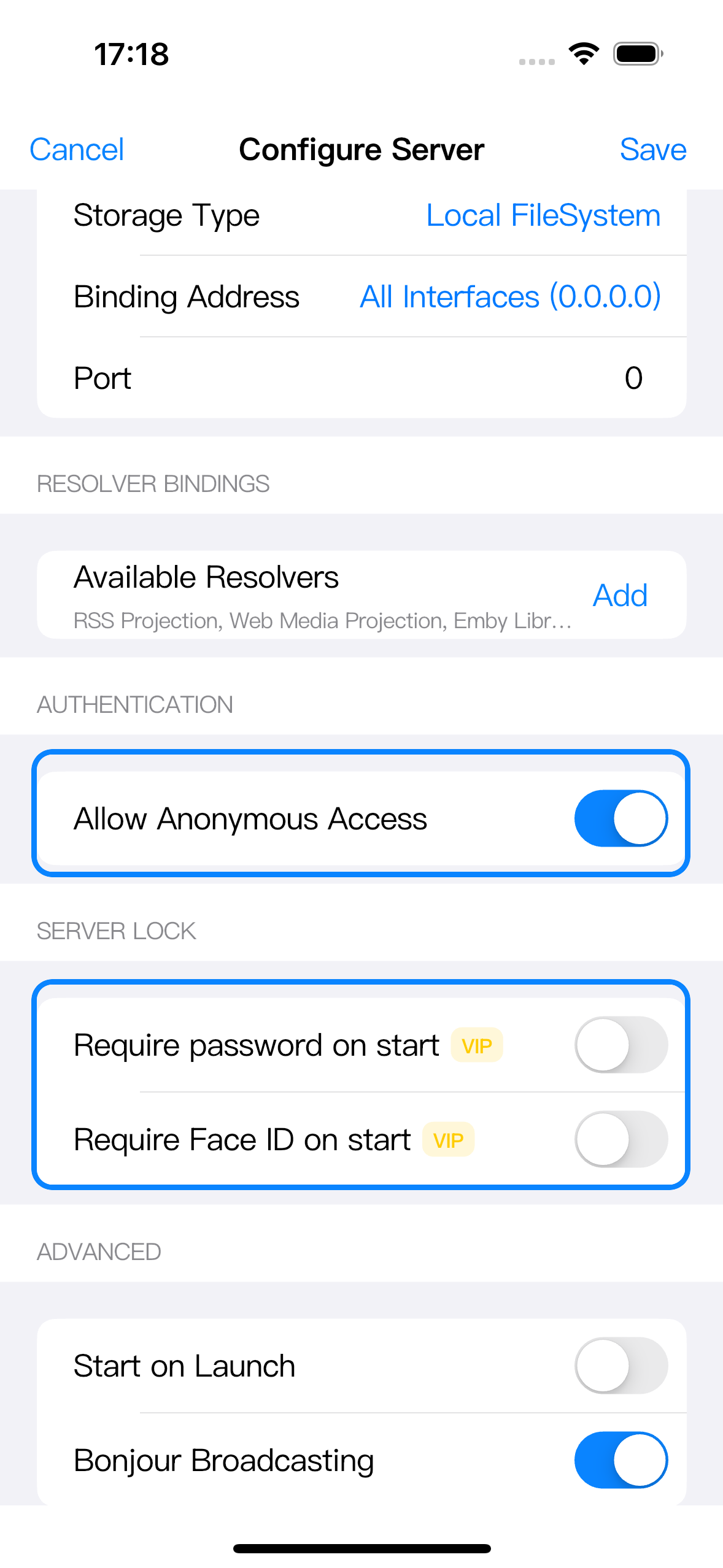
If Zwind asks for a start password or Face ID and the check fails or is cancelled, the server does not start. Enter the Lock Username and Lock Password configured under Server Lock, or turn off the lock if you no longer want that start protection.
Server Lock does not change the username and password used by Finder, Files, VLC, Infuse, a TV app, or another WebDAV client. If a client asks for credentials, check Authentication, not Server Lock.
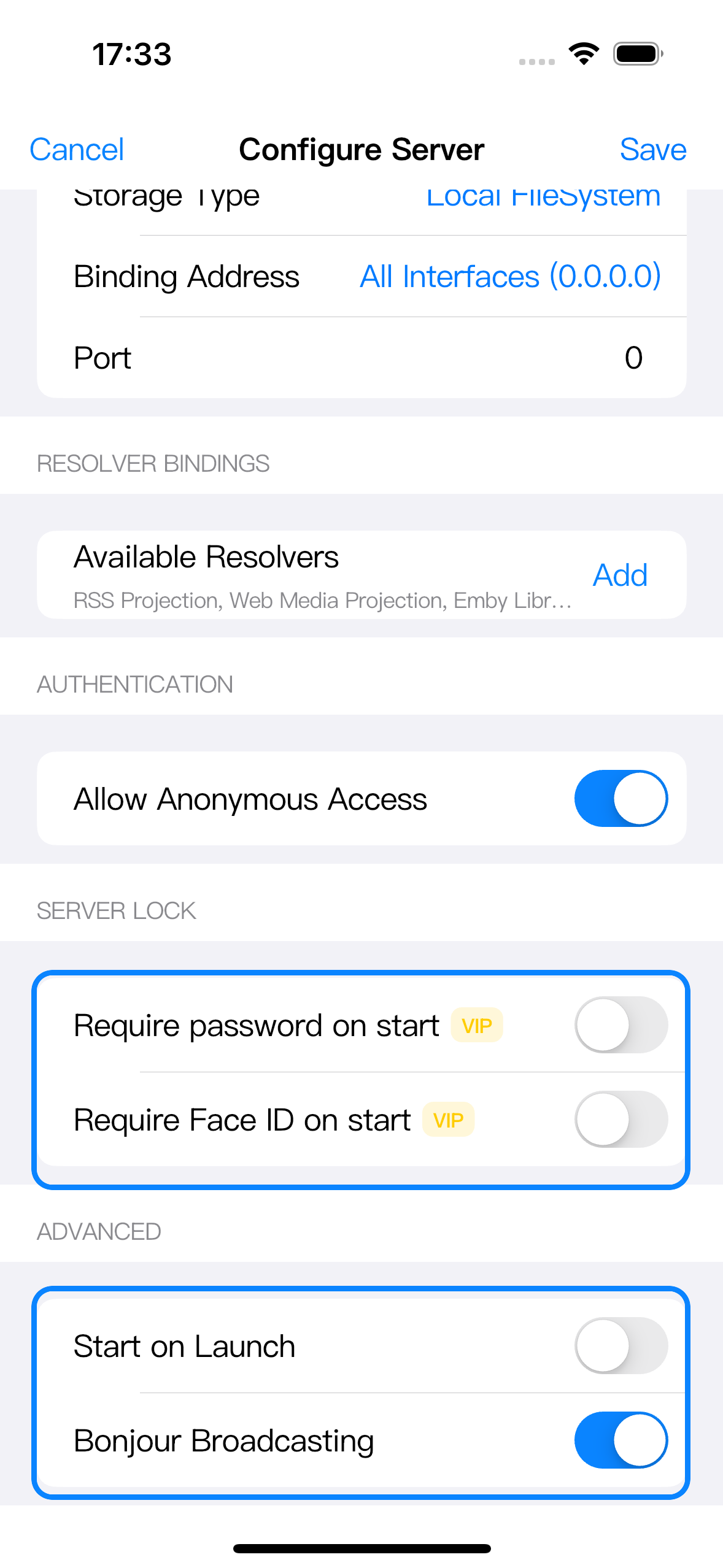
If Start on Launch is enabled but the server does not auto-start, check whether Require password on start or Require Face ID on start is enabled. Automatic start cannot complete an interactive password or Face ID prompt, so locked servers must be started by a person in the app.
Fix client username and password errors
In Authentication, Allow Anonymous Access decides whether clients need WebDAV credentials.
- If Allow Anonymous Access is on, leave username and password empty in the client. If the client has a login mode, choose anonymous, guest, none, or blank credentials.
- If Allow Anonymous Access is off, enter the server’s Username and Password from Authentication exactly as configured.
- Do not use the Server Lock password as the WebDAV password.
- Do not use SMB, Quark, Emby, or other upstream account passwords unless you also typed the same value into this server’s Authentication password field.
If a client keeps asking for a password, re-enter the URL, username, and password manually. A saved client profile can keep an old port or old password after you edit the server in Zwind.
Restart after local connection or configuration changes
Some changes only affect the next start of the server. After editing Binding Address, Port, Authentication, Server Lock, local folders, resolver bindings, or iOS Local Network permission, stop the running server and start it again.
Then copy the new Running address into any client that stores a URL. This is required when Port is 0, and it is still useful after fixed-port changes because it confirms the server is listening on the address you expect.
For the normal client setup fields, see Connect third-party WebDAV clients and players. For each permission setting, see Configure WebDAV access permissions.