



Add and manage local data folders
Add iOS Files folders to a local Zwind server, rename mount entries, remove folder mappings, and understand the read-only WebDAV root.
A Local FileSystem server exposes the folders you add to it. Each added folder becomes one entry at the WebDAV root, and files must be created or uploaded inside one of those entries.
Add a folder
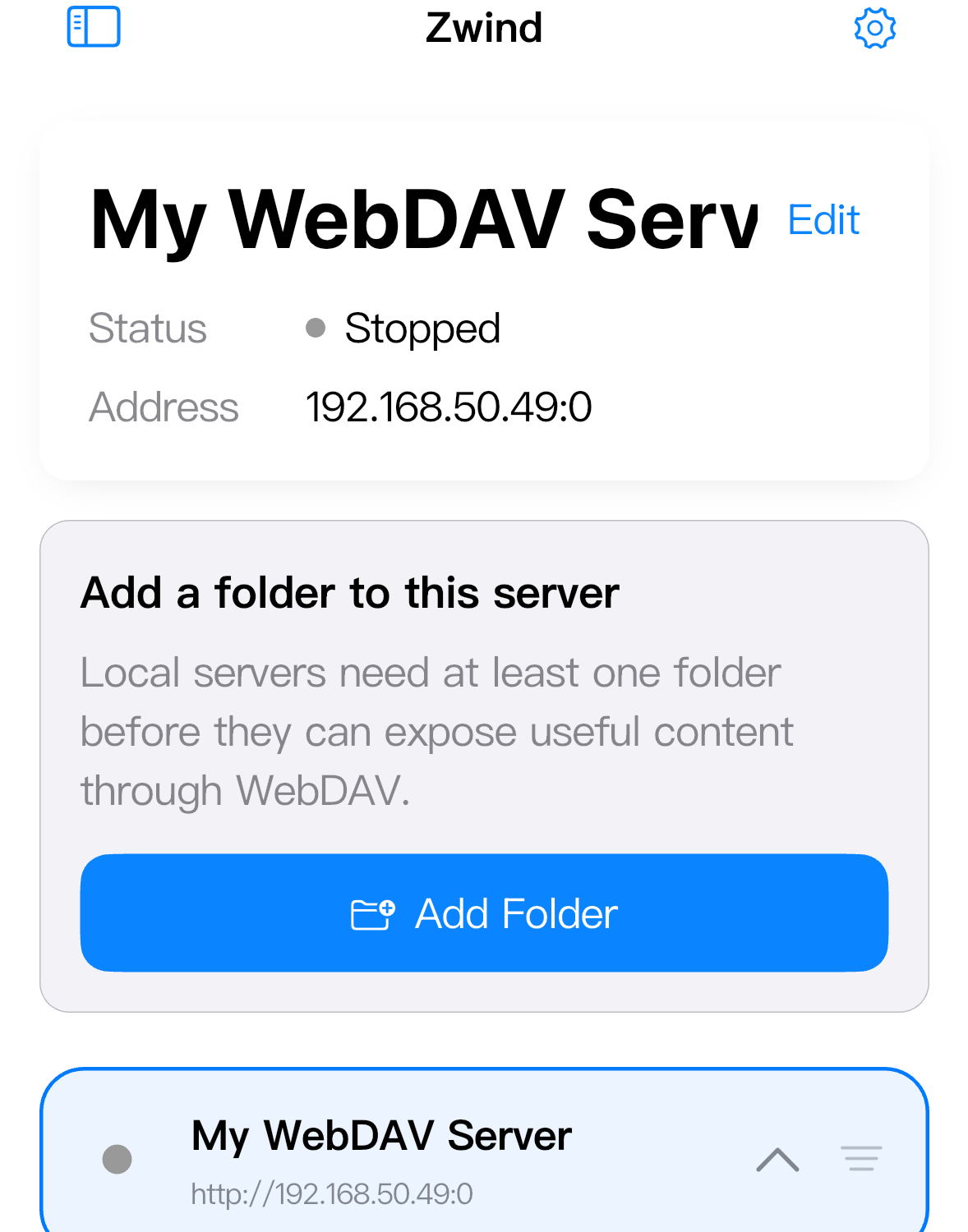
Create or select a Local FileSystem server. If it has no data folders, the selected server card shows Add Folder. Tap it to open the iOS Files picker.
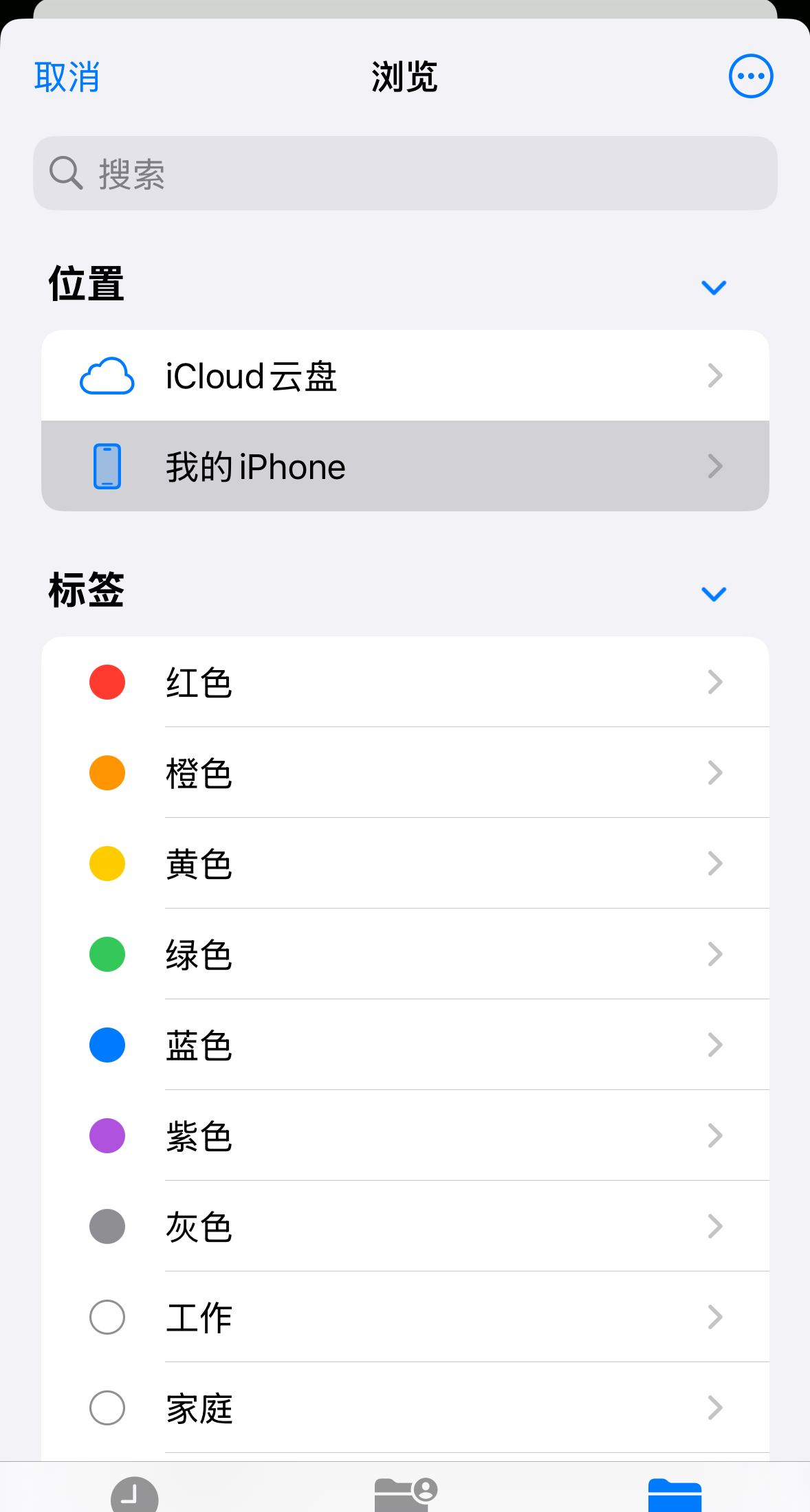
In the picker, choose a folder from On My iPhone, iCloud Drive, or another Files provider that allows folder selection. The iOS picker follows the device language; in the screenshot, Browse appears as 浏览, On My iPhone as 我的 iPhone, and the confirmation button may appear as Open or 打开.
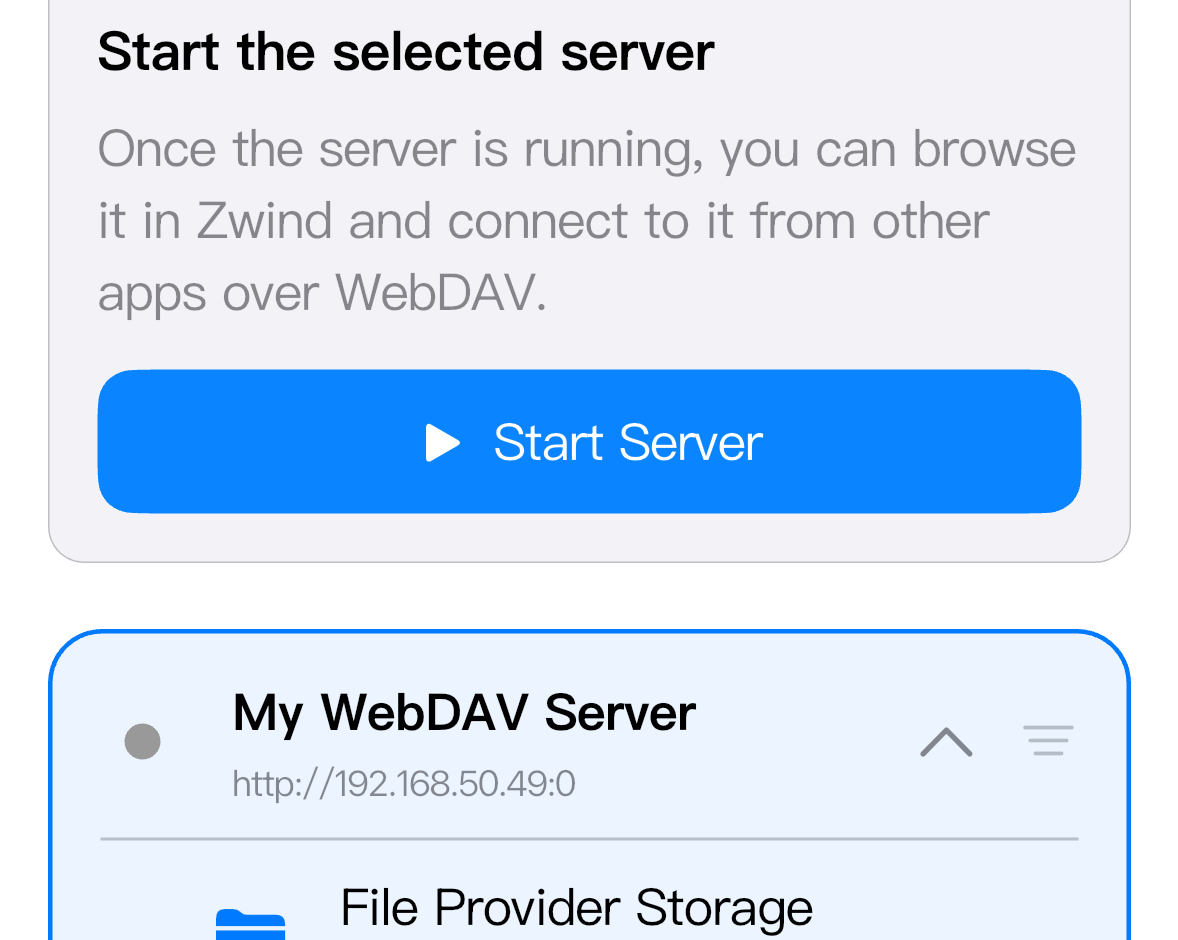
After you confirm the picker, Zwind returns to Home and adds the folder under the server row.
Understand the mount name
The folder row on Home shows the folder display name. The WebDAV root shows the mount name, which is the entry clients open under /.
For example, a folder named File Provider Storage can appear at the WebDAV root as:
/File_Provider_Storage/That mount name is not the original folder path on the iPhone or in iCloud Drive. It is only Zwind’s WebDAV entry name. Renaming the mount in Zwind changes the WebDAV entry name; it does not rename or move the original folder in Files.
Rename or remove a data folder
On Home, expand the local server row, then swipe left on a data folder.
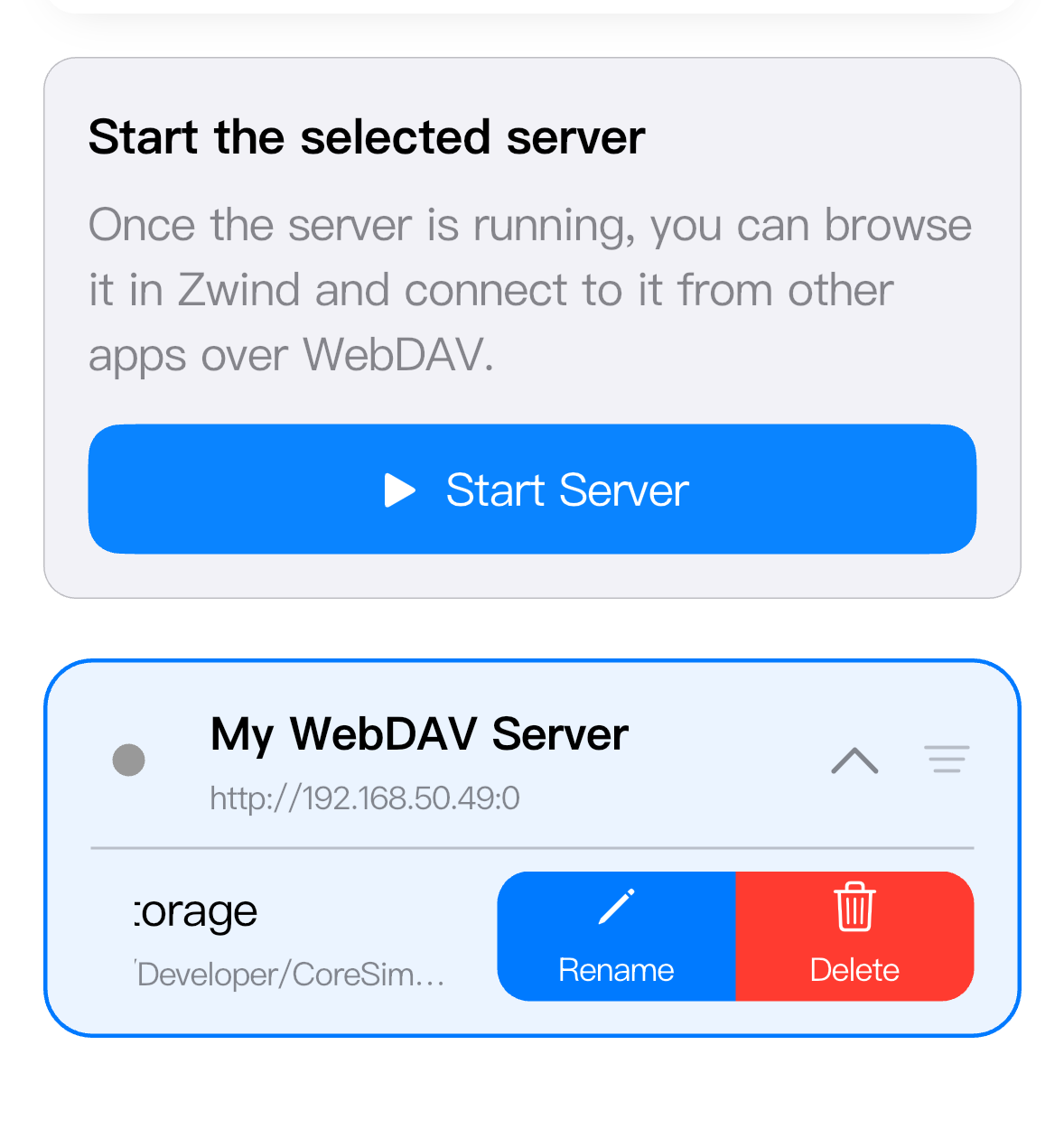
Use Rename to change the folder’s WebDAV mount name. If the name contains spaces or characters that are awkward in a URL, Zwind converts the mount entry to a WebDAV-safe form.
Use Delete to remove the folder from this server. The confirmation asks whether to remove the folder from the server because this action only removes the server mapping. It does not delete files from the original folder.
Use the WebDAV root as a folder list
Start the server and open Browser at /. The root lists the data folder mount entries.

The root itself is not a normal writable folder. It is used to list mounts such as /File_Provider_Storage/. If a WebDAV client tries to create or upload directly under /, the operation should fail or be unavailable. Open a mounted data folder first, then write inside that folder.