



View images, text, and Markdown files
Open Image Viewer, Text Editor, and Markdown Preview from Browser or the Home sidebar, choose supported file types, and understand when text saves can be written back.
Zwind includes three lightweight tools for file content that does not need a media player: Image Viewer for pictures, Text Editor for editable text files, and Markdown Preview for rendered Markdown reading.
The screenshot uses the English app UI. It shows where the Browser long-press menu appears; different file types show different tool choices.
Open from Browser
In Browser, tap a supported file to use Zwind’s default opener:
| File type | Default opener |
|---|---|
.png, .jpg, .jpeg, .gif, .bmp, .webp, .heic, or .tiff | Opens Image Viewer. Nearby images from the same listing can be available for previous and next navigation. |
.txt, .json, .rss, .wm, .log, .csv, .yaml, .yml, .xml, .opml, .ini, or .cfg | Opens Text Editor. |
.md or .markdown | Opens Markdown Preview. |
Long-press the file when you want to choose the path yourself.
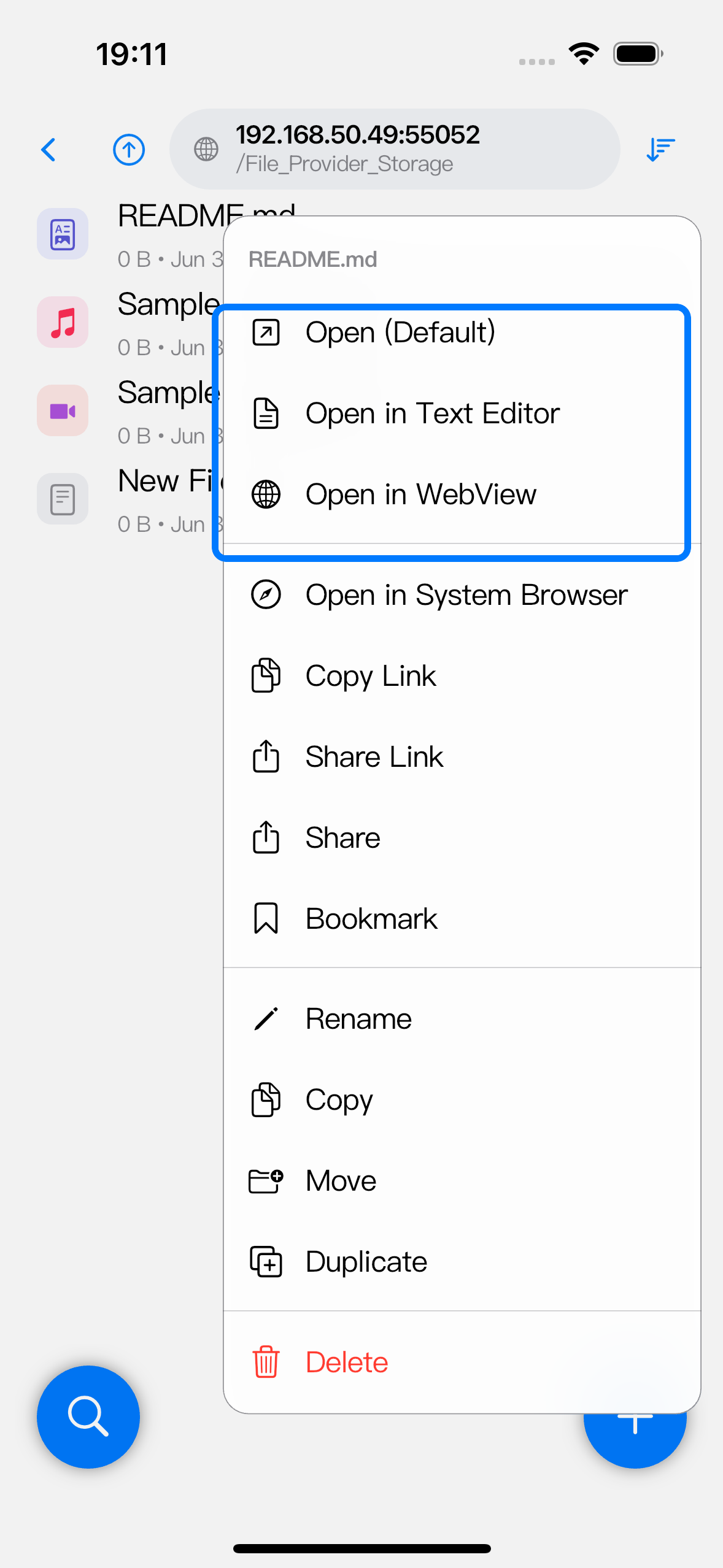
For images, choose Open (Default) to open Image Viewer. Choose Open in WebView when you want WebView’s raw rendering path instead, such as for SVG or for a server response that behaves like a web resource.
For text files, choose Open in Text Editor when the menu is open. Text-like projection marker files such as .rss and .wm should use Text Editor when you need to change the resolver URL or Web Media rule.
For Markdown files, choose Open (Default) to read the rendered document in Markdown Preview. Choose Open in Text Editor when you want to edit the Markdown source, or Open in WebView when you want to inspect the WebDAV response in a web view.
Open from the Home sidebar
The Home sidebar has separate entries for Image Viewer, Text Editor, and Markdown Preview. Open the sidebar, select the tool, then use Choose Folder from the empty state or the folder button in the top bar.
This opens Zwind’s internal folder picker. Select a running server first, then choose a file or folder:
| Tool | Picker result |
|---|---|
| Image Viewer | Pick an image file or a folder that contains supported image files. Image Viewer loads the matching images and lets you move between them. |
| Text Editor | Pick a text file or a folder that contains text-like files. Text Editor opens the first selected document and can move through the loaded text queue. |
| Markdown Preview | Pick a Markdown file or a folder that contains .md or .markdown files. Markdown Preview renders the selected Markdown and can move through the loaded Markdown queue. |
The internal picker uses the same WebDAV sources as Browser. If a server is not running, the picker can start it before listing its folders.
Use each tool
Image Viewer shows one image at a time on a dark background. Use the previous and next buttons when multiple images were loaded. Tap the image area to hide or show the chrome, pinch to zoom, and swipe down to close.
Text Editor downloads the file as text, shows a large editing field, and enables Save after a document is open. If you opened several text files from a folder or selection, use the bottom previous and next controls to switch files.
Markdown Preview renders headings, lists, code blocks, links, and Markdown images. The preview text is selectable. Tap a Markdown link to open it, or tap a rendered Markdown image to view that image through Image Viewer. Use Text Editor instead when you need to change the Markdown source.
Save limits
Text Editor saves by writing the edited text back to the file URL. This works when the file comes from a WebDAV source that accepts writes, such as a writable local server folder or another writable WebDAV backend.
Text Editor cannot save when the source is read-only, when the item is only a projection result rather than a writable backing file, or when the upstream WebDAV server rejects the write request. In those cases the save action returns the server error instead of changing the file.
Image Viewer and Markdown Preview are viewing tools. They do not save image changes or Markdown source edits. To edit a Markdown file, open the .md or .markdown file in Text Editor and save from there.