



Use built-in tools from the Home sidebar
Open Feed View, Web Browser, Video Player, Music Player, Image Viewer, Text Editor, Markdown Preview, and Bookmarks from the Home sidebar.
The Home sidebar is the quickest way to open Zwind’s standalone tools before you have selected a file in Browser. Use it when you already know the kind of task you want to do: read feeds, open a web page, start a player, choose a folder for a viewer, edit text, preview Markdown, or open a saved WebDAV location.
The screenshots use the English app UI.
Open the sidebar
On Home, tap the sidebar button in the top-left corner. The Builtin Apps panel slides in with the standalone tool entries.
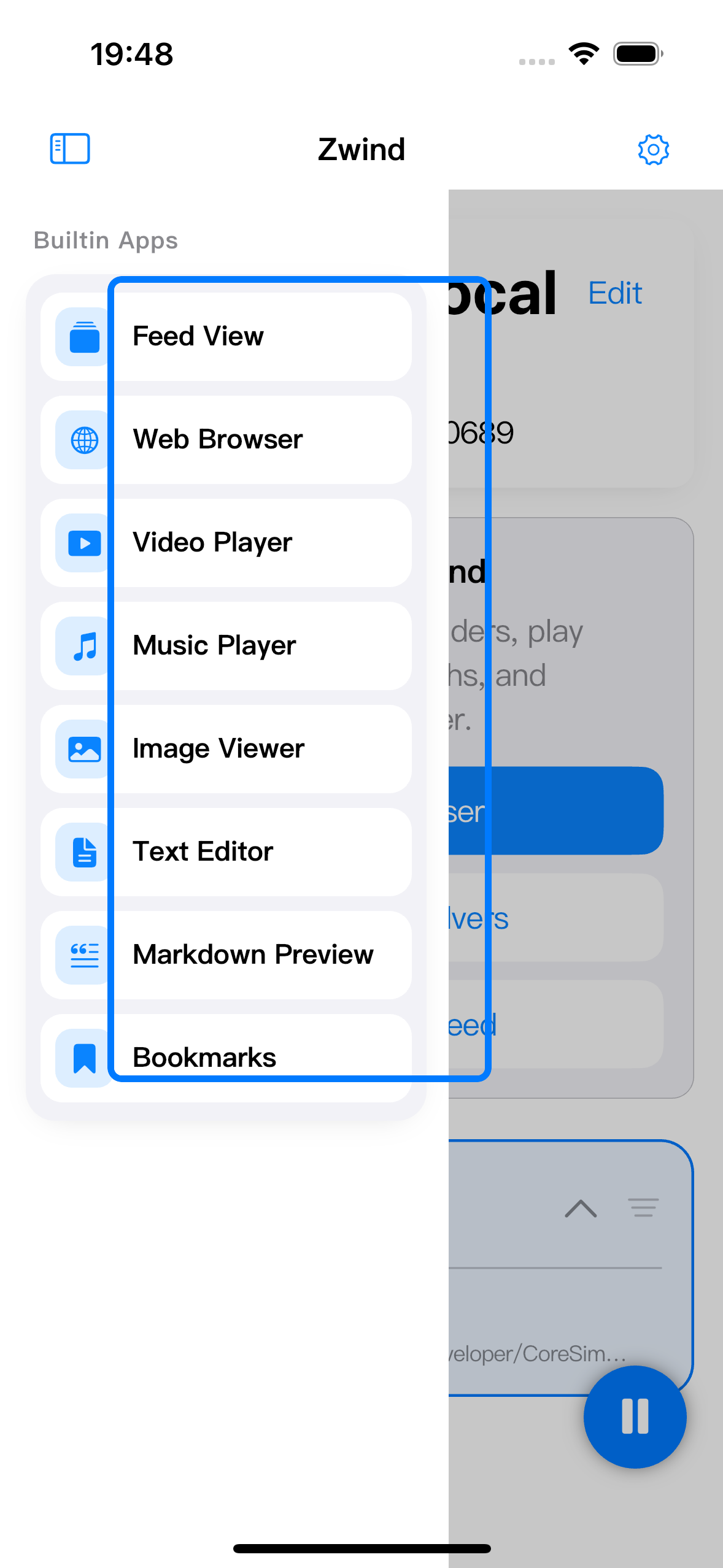
Tap a row to open that tool. Swipe the panel left or tap outside it when you only wanted to check the list.
What each entry is for
| Sidebar entry | Use it for |
|---|---|
| Feed View | Read feed items collected from RSS, OPML, supported web sources, or resolver-backed server folders. Open it when you want a reading timeline instead of a directory listing. |
| Web Browser | Open a web page or search from Zwind’s built-in web runtime. Use it for normal web URLs, not for browsing a WebDAV directory tree. |
| Video Player | Start the video player without first selecting a file. From the empty player, choose a folder when you want to load videos as a queue. |
| Music Player | Start or restore the music player. Use it when you want to choose an audio folder, continue the current session, or build an audio queue from a folder. |
| Image Viewer | Choose an image file or image folder first, then move through the loaded images. |
| Text Editor | Choose a text-like file or folder first, then edit or move through the loaded text files. |
| Markdown Preview | Choose a Markdown file or folder first, then read rendered Markdown. Use Text Editor instead when you need to edit the Markdown source. |
| Bookmarks | Open saved WebDAV URLs and locations without navigating from a server card or Browser folder again. |
Choose files or folders from a standalone tool
Media and content tools that open from the sidebar start empty because no WebDAV item has been selected yet. Use the tool’s Choose Folder button or folder button in the top bar to open Zwind’s internal picker.
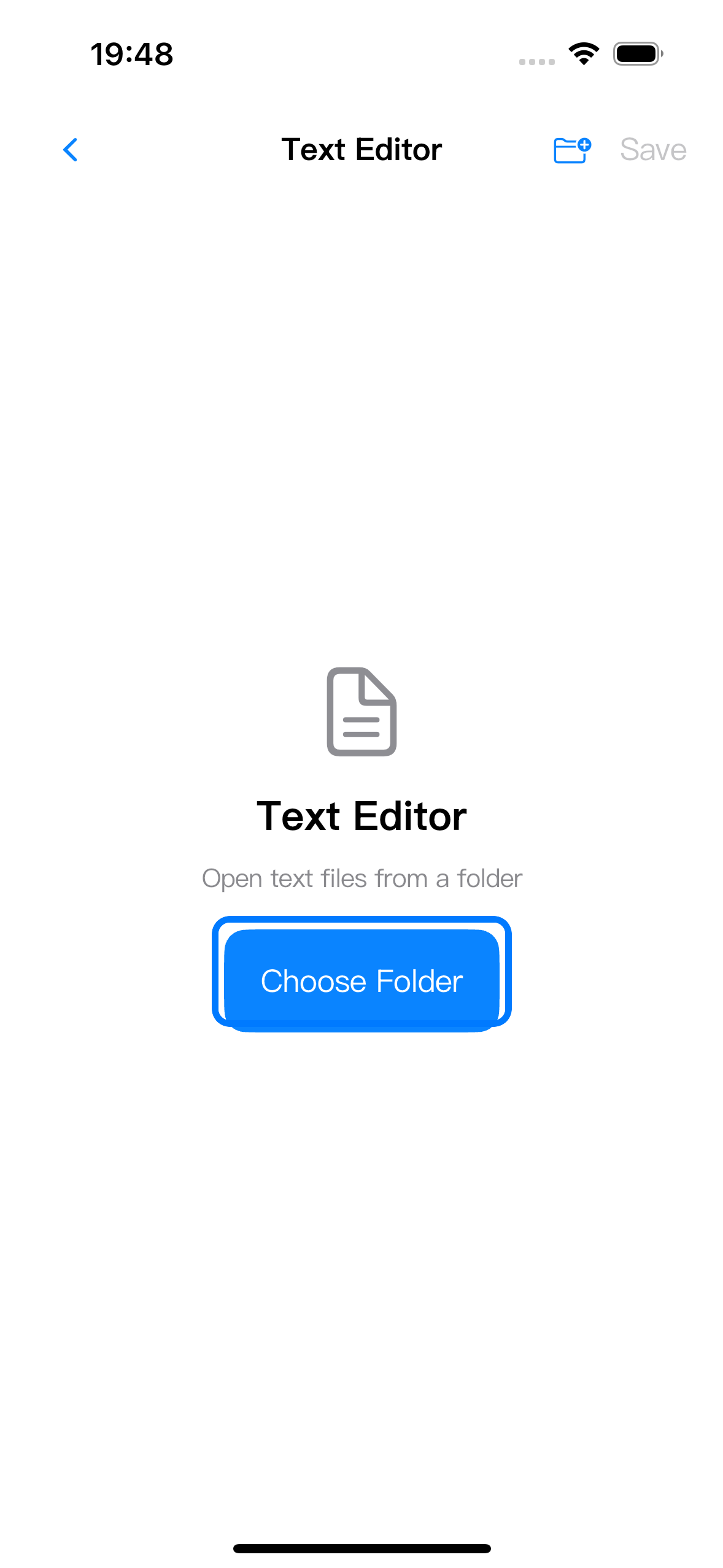
In the picker, select a server first. If the server is not running, Zwind can start it before listing folders. Then choose the file or folder that matches the tool:
| Tool | What to choose |
|---|---|
| Video Player | A folder containing playable videos, or a video file when the picker allows file selection. |
| Music Player | A folder containing audio files, or an audio file. |
| Image Viewer | An image file or a folder containing supported images. |
| Text Editor | A text-like file, or a folder containing text files. |
| Markdown Preview | A .md or .markdown file, or a folder containing Markdown files. |
The standalone tool keeps you in that tool after the selection. For example, Text Editor loads the chosen document and enables Save after a writable text file is open.
Use Browser instead when you are already looking at a file
Use the built-in Browser file view when the WebDAV item is already in front of you. Tap a file for Zwind’s default opener, or long-press the file or folder to choose a specific open action such as Open in Video Player, Open in Music Player, Open in Text Editor, or Open in WebView.
Browser is usually better when:
| Situation | Why Browser is better |
|---|---|
| You are already inside the folder that contains the file | Tapping or long-pressing the row is faster than reopening a standalone picker. |
| You want Zwind to choose the default opener by file type | Browser can match video, audio, image, text, Markdown, URL shortcut, and regular file types directly. |
| You want nearby files to become the queue | Opening from Browser can include neighboring videos, audio files, or images from the same listing. |
| You need file operations first | Browser is where you create, rename, copy, move, delete, share, and bookmark WebDAV items. |
The Home sidebar is better when you are starting from a tool-first task: open the reading timeline, browse the web, resume music, choose a folder for a player, or open a saved location before navigating through folders.