



Use onboarding, help, and community feedback
Replay Zwind onboarding, open What's New, reset in-app tips and the Feed View guide, rate the app, send feedback, and join community channels from Settings.
Use Settings when you want to replay first-run guidance, review the latest update, reset first-time tips, rate Zwind, report a problem, or open the official community channels.
The screenshots use the English app UI. On a Chinese UI, Settings is 设置, App Guidance is 应用引导, What’s New is 新功能更新, Rate & Review is 评分与评价, and Bug Report & Feedback is 问题反馈.
Open App Guidance
From Home, tap the gear button to open Settings. In General, tap App Guidance.
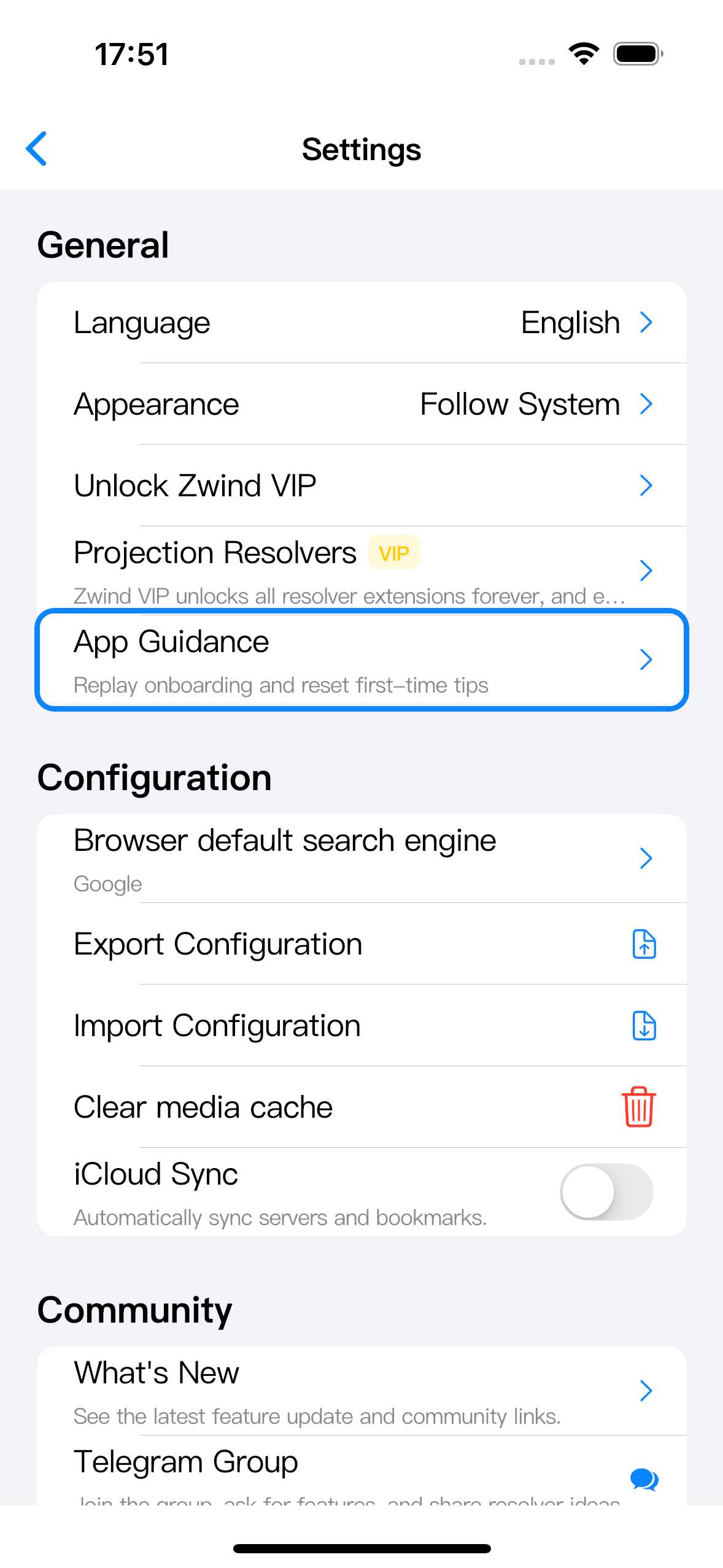
The App Guidance screen has four actions:
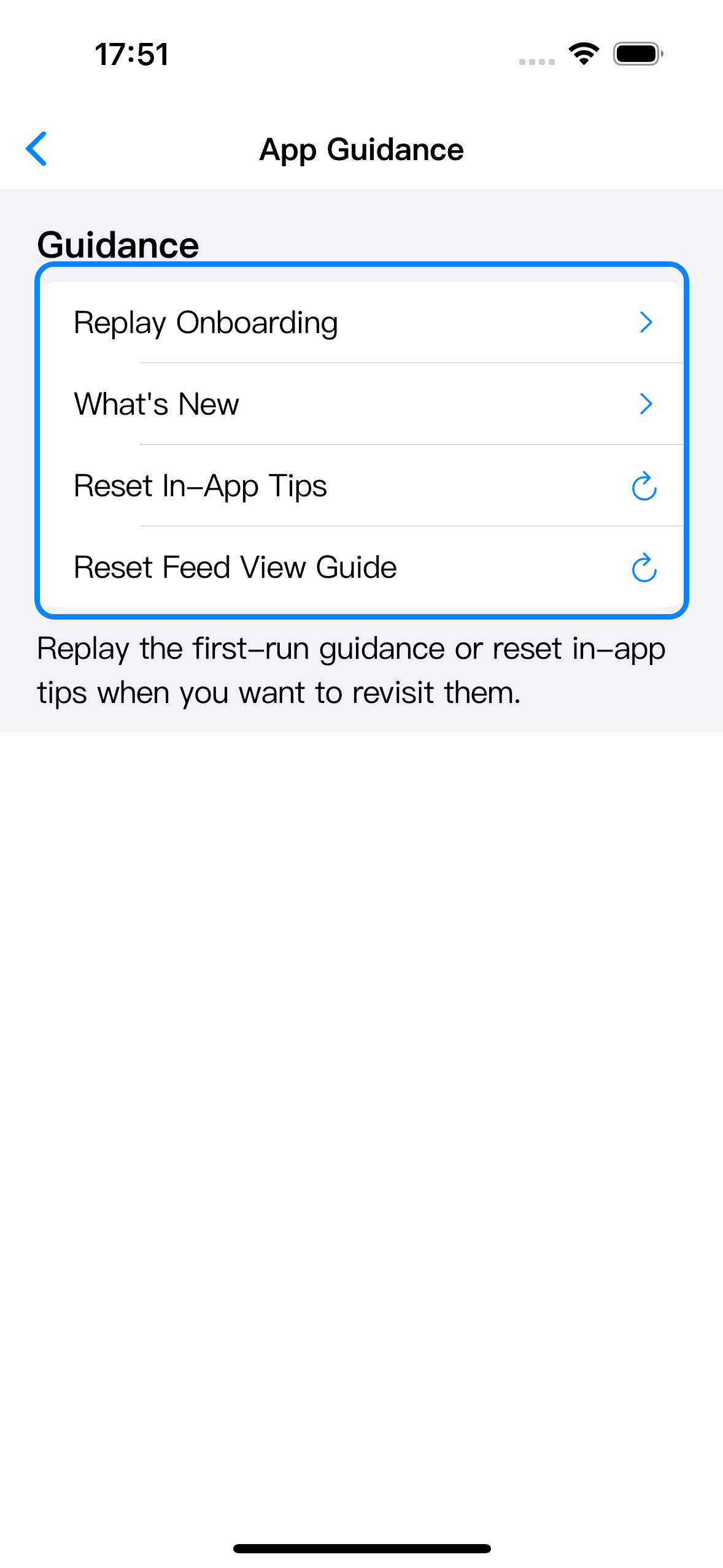
| Action | What it does |
|---|---|
| Replay Onboarding | Opens the same onboarding slides shown on first launch. It does not delete servers, folders, bookmarks, resolver bindings, or purchases. |
| What’s New | Opens the current release note sheet and the same community links shown from Settings. |
| Reset In-App Tips | Marks first-time tips as unseen again. The tips appear again when you next enter the matching feature. |
| Reset Feed View Guide | Shows the Feed View setup guide again the next time you open Feed View. It does not remove feeds or server files. |
Replay onboarding
Tap Replay Onboarding. Use Continue to step through the slides, or Skip for Now to close it and return to App Guidance.
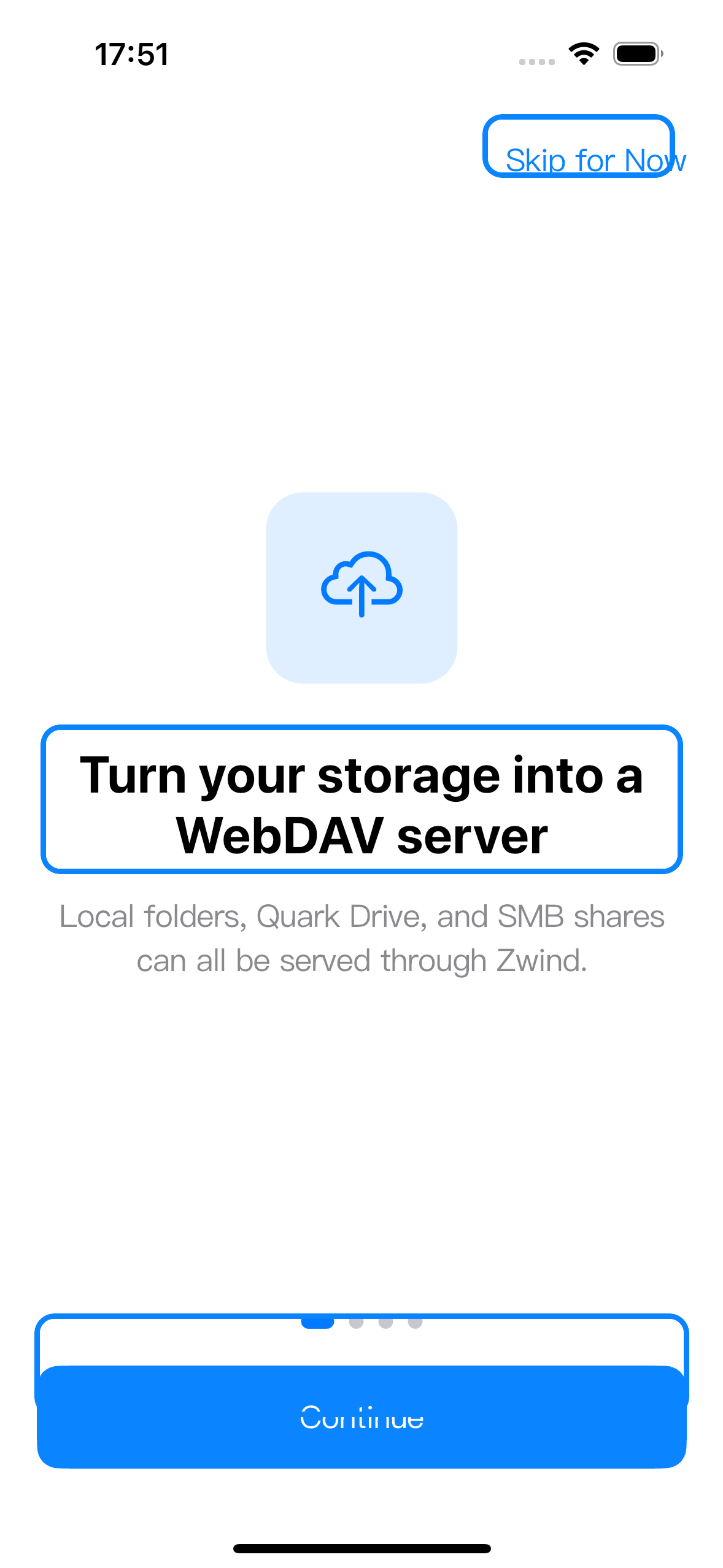
Replay onboarding is only a review path. Completing or skipping it from App Guidance leaves your existing Zwind data unchanged.
Check What’s New and community links
You can open What’s New from App Guidance or from Settings > Community. The Community section also opens the external channels directly: Telegram Group, Twitter / X, Discord, WeChat Official Account, and Official Website.
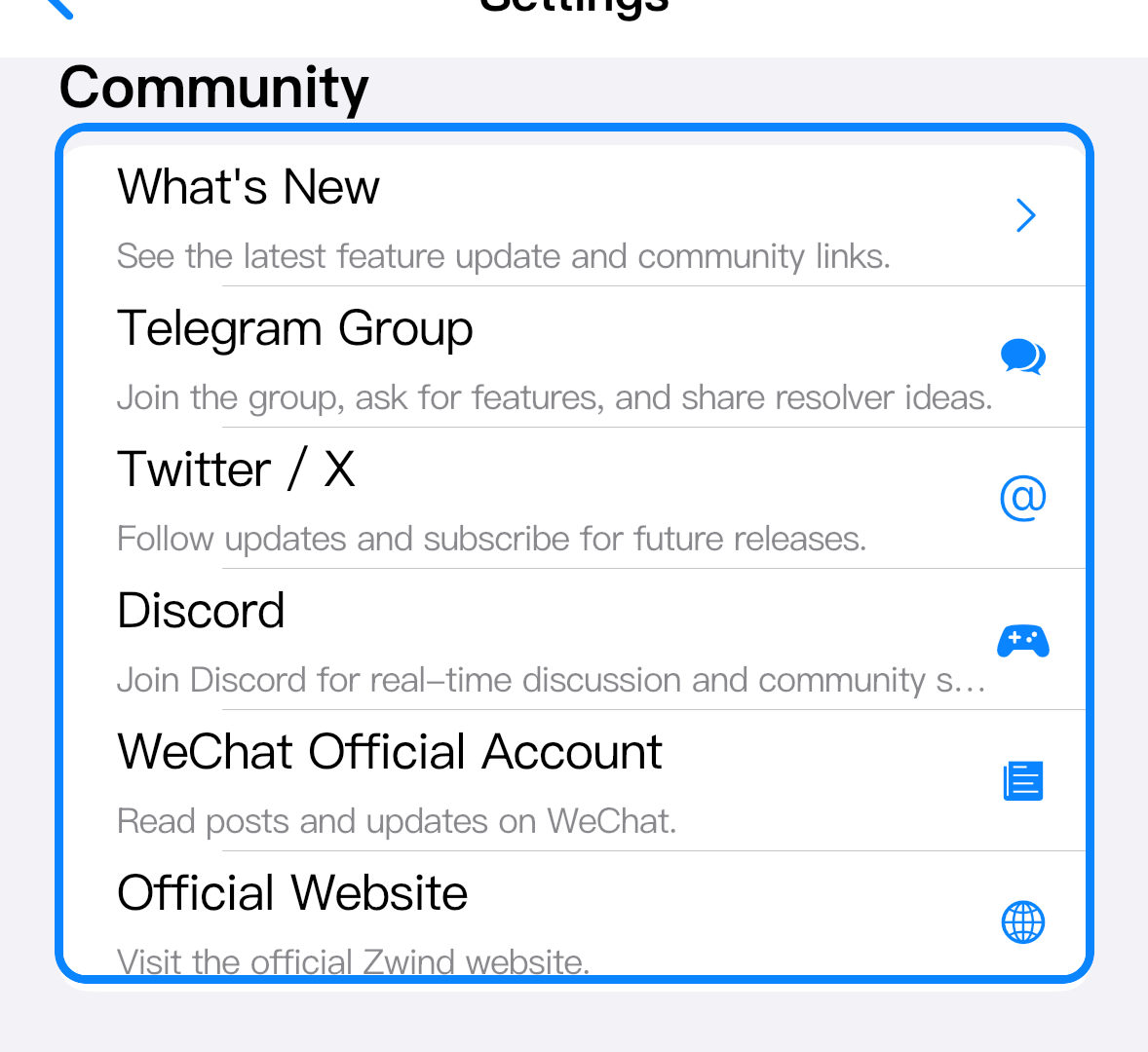
Use What’s New when you want the current feature summary before deciding where to ask a question. Use the direct community rows when you already know which channel you want to open. Each channel opens outside Zwind through the system browser or the matching installed app.
Rate Zwind or send feedback
Scroll to Support in Settings.
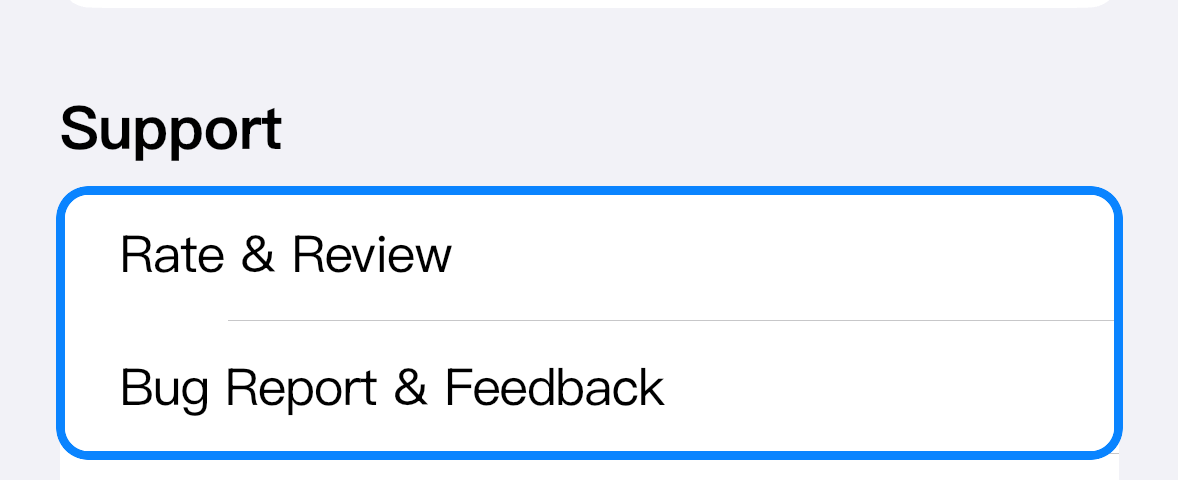
| Row | What happens |
|---|---|
| Rate & Review | Opens the App Store review page or review sheet for Zwind. Use it for a public rating or short review. |
| Bug Report & Feedback | Opens an email draft to [email protected]. The draft includes device identifiers used for support; review the body before sending. |
For a bug report, include the exact screen, the action you tapped, the visible error message, and whether the issue happens every time. If the issue is about WebDAV access, include the server type and the client app you used, but do not paste passwords, Quark cookies, or private URLs.