



Troubleshoot file operations and source access failures
Separate WebDAV write limits, server source failures, and resolver or upstream failures when files cannot be created, opened, refreshed, or projected in Zwind.
When a file cannot be created, renamed, opened, refreshed, or projected, first decide where the failure happens:
| Layer | Typical symptom | Start here |
|---|---|---|
| WebDAV write layer | New File, New Directory, rename, move, copy, duplicate, delete, or save fails in Browser or a WebDAV client | Check whether the current WebDAV path is writable and whether you are trying to write at the server root. |
| Server source layer | A mounted local folder, SMB share, or Quark Drive folder cannot list or open files | Check the storage source: Files permission/provider state, SMB host/share/account/path, or Quark cookie. |
| Resolver/upstream layer | RSS, Web Media, Quark import, or Emby projected folders are empty, stale, or fail to refresh | Check resolver binding path/enabled state, resolver cache, and the upstream endpoint or page. |
The screenshots use the English app UI. On a Chinese UI, New File is 新建文件, New Directory is 新建文件夹, Resolver Bindings is 解析器绑定, Re-parse is 重新解析, and App Logs is 应用日志.
Check whether the current path can be written
Open Browser and look at the path. Write operations must happen inside a source that supports them. The floating + button creates files or folders in the current directory.
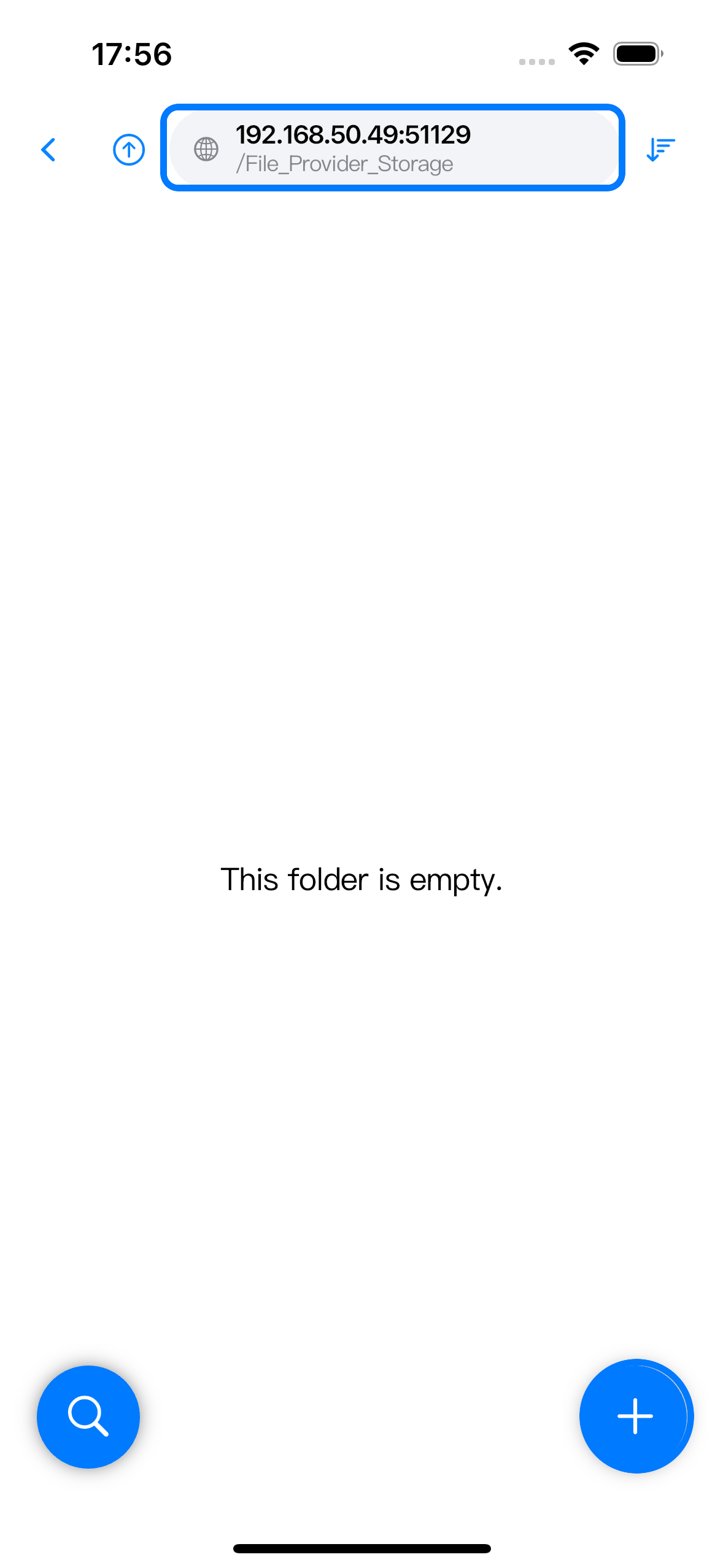
If New File, New Directory, rename, move, copy, duplicate, delete, or Text Editor save fails, check these points:
| Check | What it means |
|---|---|
Current path is / | The server root lists mounted sources. It is not a normal writable folder. Open a mounted folder first. |
| Current path is a projected folder | RSS, Web Media, Emby, and Quark import output is often generated by a resolver. Many projected entries are read-only even when they look like files or folders. |
| Source account is read-only | SMB, Files provider, or cloud storage permissions can reject writes even when Zwind shows the folder. |
| Destination already has the same name | Rename, copy, move, or duplicate can fail if the destination name conflicts with an existing item. Refresh the folder before retrying. |
| Another client changed the item | If another WebDAV client moved or deleted the same file, refresh Browser and repeat the operation from the current listing. |
The root rule is the most common one: create or upload files under a mount such as /File_Provider_Storage/, not directly under /.
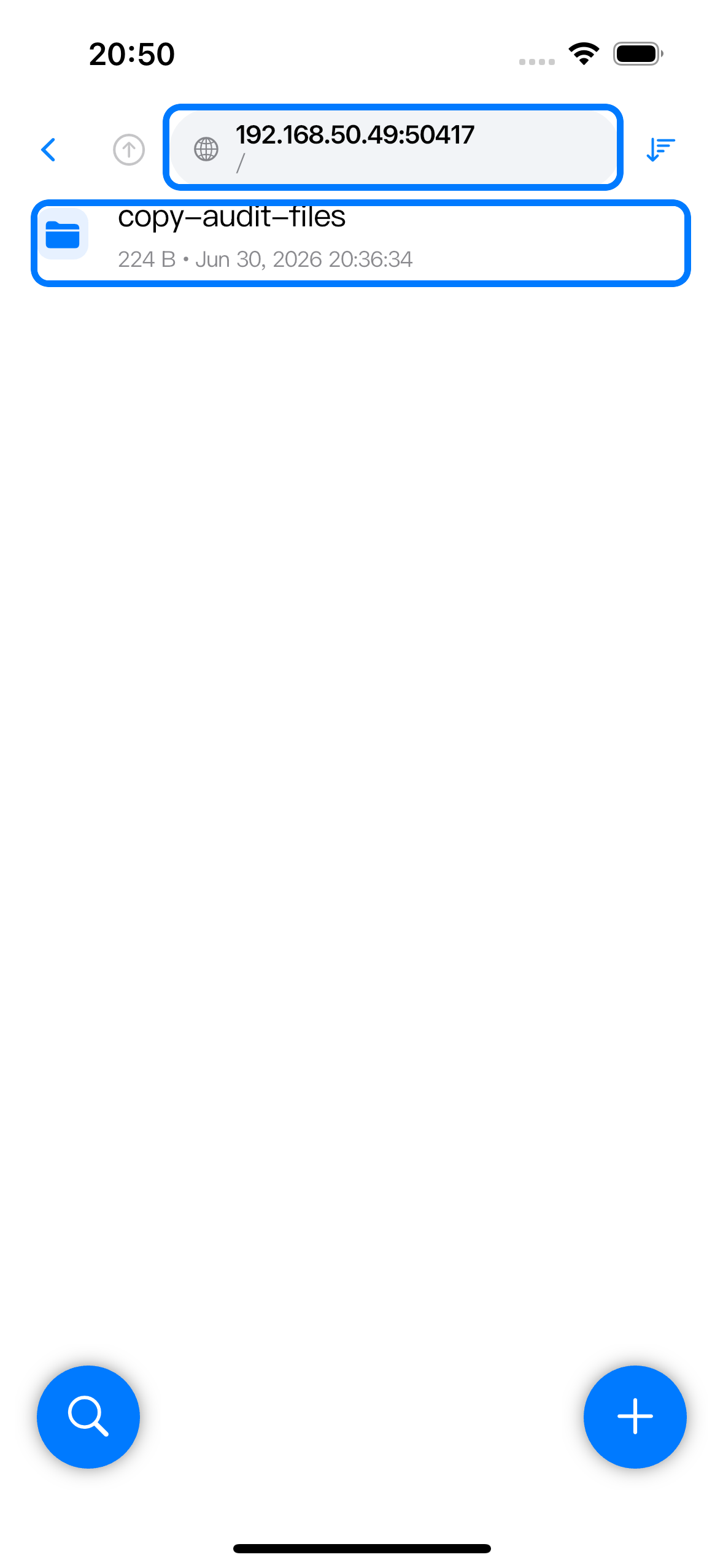
For normal Browser actions, see Create, edit, and organize files in Browser. For mount names and local folders, see Add and manage local data folders.
Recheck local folder access
For a Local FileSystem server, Zwind depends on the folder access granted by iOS Files or the selected Files provider.
If a local mount used to work but now fails to list, open, save, or delete:
| Situation | What to do |
|---|---|
| The folder was moved, renamed, deleted, or removed from Files | Edit the server and add the folder again from its current location. |
| The folder comes from iCloud Drive or a third-party Files provider | Open the Files app and confirm the provider is still signed in and the folder is visible there. |
| The provider app was uninstalled, signed out, or disabled | Restore that provider first, then re-add the folder in Zwind if the saved bookmark no longer resolves. |
| The file shows as cloud-only in Files | Download or open it in Files once, then retry from Zwind if the provider did not expose bytes to the file coordinator. |
| Writes fail but reads work | Check whether the provider or folder grants write access. Some provider locations expose read-only folders. |
After re-adding a local folder or changing a provider state, stop and start the server again so WebDAV clients use the current mount.
Recheck SMB source fields
For an SMB server, source access fails before WebDAV write logic if Zwind cannot reach the share or resolve the configured path.
Check these fields in the SMB server configuration:
| Field | Failure pattern |
|---|---|
| Host | IP or host name is unreachable, NAS is asleep, VPN blocks LAN access, or the device is on a different network. |
| Port | Use the SMB server’s port, usually 445, unless your NAS or computer uses a custom port. |
| Share Name | Use the exported share name, not a full path such as smb://nas/Movies. |
| Base Path | Use a folder path inside that share. If the folder was renamed or removed, listing fails below that path. |
| Username, Password, Domain or Workgroup | Credentials must match the SMB server. Guest access only works when the SMB server allows guest access for that share. |
If Browser shows the SMB root but a child path fails, the host and share are probably reachable; check Base Path, permissions, and whether that folder still exists. If nothing lists at all, start with host, port, share name, and account.
For field examples, see Configure SMB to WebDAV.
Recheck Quark Drive and Quark import
Quark access depends on the cookie saved in the server or resolver configuration. When the cookie expires, is copied incompletely, or belongs to an account that cannot access the target content, Zwind can fail to list Quark Drive or update imported resources.
Use this split:
| What fails | What to check |
|---|---|
| Quark Drive server cannot list cloud folders | Update the Quark cookie in the Quark Drive server, then restart the server. |
| Quark Search Import folder does not create results | Check the Quark import resolver binding, cookie, search keyword folder, and whether the share source is still available. |
| Update Imports completes with no new files | The tracked import record may have no new upstream files, or the original share link no longer exposes additional items. |
| Quark pages work in the browser but Zwind still fails | Copy a fresh cookie from the same logged-in Quark account and save it in Zwind. |
Cookie values are account tokens. Do not paste them into screenshots, issue comments, or public logs.
Recheck resolver binding path and enabled state
Open Edit for the server and inspect Resolver Bindings. A resolver only appears in WebDAV when its binding is saved, enabled, and mapped to a valid path.
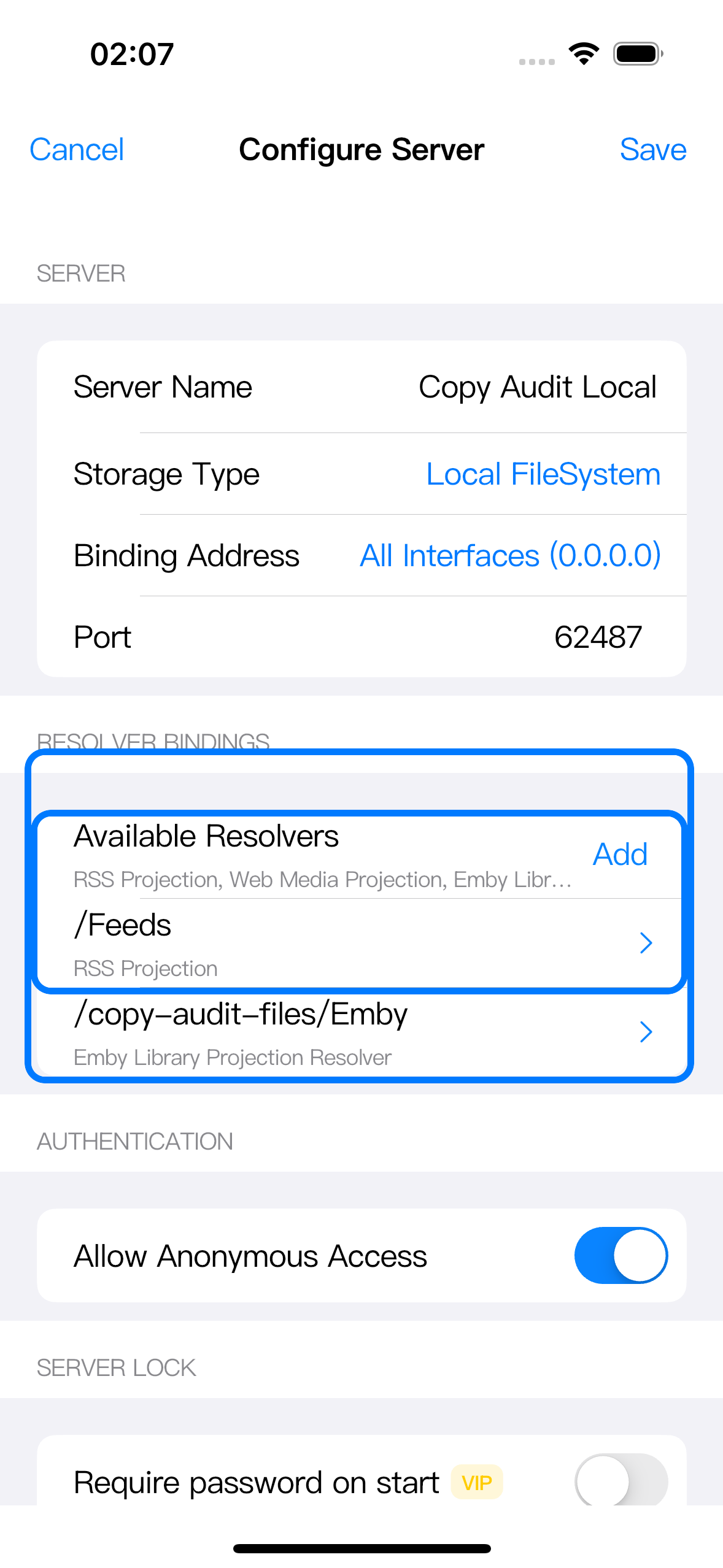
Check these rules:
| Check | What it means |
|---|---|
| Enabled is off | The binding can stay saved, but its WebDAV folder is hidden. Turn it on and save. |
| Path is outside a local data folder | Local FileSystem bindings must start under a mounted data folder, such as /File_Provider_Storage/Feeds, unless a data folder itself is mounted at /Feeds. |
| Path was not created | If Zwind could not create the missing folder when saving, create the folder in the underlying source or save again while the server can check it. |
| Another binding uses the same path | Enabled bindings cannot share the same normalized WebDAV path. |
| Server was not restarted | Stop and start the server after binding changes if it did not restart automatically. |
For the full binding rules, see Configure resolver bindings.
Recheck RSS and Web Media upstreams
RSS and Web Media projected folders depend on external pages, feeds, rules, and network access.
| Resolver | Common cause | What to do |
|---|---|---|
| RSS Projection | Feed URL is unreachable, returns a non-feed page, redirects to a login page, or times out | Open the feed URL in a browser, then edit the .rss marker file or binding configuration if the URL changed. |
| RSS Projection | The feed loads but projected entries look stale | Refresh the Browser folder, or clear/rebuild the materialized output depending on how the RSS binding is configured. |
| Web Media Projection | Source page layout changed | Edit the .wm rule selectors and run Re-parse from the projected folder. |
| Web Media Projection | Detail page or media URL is blocked, expired, or now requires login | Confirm the source page still exposes playable media from the same network and browser session. |
| Web Media Projection | The rule was edited but output did not change | Use Re-parse from the current Web Media path to invalidate resolver output before Browser reloads the folder. |
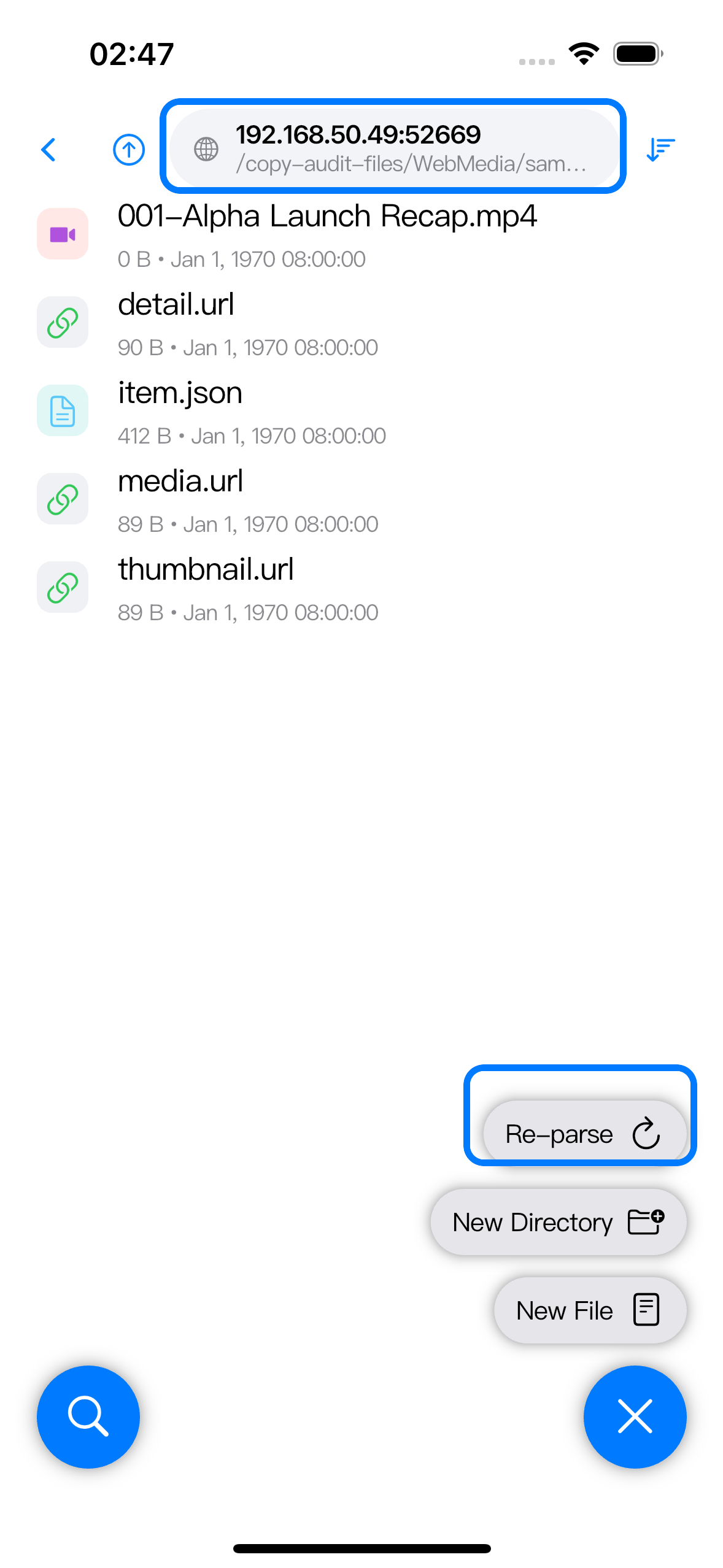
For Web Media rule fields, see Write and debug .wm rules. For refresh behavior, see Refresh resolver caches and update results.
Recheck Emby endpoint and account
Emby projected folders fail when Zwind cannot authenticate to the configured Emby server or when the Emby API response is unavailable.
Check these fields in the Emby resolver binding:
| Field | What to verify |
|---|---|
| Endpoint | Use the reachable Emby server URL, including scheme and port, for example http://192.168.50.10:8096. |
| Username and password | Use an Emby account that can browse the library. If the password changed, update the binding. |
| Remote access | If the endpoint is outside the LAN, confirm the Emby server, reverse proxy, or VPN is reachable from the iPhone or iPad. |
| Library permission | The account must have access to the libraries you expect to see. |
| Search, Recently Added, or Continue Watching | Run Refresh Emby from the matching projected path if the endpoint works but that view is stale. |
If the Emby root fails, start with endpoint and login. If only one library or one media item fails, check library permissions, item availability, and playback source access.
Use App Logs after reproducing the failure
When the visible error is not specific enough, reproduce the failure once, then open Settings > App Logs. Filter chips help separate app logic, native WebDAV, bridge, and resolver messages.
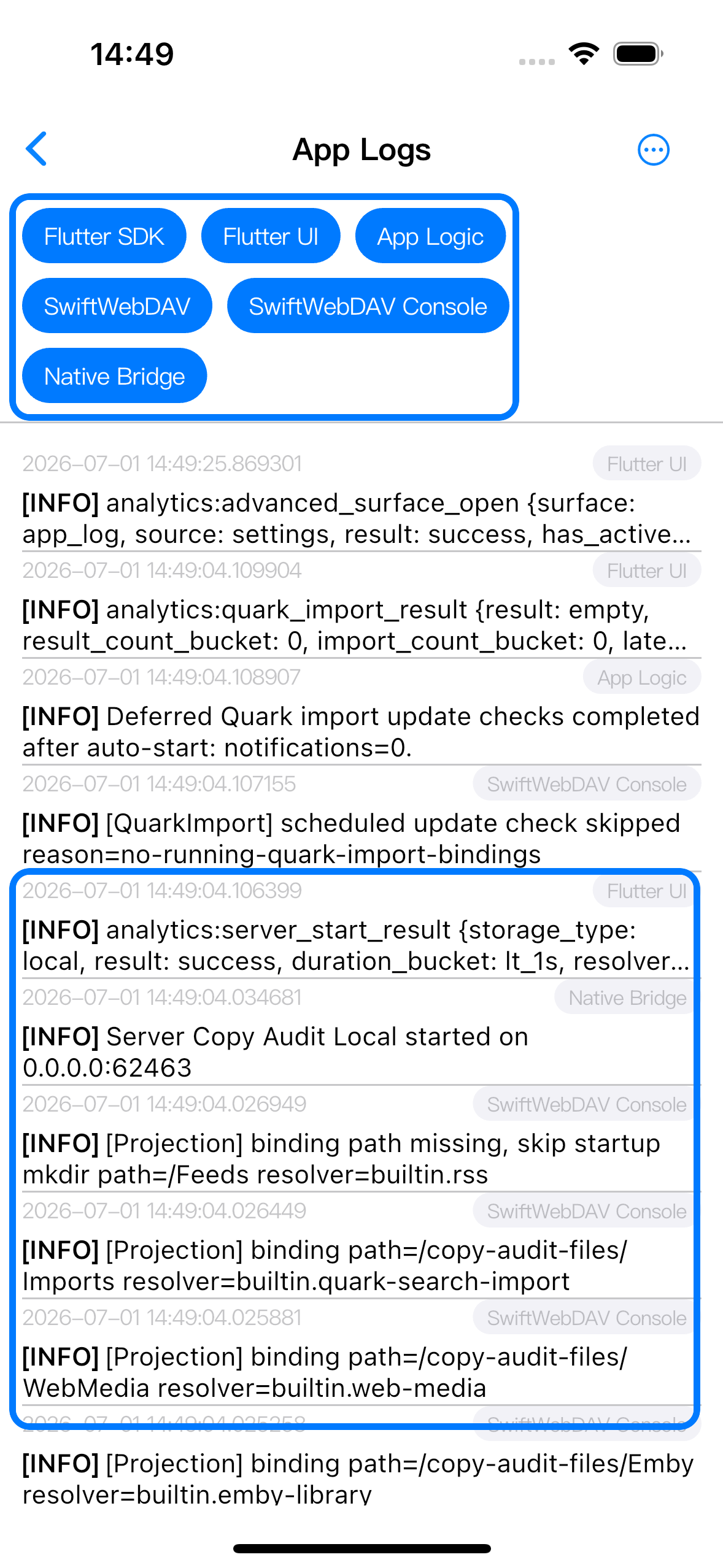
Look for the layer that matches the failure:
| Log source | Useful clues |
|---|---|
| SwiftWebDAV | WebDAV request path, status code, route error, write rejection, or projection dispatch. |
| Native Bridge | Server start/stop and native bridge result messages. |
| App Logic | Resolver refresh, import, configuration, entitlement, and handled app errors. |
| Flutter SDK | Flutter framework errors captured by the app. |
Logs can include server names, paths, URLs, status codes, and external error messages. Read them before sharing. If the log mentions a root write or read-only projection, fix the WebDAV path. If it mentions SMB, Files, Quark, RSS, Web Media, or Emby, focus on that source or upstream instead.