



Play audio folders with Music Player
Open an audio file or folder from Zwind Browser, build a Music Player queue, restore a minimized session, choose playback order, and use iOS background controls.
Zwind Music Player streams audio from Browser, an audio file, or an audio folder. Use the folder path when you want an album, audiobook directory, downloaded podcast folder, or projected audio folder to become one playback queue.
The screenshot uses the English app UI. It shows where the Browser long-press menu appears; different file types and folders can show different open actions.
Open Music Player from Browser
In Browser, tap an audio file to use Zwind’s default opener. Audio files such as .mp3, .m4a, .aac, .wav, .flac, .ape, .ogg, .wma, and .alac open in Music Player by default.
Long-press an audio file or folder when you want to choose the music path yourself, then choose Open in Music Player.
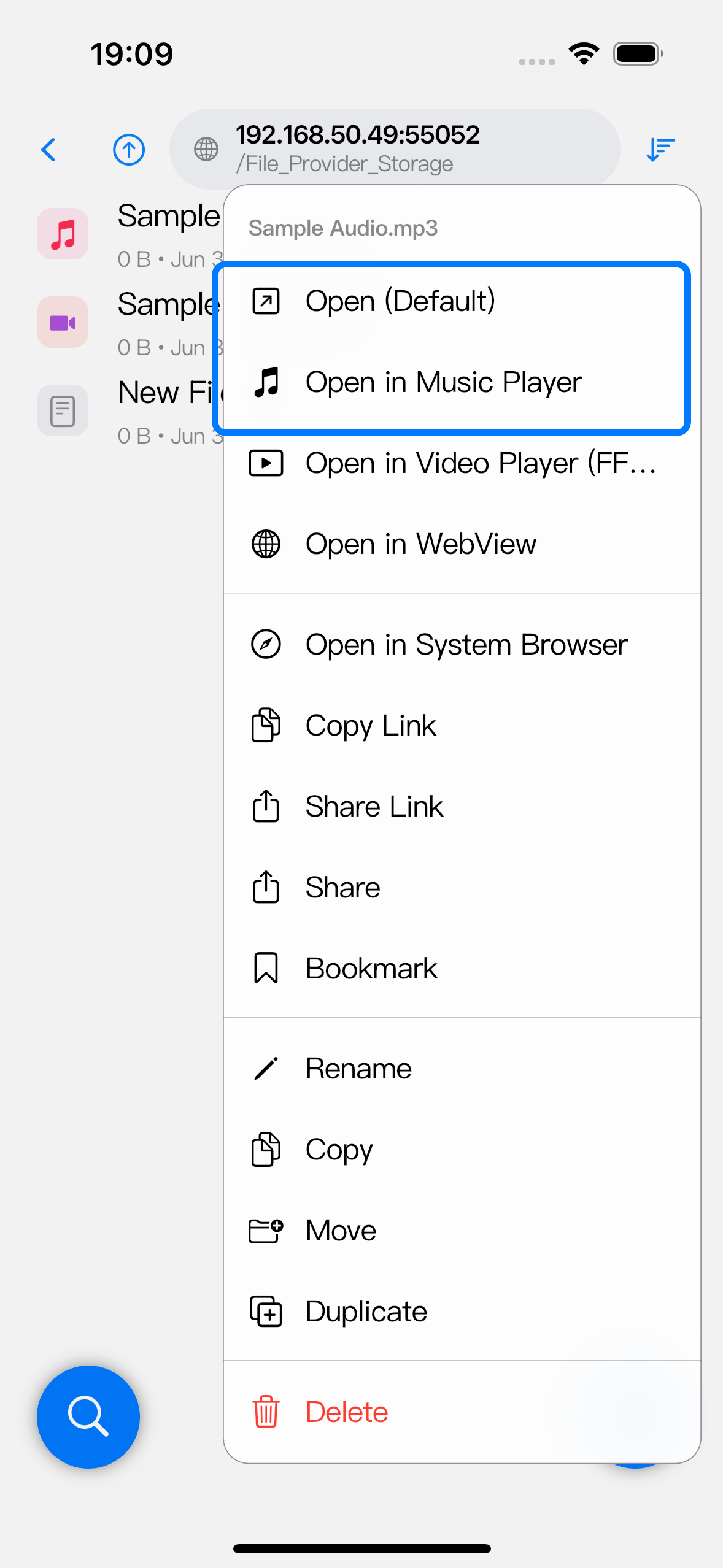
Opening a single audio file starts that file and may add nearby playable audio files from the same Browser listing to the queue. Opening a folder starts from the first playable audio item Zwind finds, then continues loading the folder queue.
Load a folder as the queue
Long-press the folder in Browser and choose Open in Music Player. Zwind scans the selected folder and its subfolders for playable audio files, skips unsupported files, and loads the matching items into Music Player.
The loaded order follows the current Browser sort field and direction, then Music Player applies its queue rules. If another Music Player session is already active, opening a new audio folder appends matching tracks without duplicating items already in the queue and jumps to the selected folder’s first playable track.
While a folder is still being scanned, Music Player can start with the first found track and show a queue-loading badge. When scanning finishes, the playlist count updates to the full queue. If the folder has no playable audio entries, Zwind shows the no-media result and keeps the current session instead of replacing it with an empty queue.
Add more audio from inside Music Player
Music Player also has a folder-with-plus button in the top-right corner when a running server is available. Tap it to open Zwind’s internal picker, choose another folder or audio file, and append the selected playable items to the current queue.
This path uses the same audio matching rules as Browser: playable audio files are added, unsupported files are skipped, and duplicate queue entries are avoided.
Restore a minimized Music Player
Tap the down-chevron button, swipe down on the player, or use the iOS back gesture to minimize Music Player. Minimizing only hides the full player UI; it does not pause playback.
After Music Player is minimized, Browser shows a compact playback bar near the bottom. Tap the title area or music icon area to restore the full player. The compact bar also provides previous, play or pause, next, and close buttons. Closing the compact bar ends the Music Player session and clears iOS now-playing state.
Opening another audio file or folder while Music Player is minimized restores or updates the same music session instead of creating a second player.
Control playback order
Use the main transport buttons for previous, play or pause, and next. Tap the list button to open Playlist and jump to a specific track; the current track has a check mark.
The order button cycles through three modes:
| Mode | What happens |
|---|---|
| Sequential | Plays the queue in order and stops advancing after the last track. |
| Repeat One | Replays the current track when it finishes. |
| Shuffle | Chooses another track from the queue. Previous follows the shuffle history when available. |
The player shows the current queue position as current/total, for example 3/18.
Background and remote controls
After playback starts, Zwind activates the iOS audio playback session. Switching apps or locking the screen should not stop audio by itself.
iOS Lock Screen, Control Center, headset controls, Bluetooth controls, and AirPlay controls can show the current title and send play, pause, previous, next, and seek commands back to Music Player. Remote controls affect the active Music Player queue and use the same playback-order mode as the in-app buttons.
When you pause from iOS remote controls, the Music Player session stays available. When you close Music Player from the full player or the minimized bar, Zwind deactivates the remote session.