



Browse files with the built-in Browser
Open a Zwind server in Browser, move through folders, enter a path or URL, refresh listings, and change sorting.
Zwind Browser opens a server directly inside the app. Use it to check the directory tree, open files with built-in tools, copy a path, or confirm that the same URL a third-party client uses is reachable.
The screenshots use the English app UI.
Open Browser from Home
On Home, select the server card. Open the bottom-right server menu and choose Browse Files.
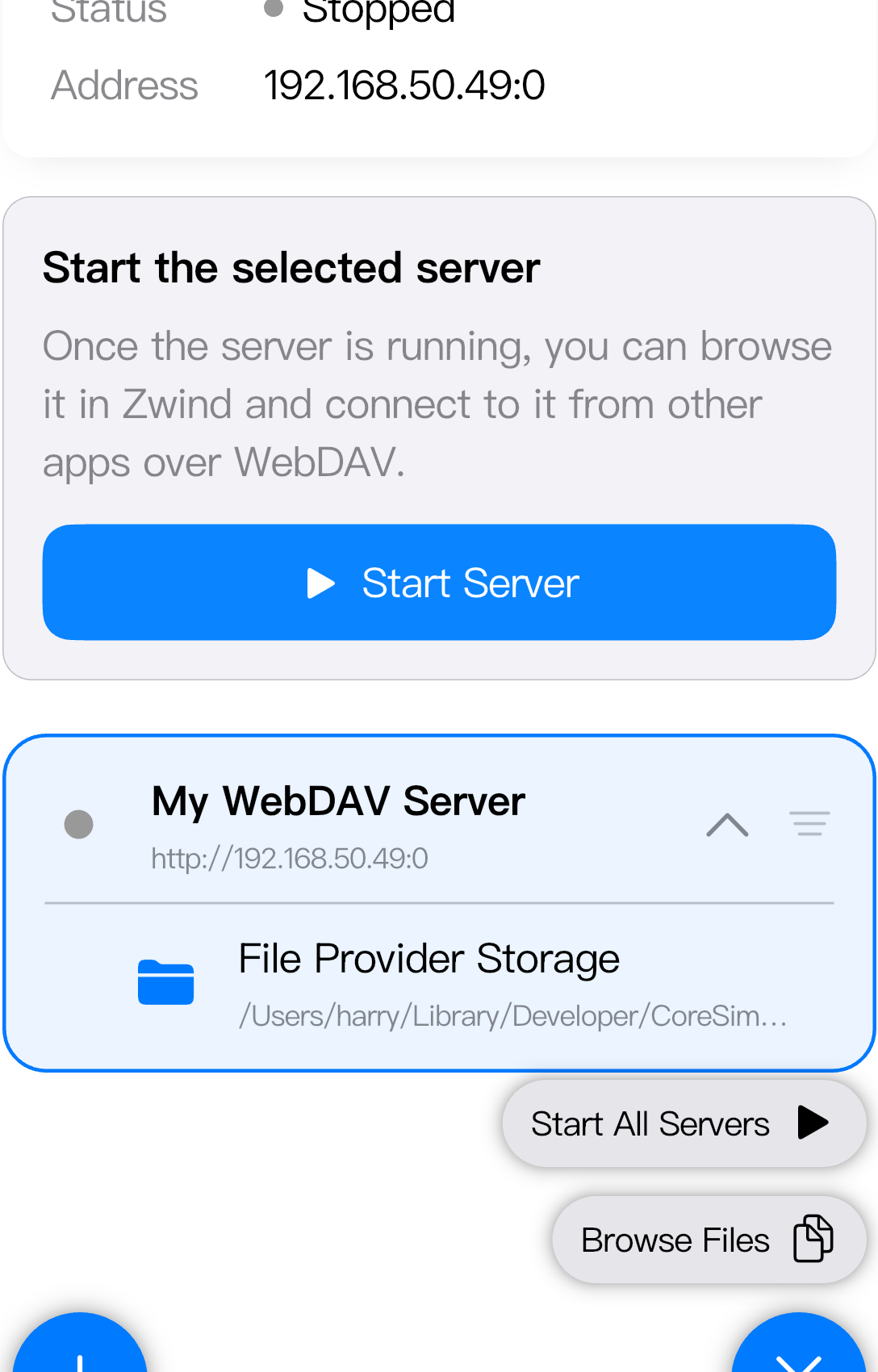
Browser opens the selected server by using the current server address. If the server is not running yet, Zwind starts or resolves the local Browser session before showing the directory.
Read the Browser toolbar
The top bar shows the current WebDAV address and path. The list below it shows the entries in that directory.
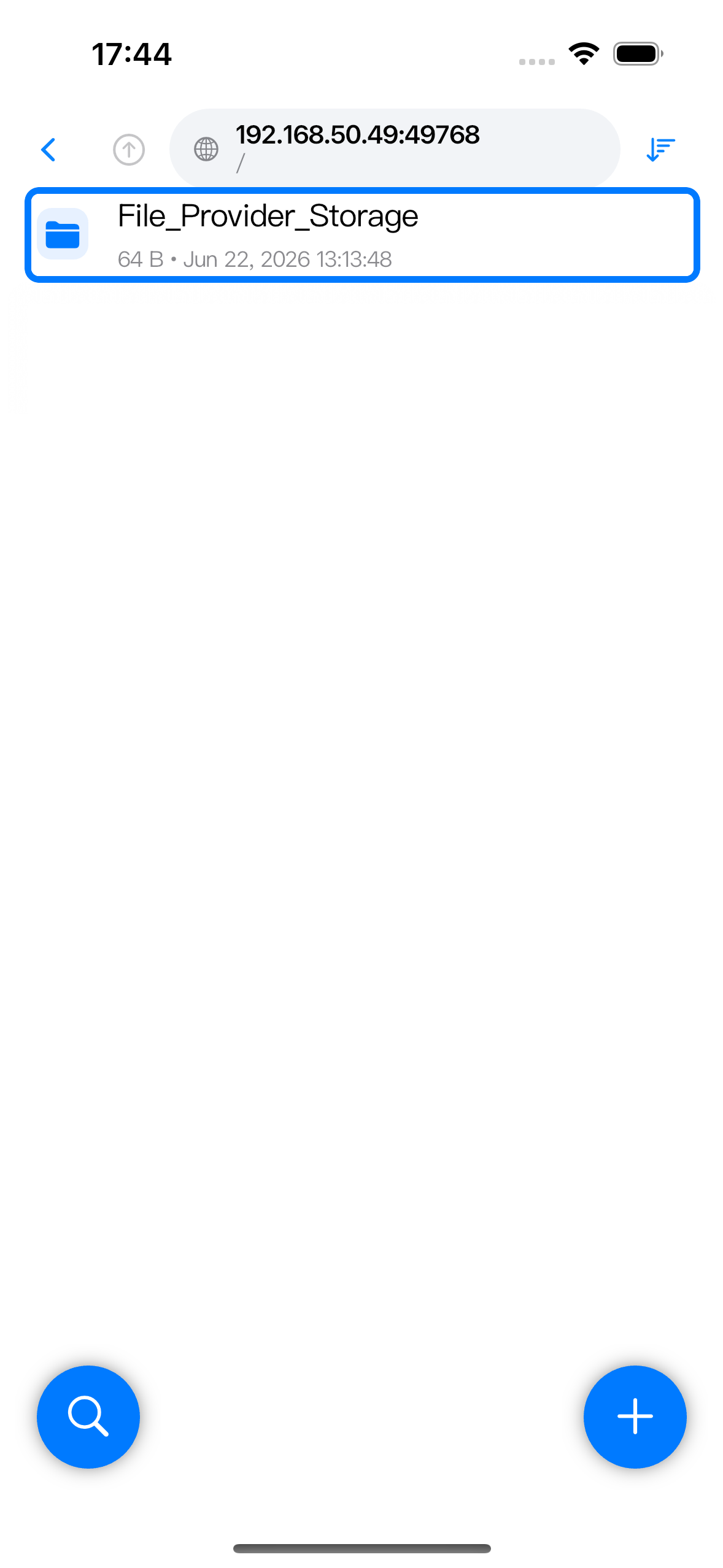
Use the toolbar controls this way:
| Control | What it does |
|---|---|
| Back arrow | Goes back to the previous Browser location or leaves Browser when there is no previous location. |
| Up arrow | Moves to the parent directory of the current path. |
| Address/path field | Opens manual path or URL entry. |
| Sort button | Changes the visible order. Long-press it to open the sorting menu when available. |
| Floating + button | Opens file and folder actions for the current directory. |
| Floating search button | Opens search for the current directory. |
Folder rows open the next directory. File rows open a preview, player, editor, or action sheet depending on the file type.
Move into a folder and back
Tap a folder row to open it. Browser updates the path under the address so you can see which directory you are viewing.
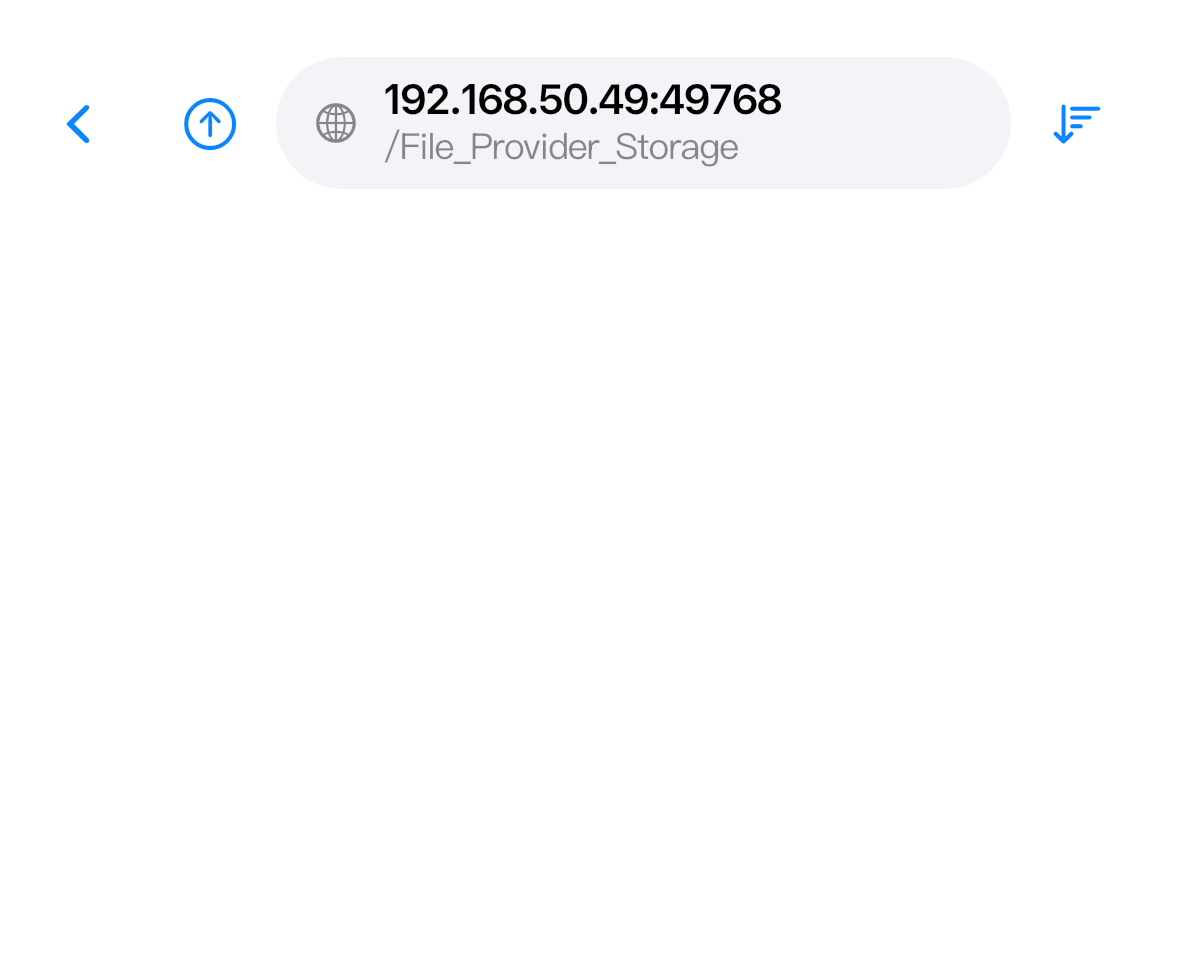
Tap the Up arrow in the toolbar to return to the parent directory. Use the Back arrow when you want to return to the previous Browser screen instead of strictly moving one folder up.
Enter a path or URL manually
Tap the address/path field in the toolbar when you want to jump directly.
Use a path when you are already browsing the same server:
/MoviesUse a full URL when you want Browser to open a specific WebDAV address:
http://192.168.50.49:52500/MoviesIf the server was created with Port set to 0, use the address and port currently shown while the server is running. If the server uses a fixed port, keep using that fixed port as long as the server starts on it.
Refresh and sort a directory
Pull down on the file list to refresh the current directory. Use refresh after changing files from another device, updating a projection result, or returning to Browser after an external app changed the folder.
Tap the sort button to cycle or apply the current sort mode. Long-press the sort button to open the sorting menu when the current Browser view supports detailed choices. Sort changes affect the current listing; they do not rename files or change the server data.
When a listing does not look right
Check the part that matches what you see:
| What you see | What to check |
|---|---|
| Browser opens the root but a folder is missing | Confirm that the data folder is still attached to the server and that the server was saved after the folder was added. |
| A folder opens but is empty | The source directory may actually be empty, or the upstream source may not have returned entries yet. Refresh the directory. |
| Manual URL fails | Check protocol, IP address, port, path spelling, and WebDAV credentials if anonymous access is off. |
| The same URL works in Browser but not on another device | The server is reachable locally; check the other device’s network, URL fields, and credentials. |