



Use the Emby media library parser
Bind an Emby media library parser to a WebDAV path, then browse libraries, recently added media, continue watching, search folders, and playable media files from Zwind Browser or any WebDAV client.
The Emby media library parser connects Zwind WebDAV Server to an Emby account and exposes Emby libraries as a WebDAV folder. After the binding is saved and the server is started again, Browser and WebDAV clients can open library views, Recently Added, Continue Watching, Search result folders, media files, artwork, metadata, and playback helper files.
The screenshots use the English app UI and a local Emby fixture. Replace the fixture endpoint and account with your own Emby server details.
Bind Emby to a WebDAV path
Open the server configuration page, then use Resolver Bindings. Add or edit a binding whose resolver is Emby Library Projection Resolver. The binding path is the WebDAV folder where the Emby parser appears.
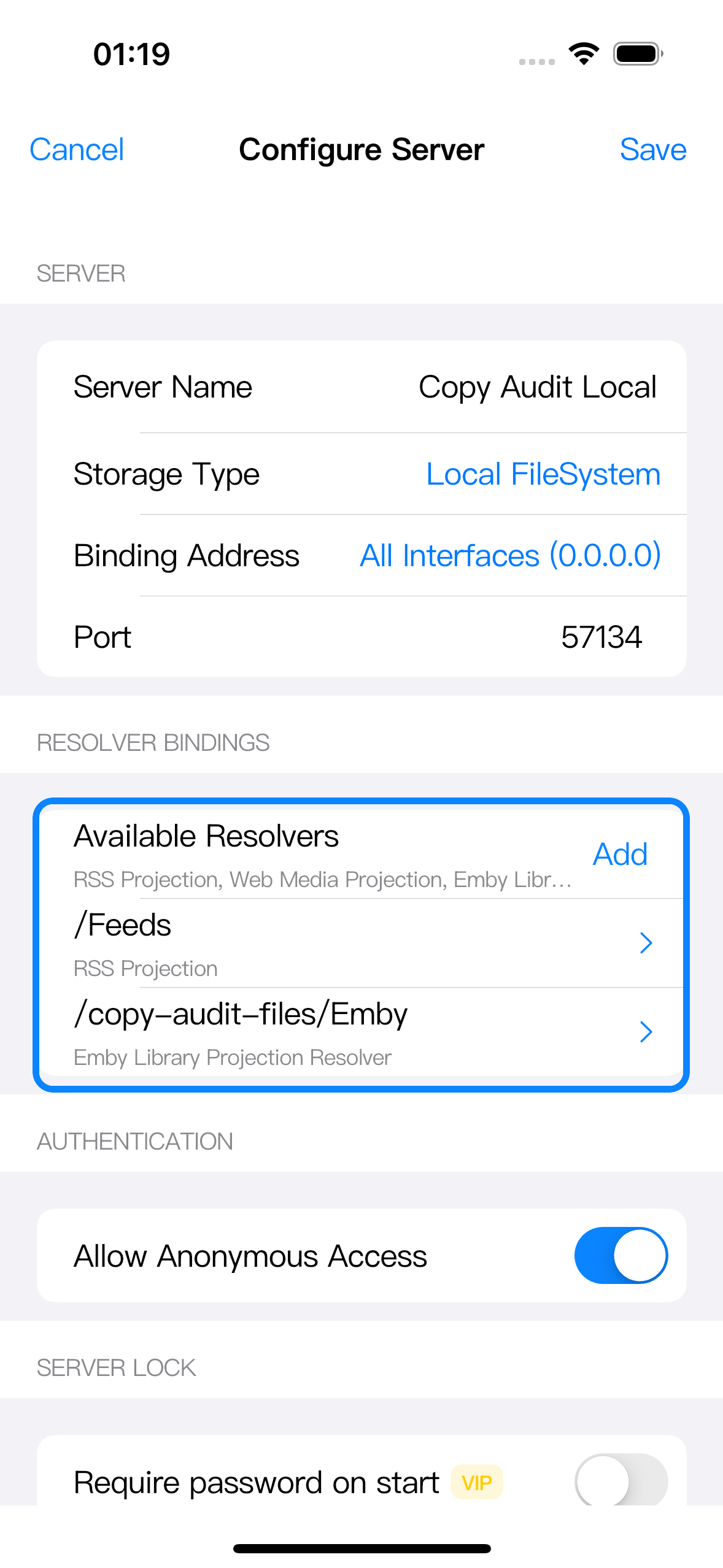
In the fixture screenshot the path is /copy-audit-files/Emby because the test server exposes a local data folder at /copy-audit-files. In your own server, use any path inside the server’s exposed WebDAV tree, such as /Emby or a child of an existing data folder.
The server loads resolver bindings when it starts. Save the binding, save the server, then start the server again if it was already running.
Fill in the Emby connection
In Edit Resolver Binding, set Resolver to Emby Library Projection Resolver, keep Enabled on, and fill the Configuration section.
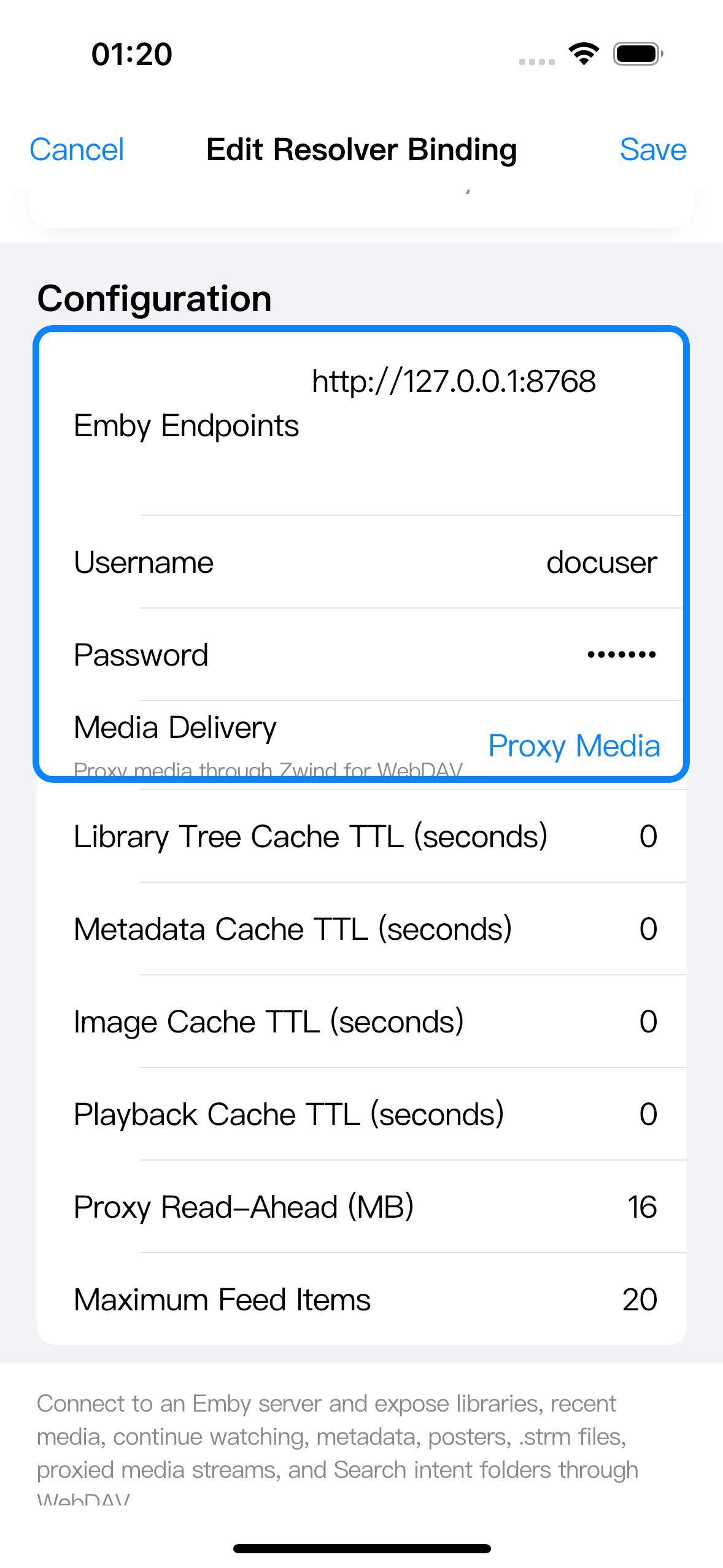
Use these fields:
| Field | What to enter |
|---|---|
| Path | The WebDAV path for this Emby projection. This must match where you want the Emby folder to appear. |
| Emby Endpoints | One or more base URLs for the Emby server, for example https://emby.example.com or http://192.168.1.20:8096. The app uses these URLs to call the Emby API and to build playback requests. |
| Username and Password | The Emby account that owns the library, Recently Added, Continue Watching, and search results you want to expose. Use Token instead when your setup uses an Emby API key/token instead of a password. |
| Media Delivery | Choose how playable media entries are served to WebDAV clients. See the playback section below. |
| Cache TTL fields | Set how long library, metadata, image, and playback responses may be reused. 0 means the fixture does not reuse cached responses; normal servers can use longer values when the Emby library changes less often. |
| Proxy Read-Ahead (MB) | The amount Zwind may read ahead while proxying media bytes. It only affects proxy playback. |
Browse the Emby root
Open Browser and navigate to the binding path. The Emby root is a projected directory. It shows Emby-oriented entry points rather than the local fixture files behind the binding.
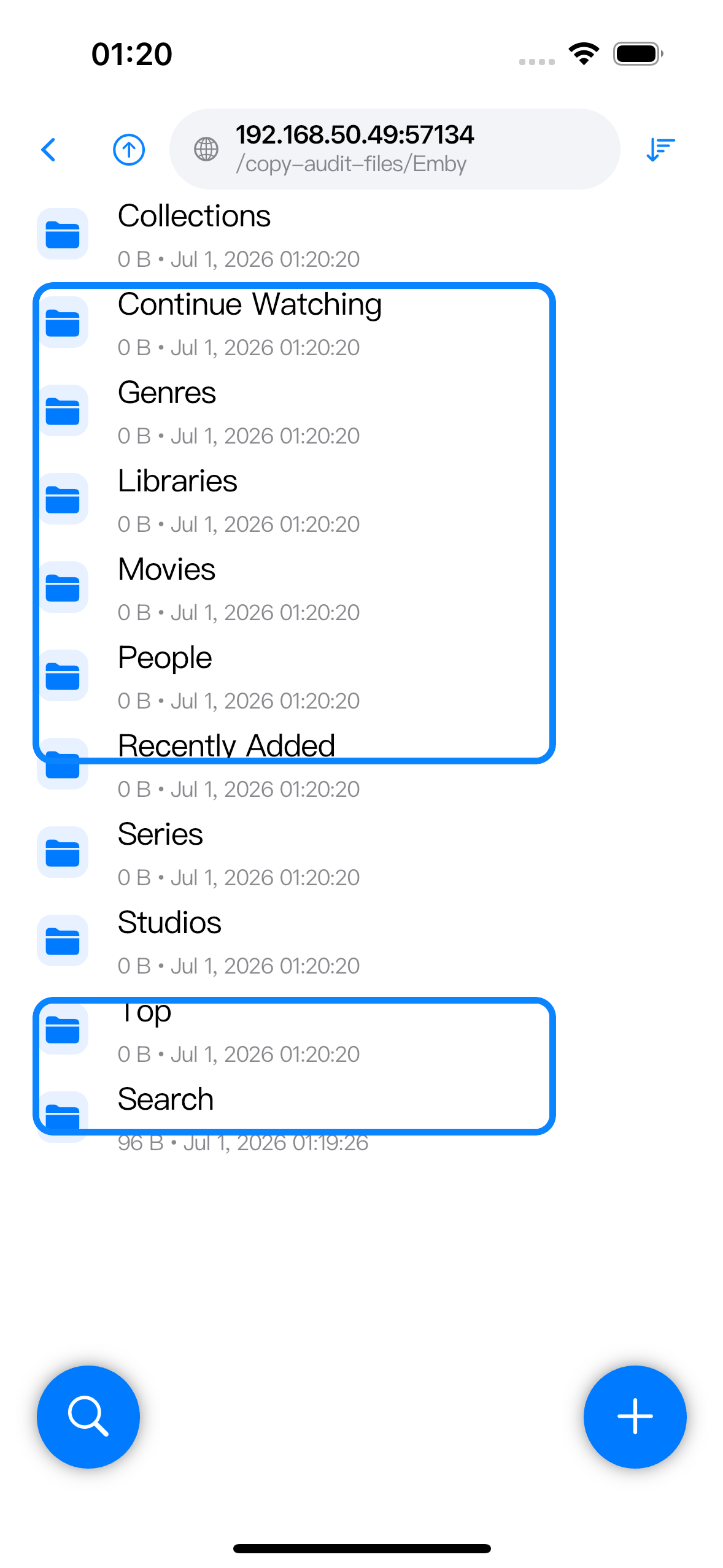
Common root folders:
| Folder | What it contains |
|---|---|
| Libraries | The Emby libraries visible to the configured account, such as Movies or TV Shows. Open a library to browse media scoped to that library. |
| Recently Added | Items returned by Emby’s latest media API for the configured account. |
| Continue Watching | Items where the configured Emby user has resumable playback state. If that user has no resumable items, this folder can be empty. |
| Movies, Series, Genres, People, Studios, Collections, Top | Convenience views built from Emby library and item metadata. Which folders have entries depends on what the Emby server returns for the account. |
| Search | A writable intent folder. Create a child folder under it to run an Emby search. |
The same folders are available through WebDAV clients at the same path. For example, if the server URL is http://192.168.1.10:8080 and the binding path is /Emby, open http://192.168.1.10:8080/Emby/.
Open a media item
Open a library, Recently Added, Continue Watching, or search result, then open one media item folder. Zwind exposes the playable entry together with helper files.
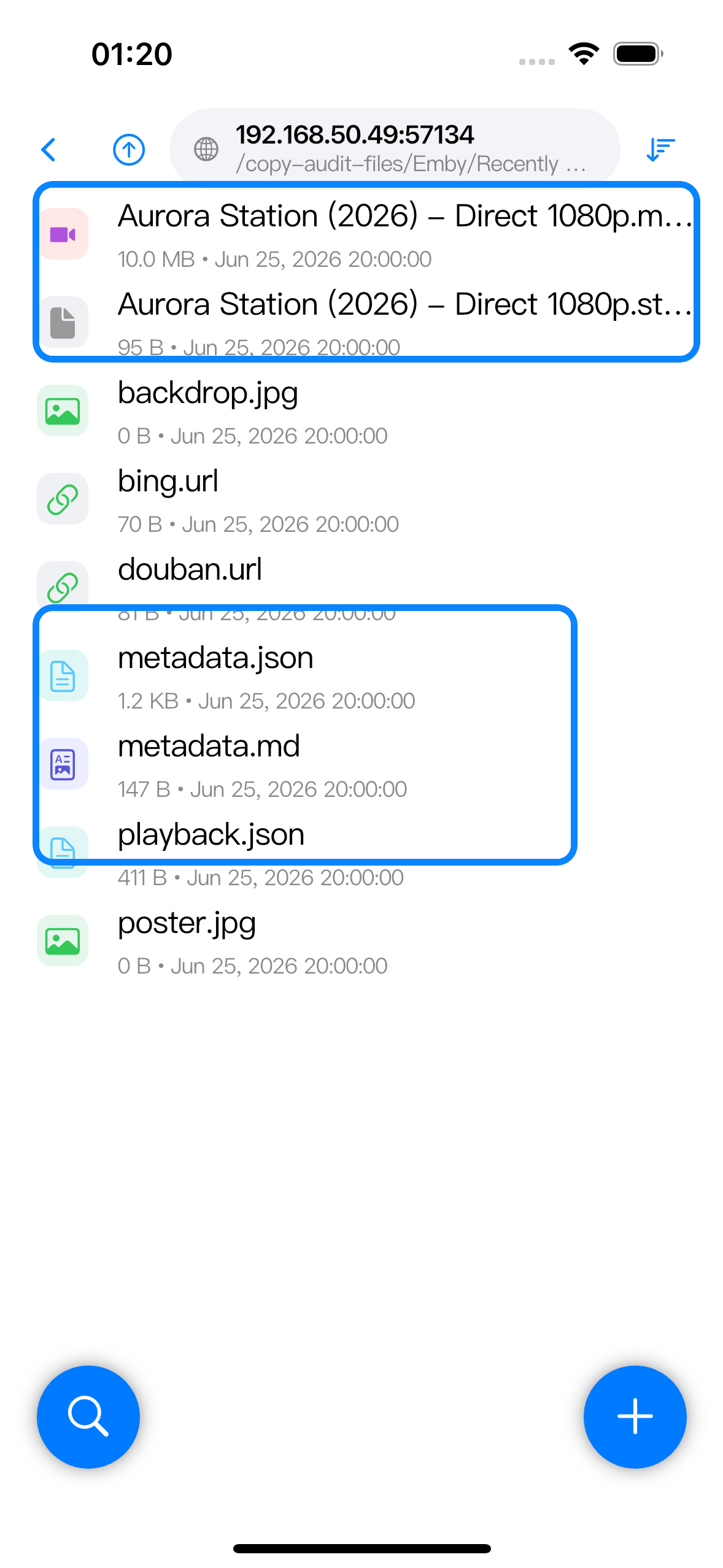
An item folder can include:
| File | Meaning |
|---|---|
Media file, such as Aurora Station (2026) - Direct 1080p.mp4 | The WebDAV media entry. With proxy delivery, Zwind serves this file while reading from Emby. With redirect delivery, the WebDAV response points the client to Emby’s stream URL. |
.strm file | A small stream pointer for players that understand .strm files. |
metadata.json | Emby item metadata normalized for the WebDAV folder. |
metadata.md | A readable summary of the same item metadata. |
playback.json | Playback source details returned by Emby for this account and item. |
poster.jpg and backdrop.jpg | Artwork from Emby, when available. |
bing.url and douban.url | Helper URL files generated from item metadata when enough title/year information is available. |
If an Emby item has no playable source for the configured account, the item folder can still expose metadata and artwork, but it will not show a playable media file for that source.
Search with intent folders
The Search folder is not a text box. It is a writable WebDAV intent folder. Create a normal child folder under Search and use the folder name as the query, such as aurora, a title, a person name, or a year. Opening that child folder runs the Emby search and shows matching item folders.
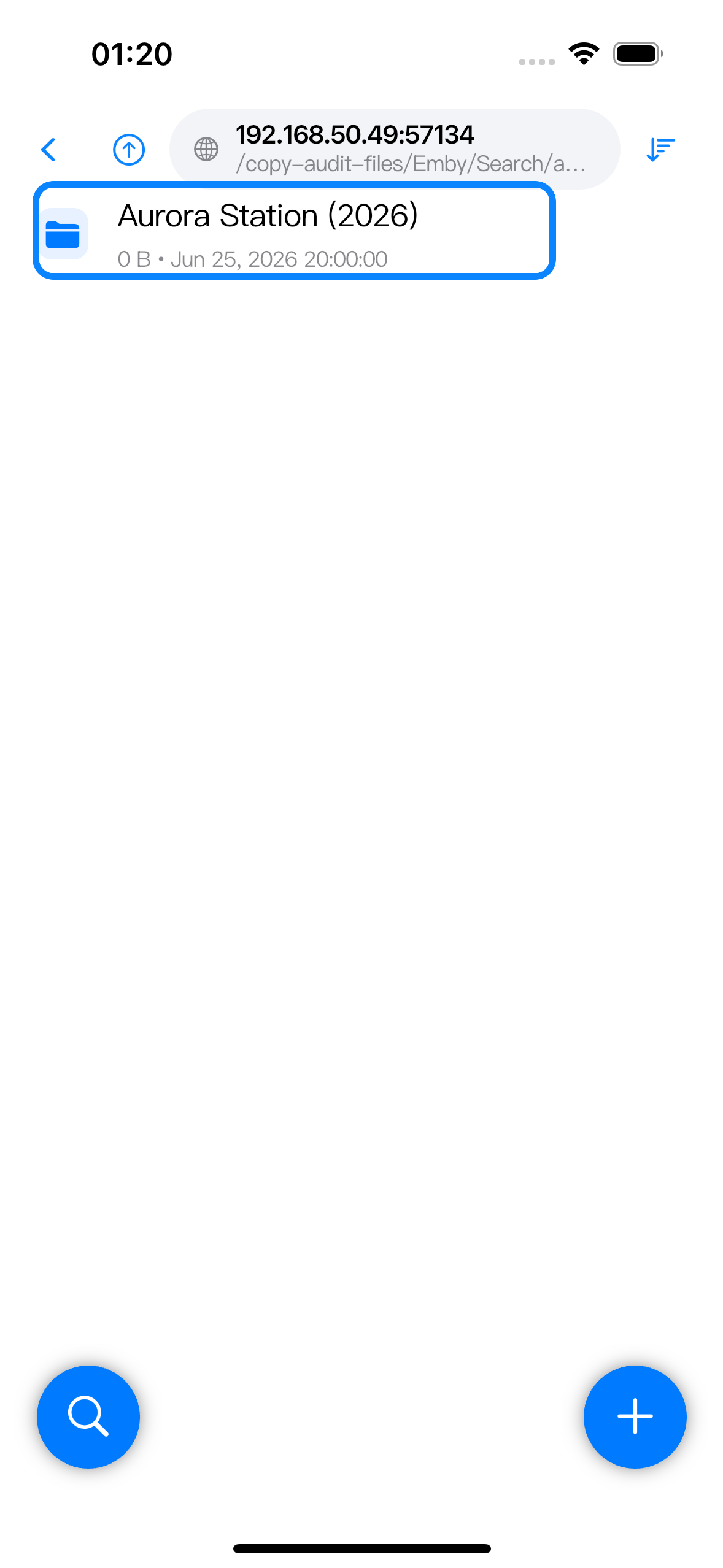
The query is taken from the child folder name. /Emby/Search/aurora searches for aurora; /Emby/Search/2026 searches for 2026. Search results depend on what the configured Emby user is allowed to see.
Choose proxy or redirect playback
Media Delivery controls what happens when a WebDAV client opens the media file entry.
| Mode | Behavior |
|---|---|
| Proxy Media | Zwind keeps the WebDAV file URL stable and relays media bytes from Emby to the WebDAV client. WebDAV Range requests go to Zwind, then Zwind reads the corresponding stream from Emby. Proxy Read-Ahead (MB) applies in this mode. Use it when clients can reach Zwind but should not connect to Emby directly. |
| Redirect to Emby | Zwind returns an Emby direct stream URL for the media entry. The client must be able to reach the Emby endpoint and handle the redirected playback URL. Zwind is not relaying the media bytes. |
| Auto | Zwind proxies when the selected Emby media source has a known size and can be proxied. If that condition is not met, it falls back to redirect delivery. |
Changing Media Delivery affects newly resolved playback responses. If playback information is cached, clear or wait out the Playback Cache TTL before checking the changed behavior.