



Choose how Browser opens files
Pick the right Zwind Browser open action for videos, audio, images, text, Markdown, URL shortcuts, regular files, and folders.
Browser chooses an opener from the selected item type. Tap a folder row to browse into it, tap a file row to use Zwind’s default opener, or long-press a file or folder row when you want to choose a specific tool.
The screenshots use the English app UI.
Open the action menu
In Browser, long-press the file or folder row. The menu title shows the selected name, and the first group lists the open methods available for that item type.
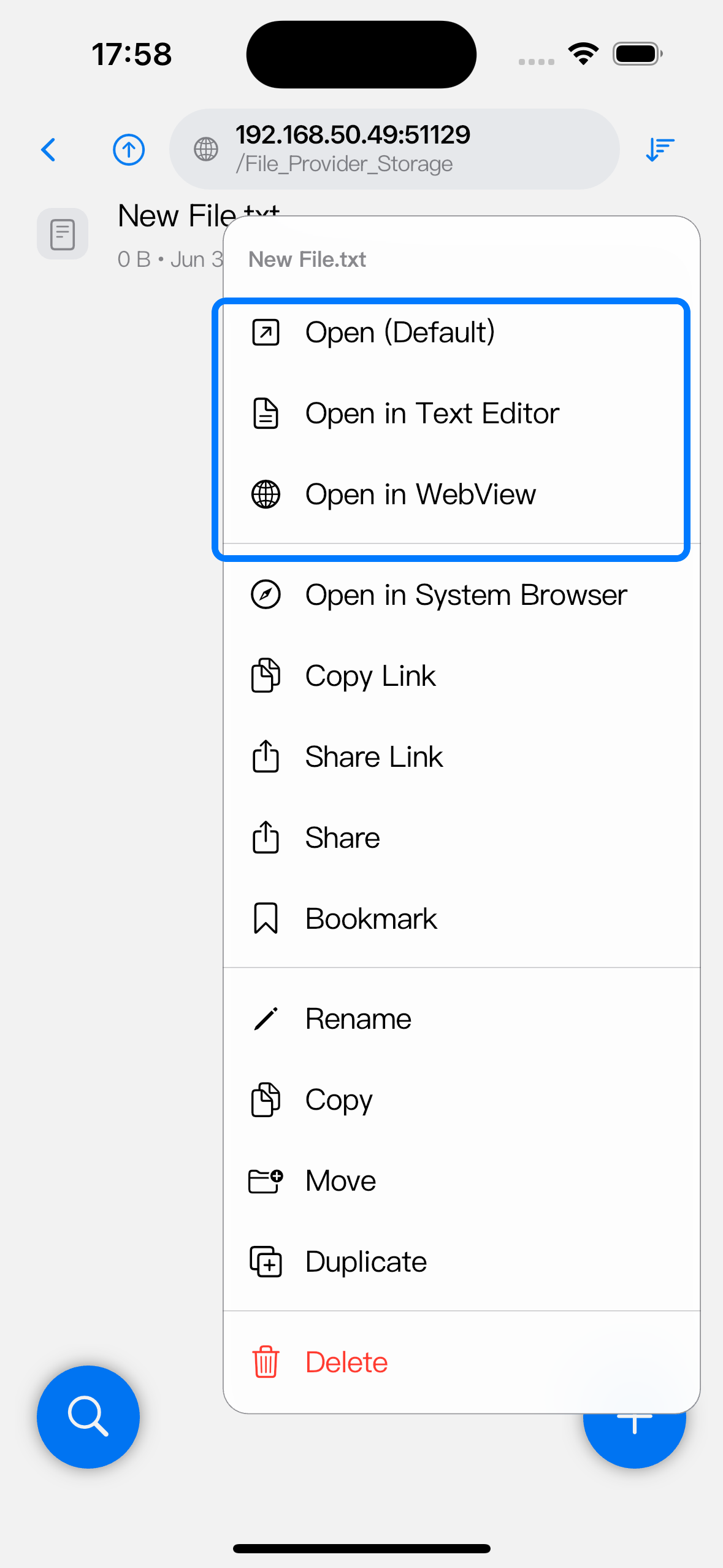
Choose Open (Default) when you want Zwind to match the file automatically. Choose a named tool when you want to override the default, test another player, or send the item to iOS.
What Open Default does
Open (Default) uses Zwind’s built-in matching:
| Item type | Default result |
|---|---|
Video files such as .mp4, .mov, .mkv, .webm, .m3u8, or .mpd | Opens Video Player and builds a playlist from nearby playable video items. |
Audio files such as .mp3, .m4a, .aac, .wav, .flac, or .ogg | Opens Music Player and builds a queue from nearby audio items. |
Images such as .png, .jpg, .jpeg, .gif, .bmp, .webp, .heic, or .tiff | Opens Image Viewer with nearby images available for previous/next navigation. |
Markdown files .md or .markdown | Opens Markdown Preview. |
Text-like files such as .txt, .json, .rss, .wm, .log, .csv, .yaml, .xml, .opml, .ini, or .cfg | Opens Text Editor. |
URL shortcuts ending in .url | Reads the shortcut target and opens the HTTP or HTTPS URL in Zwind’s web runtime when possible, with WebView fallback. |
| PDF and other regular files | Opens WebView for an in-app preview when the format can be displayed. |
If a file has no extension, Zwind may probe the content type before choosing a default. If the file still cannot be classified, WebView is the fallback.
Use video and audio choices
Video files show dedicated player choices:
| Action | Use it for |
|---|---|
| Open in Video Player (FFmpeg) | Formats that need the FFmpeg-based player or advanced container support. |
| Open in Video Player (AVPlayer) | Apple-native playback for supported formats such as MP4, MOV, M4V, and HLS streams. |
| Open in Music Player | Playing the audio track from a supported media file or adding it to the music queue. |
| Open in WebView | Browser-style playback for a URL or media response that works better in a web view. |
Audio files show Open in Music Player as the main explicit choice. They can also be opened in Open in Video Player (FFmpeg) when you want the video player controls, or in Open in WebView when the source is better handled as a web resource.
Use image, text, and Markdown tools
For images, Open (Default) is the Image Viewer path. Use Open in WebView when you want the raw browser rendering instead, such as for SVG or a server response that is not handled as a normal bitmap.
For text-like files, Open in Text Editor opens the file as editable text. This is also the right tool for .rss and .wm marker files when you need to change the resolver URL or rule.
For Markdown, Open (Default) opens Markdown Preview. Choose Open in Text Editor when you want to edit the Markdown source instead of reading the rendered preview, or Open in WebView when you want to inspect the raw WebDAV response.
Open URL shortcuts and regular files
A .url file can contain either a plain URL or an Internet Shortcut style URL= line. Open (Default) reads the file and opens the target when it is an http or https URL. Use Open in Text Editor if you want to inspect or edit the shortcut file itself.
For regular files whose type is unknown, the menu offers manual choices such as Open in Video Player, Open in Music Player, Open in Text Editor, and Open in WebView. Pick the tool that matches the content you know is inside the file.
Open in System Browser sends the WebDAV URL to iOS. Share shares the file content through the iOS share sheet. Copy Link and Share Link share the WebDAV URL instead of the downloaded file, so the receiving app or device must be able to reach the server and provide credentials when required.
Open folders
Long-pressing a folder gives folder-specific open choices:
| Action | What it opens |
|---|---|
| Open Folder | Enters the folder in Browser. |
| Open in Video Player | Loads playable video items from the folder into Video Player. |
| Open in Music Player | Loads playable audio items from the folder into Music Player. |
| Open in WebView | Opens the folder URL in Zwind’s WebView. |
| Open in System Browser | Sends the folder URL to iOS. |
Projection boundary folders for RSS or Web Media marker files may also show Open in Text Editor, which edits the underlying .rss or .wm marker file behind that projected folder.