



Set language, display mode, and default search engine
Change Zwind's app language, choose Classic, light, dark, or system display mode, and set the Browser search engine including a custom search URL.
Use Settings when you want Zwind to stay in a specific language, keep a fixed light or dark appearance, or use a different search provider when the app turns search text into a Browser URL.
The screenshots use the English app UI. On a Chinese UI, Language is 语言, Appearance is 显示模式, and Browser default search engine is 浏览器默认搜索引擎.
Open the preference rows
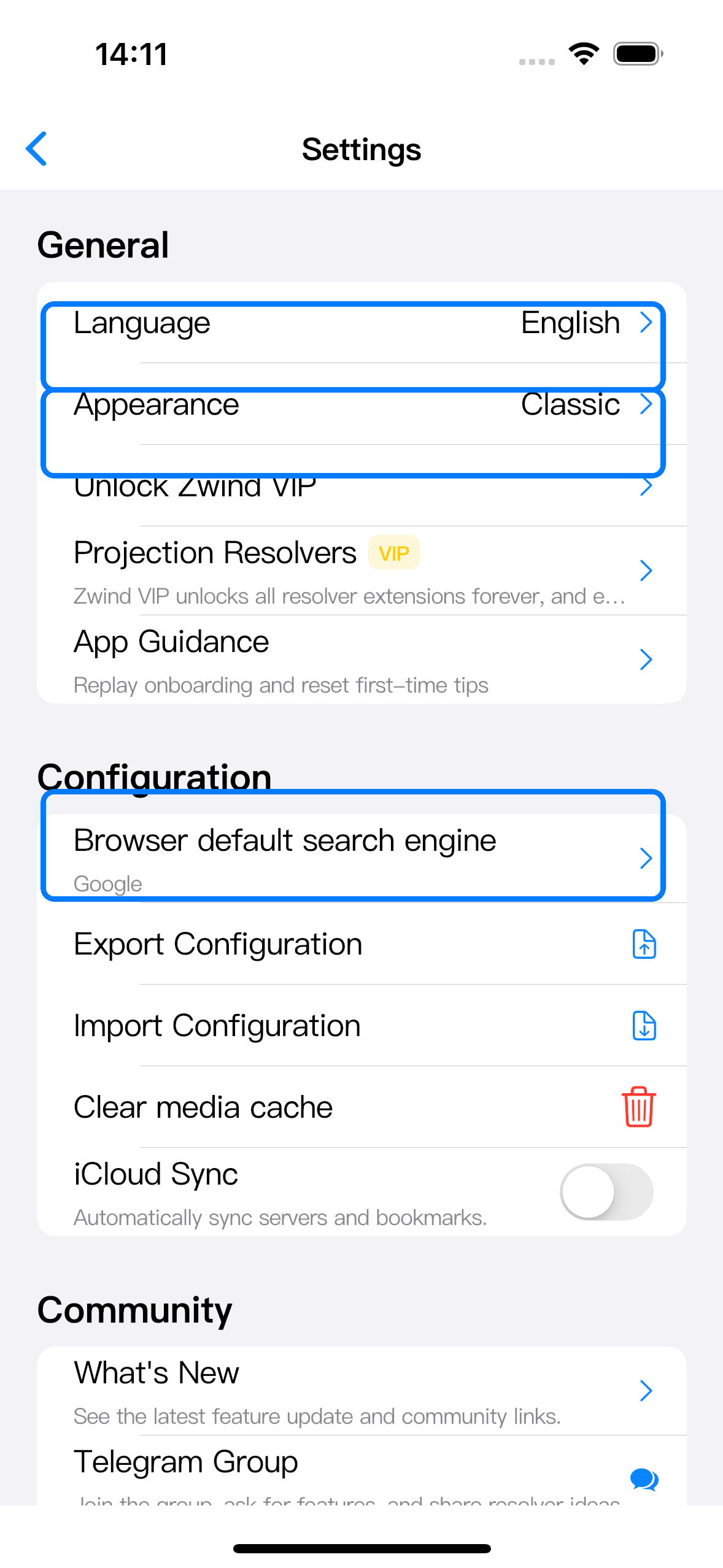
On Home, tap the gear button to open Settings. The General section contains Language and Appearance. Scroll a little farther to Configuration for Browser default search engine.
Choose the app language
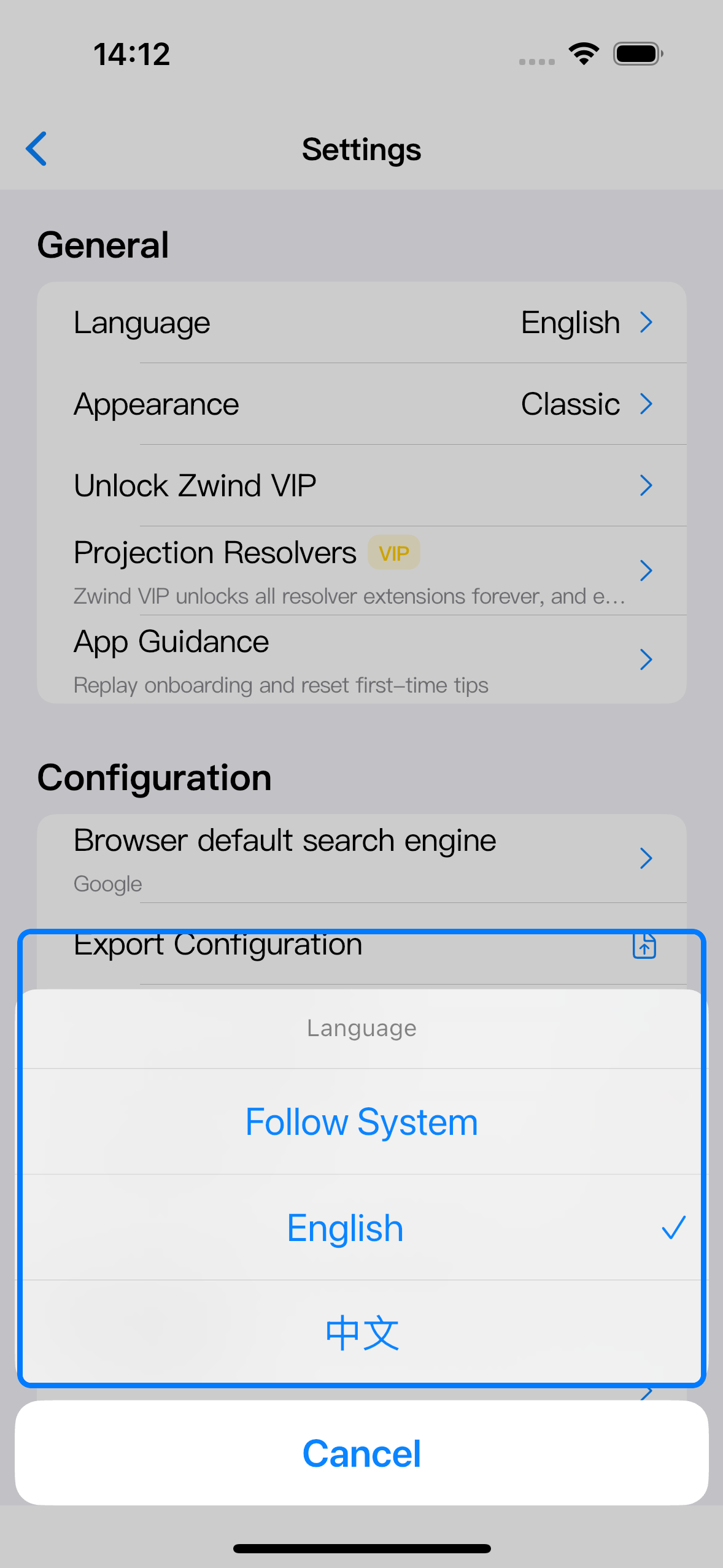
Tap Language and choose one of the three options.
| Option | What it does |
|---|---|
| Follow System | Uses the device language when it matches a language Zwind supports. |
| English | Keeps Zwind in English even if the device language is different. |
| 中文 | Keeps Zwind in Chinese even if the device language is different. |
The change applies inside Zwind right away. iOS system surfaces such as the share sheet, file picker, permission prompts, and keyboard still follow the device’s system language.
Choose the display mode
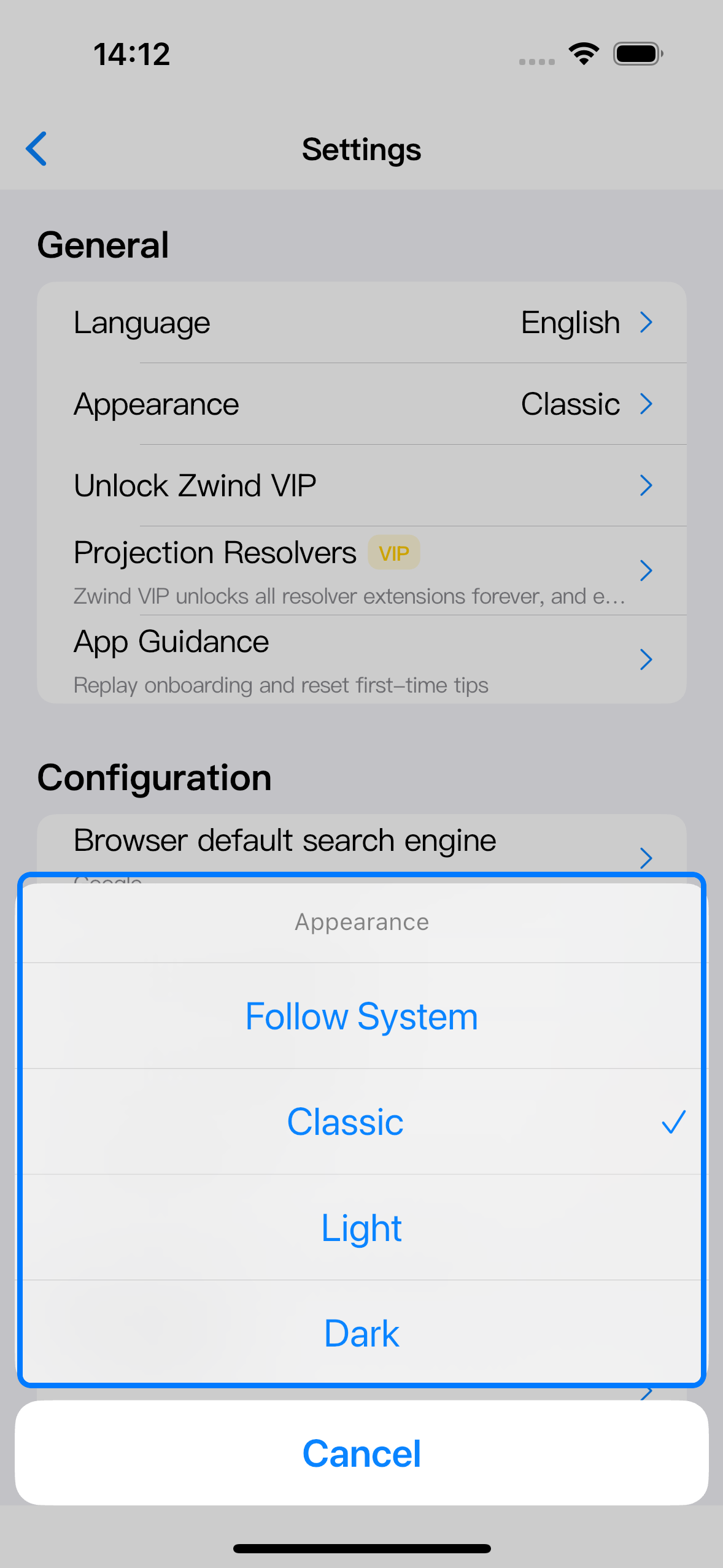
Tap Appearance. The checkmark shows the active mode.
| Option | What it does |
|---|---|
| Follow System | Switches with the iOS light or dark appearance setting. |
| Classic | Uses Zwind’s original light palette. |
| Light | Forces the light appearance. |
| Dark | Forces the dark appearance. |
Use Follow System if Zwind should change with the device. Use Classic, Light, or Dark when you want the app to stay in one mode regardless of the device setting.
Set the Browser default search engine
Scroll to Configuration, tap Browser default search engine, then choose Google, Bing, Baidu, or Custom URL.
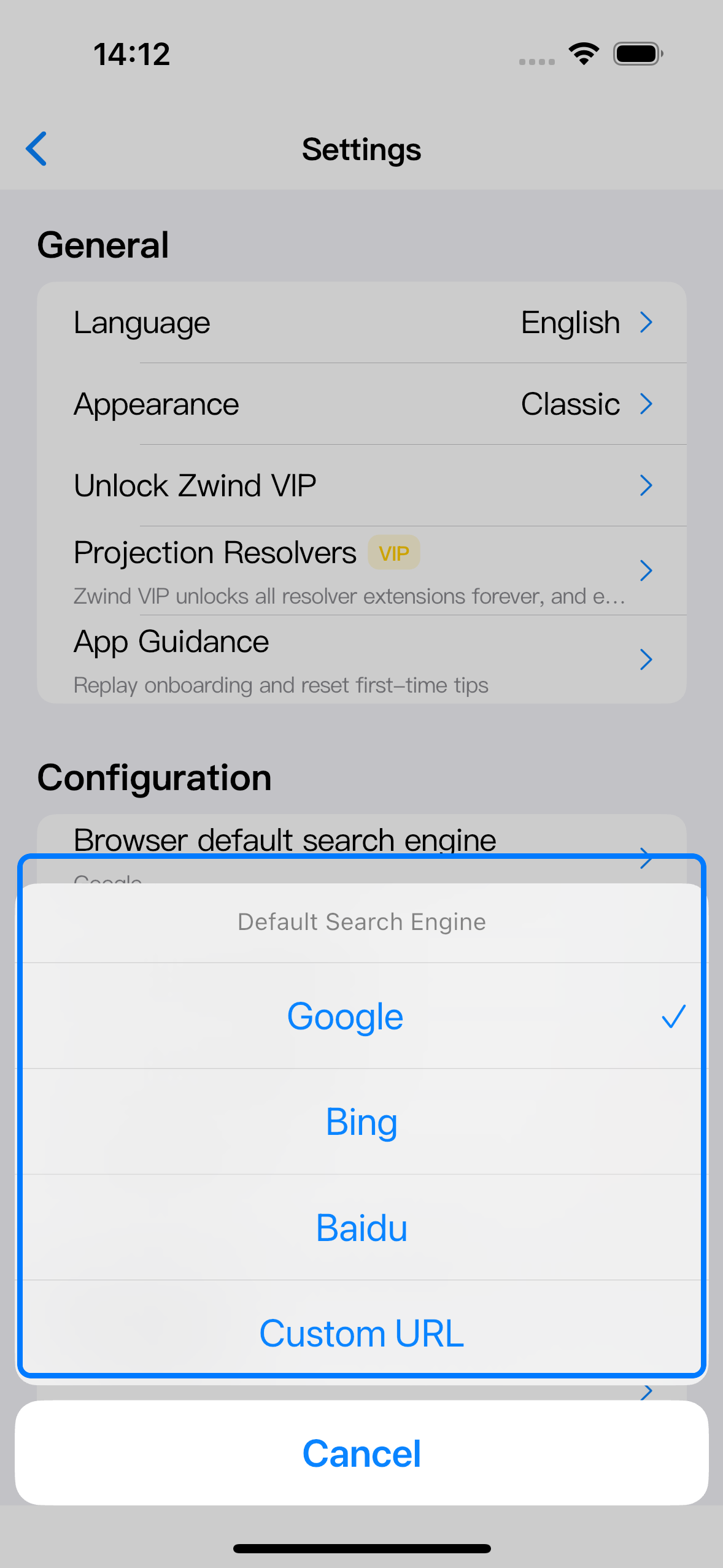
This setting is used when Zwind needs to turn search text into a web search URL, such as a search action that opens the built-in Web Browser. It does not rewrite URLs you type or open directly. A full URL like https://example.com/video still opens as that URL, and a domain-like input such as example.com is still treated as a site address.
The search engine preference is included in Zwind configuration export, import, and iCloud configuration sync. Language and display mode are local app preferences.
Fill a custom search URL
Choose Custom URL to enter a search URL prefix. Zwind URL-encodes the search terms and appends them directly after the text you enter.
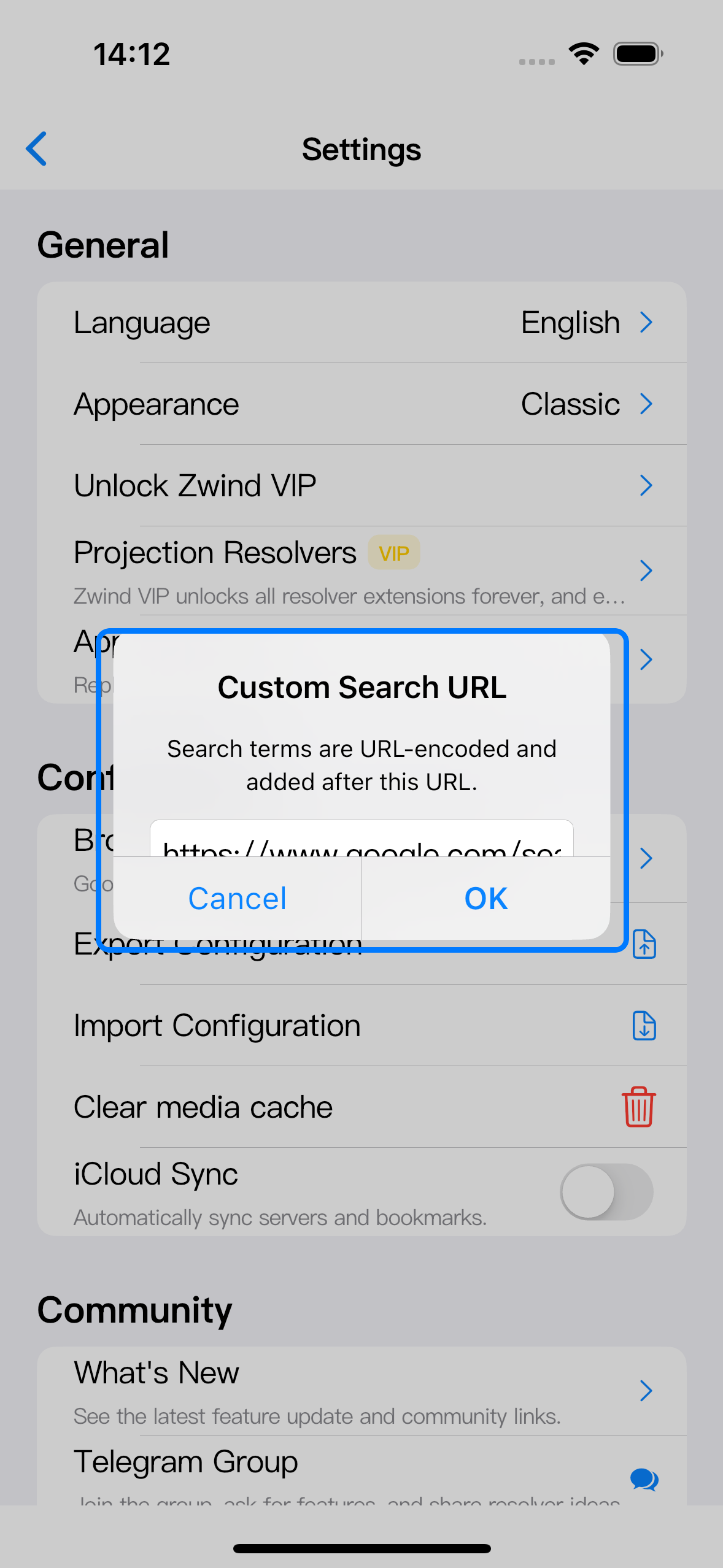
Use a full http:// or https:// URL, and include the query parameter separator that should come before the search terms:
| Search provider | Custom URL value |
|---|---|
https://www.google.com/search?q= | |
| Bing | https://www.bing.com/search?q= |
| Baidu | https://www.baidu.com/s?wd= |
| DuckDuckGo | https://duckduckgo.com/?q= |
Do not enter a placeholder such as {q} or %s; Zwind does not replace placeholders. It appends the encoded search terms to the end. For example, if the custom URL is https://duckduckgo.com/?q=, searching for webdav server opens https://duckduckgo.com/?q=webdav%20server.
If the value is missing http:// or https://, or the host cannot be parsed, Zwind shows Invalid URL. A structurally valid URL without a final query separator can still save, but the search terms will be joined to the end of that URL, so include the final =, /, or other separator your search endpoint expects.