



Clear cache and view app logs
Clear Zwind's media preview cache from Settings and use App Logs to inspect server, WebDAV, native bridge, and app diagnostic entries.
Use Clear media cache when video preview tiles in Media General Search are stale, wrong, or taking too much local storage. Use App Logs when you need to see what Zwind recorded while starting a server, handling WebDAV requests, refreshing resolver results, or bridging work to the native WebDAV engine.
The screenshots use the English app UI. On a Chinese UI, Clear media cache is 清除媒体缓存, App Logs is 应用日志, Share Logs is 分享日志, Copy Logs is 复制日志, and Clear Logs is 清除日志.
What the media preview cache stores
Zwind’s media preview cache is used by Media General Search video previews. When a video result is shown with preview frames, Zwind stores generated JPEG frames under its local app support directory so the same file path can show previews faster next time.
This cache does not contain your original media files. It also does not clear resolver caches, Emby metadata caches, RSS materialized content, imported Quark records, configuration files, bookmarks, app logs, or purchase state.
Clear it when one of these is true:
| Situation | Why clearing helps |
|---|---|
| A video file changed but keeps the same WebDAV path | Cached preview frames may still describe the older file at that path. |
| Media General Search keeps showing failed or empty preview slots | The cached failure record can be removed so previews are attempted again. |
| Zwind is using too much local storage for previews | The preview cache can grow with large media scans and is pruned automatically only after it reaches its cache limit. |
| You changed a server source, authentication, or projection output and preview results look inconsistent | Clearing forces future preview tiles to be generated from the current source instead of reused cache entries. |
Clear media cache
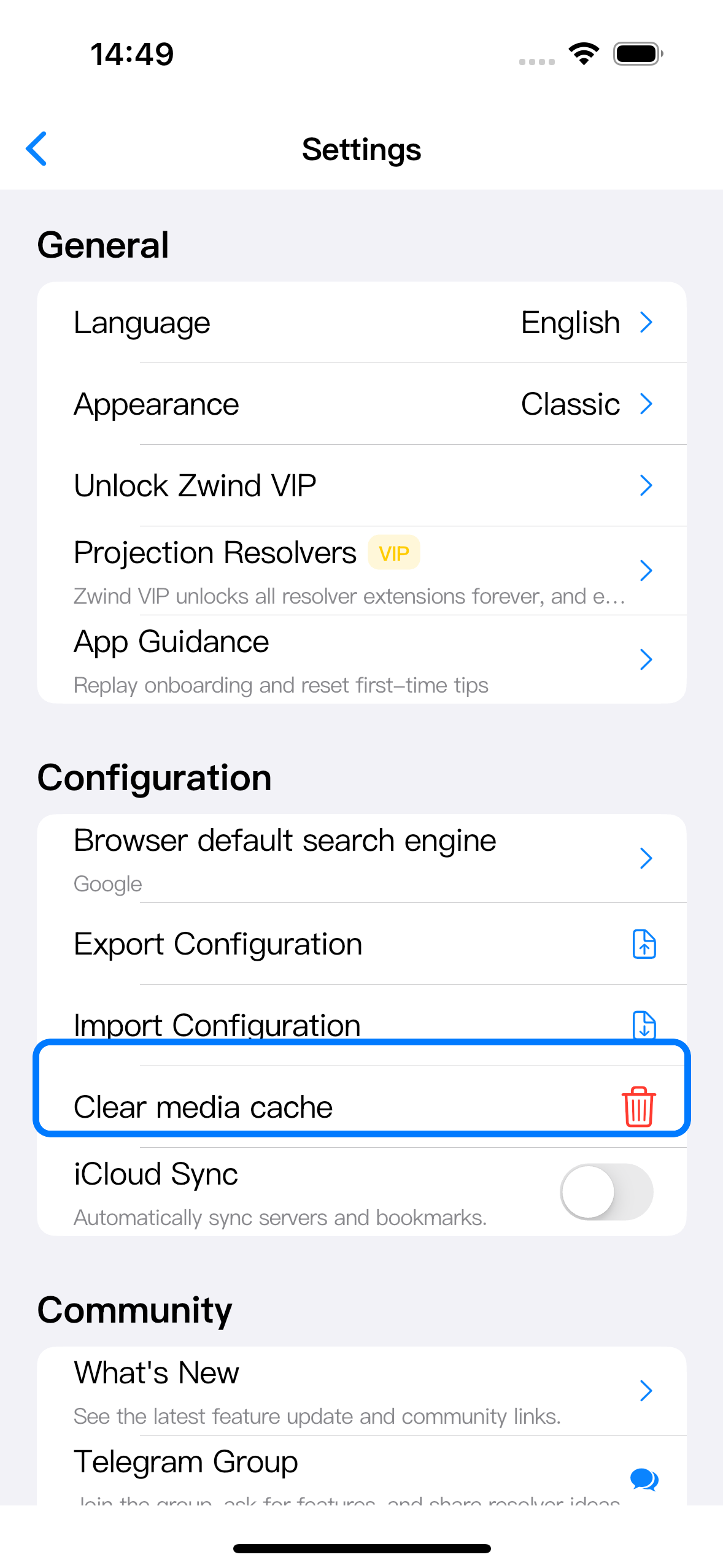
Open Settings, scroll to Configuration, then tap Clear media cache.
Zwind asks for confirmation before deleting cached preview frames.
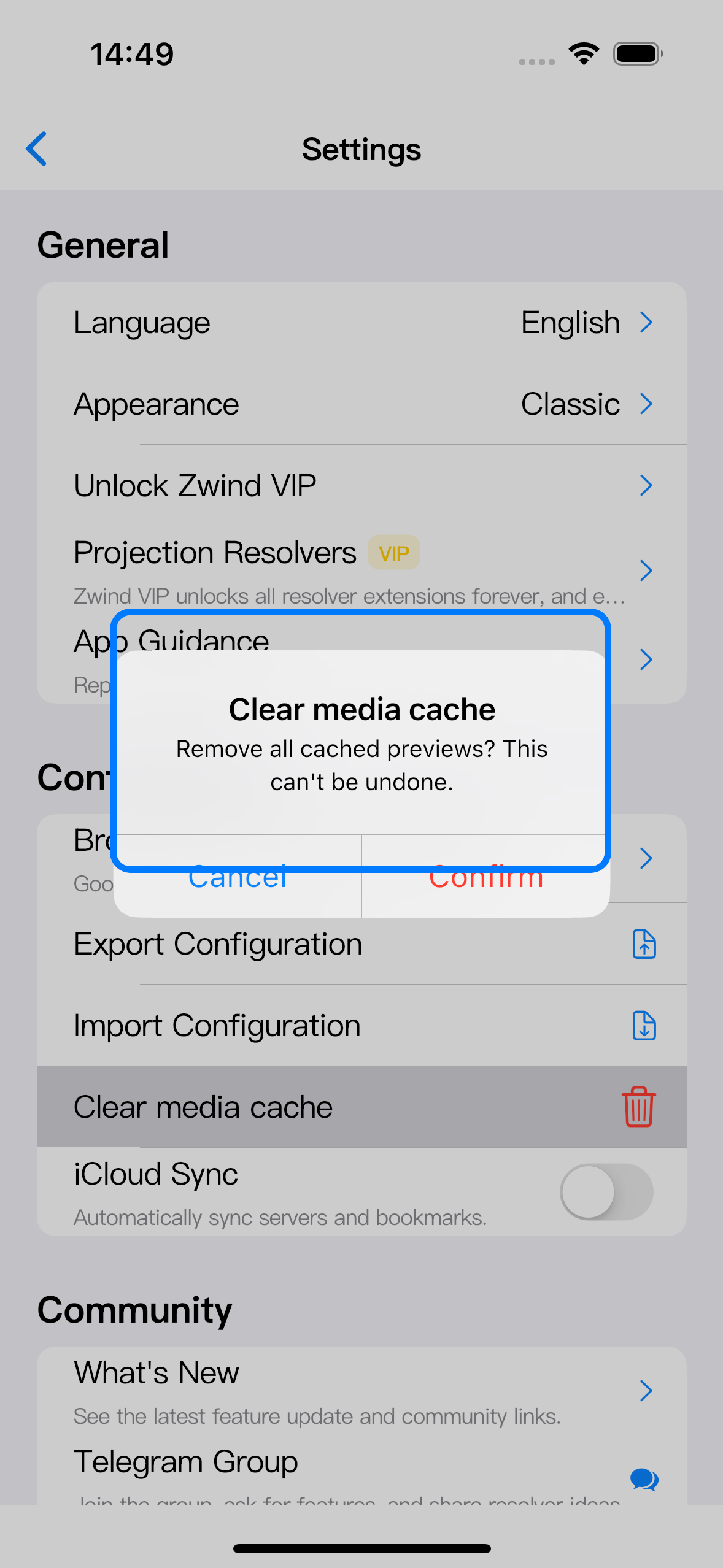
Tap Confirm to clear the cache. Existing Browser folders, servers, resolver bindings, bookmarks, logs, and configuration stay unchanged. The next time Media General Search needs video previews, Zwind generates them again.
Open App Logs
In Settings, scroll to Support and tap App Logs. The row is marked VIP because App Logs are a Zwind VIP feature.
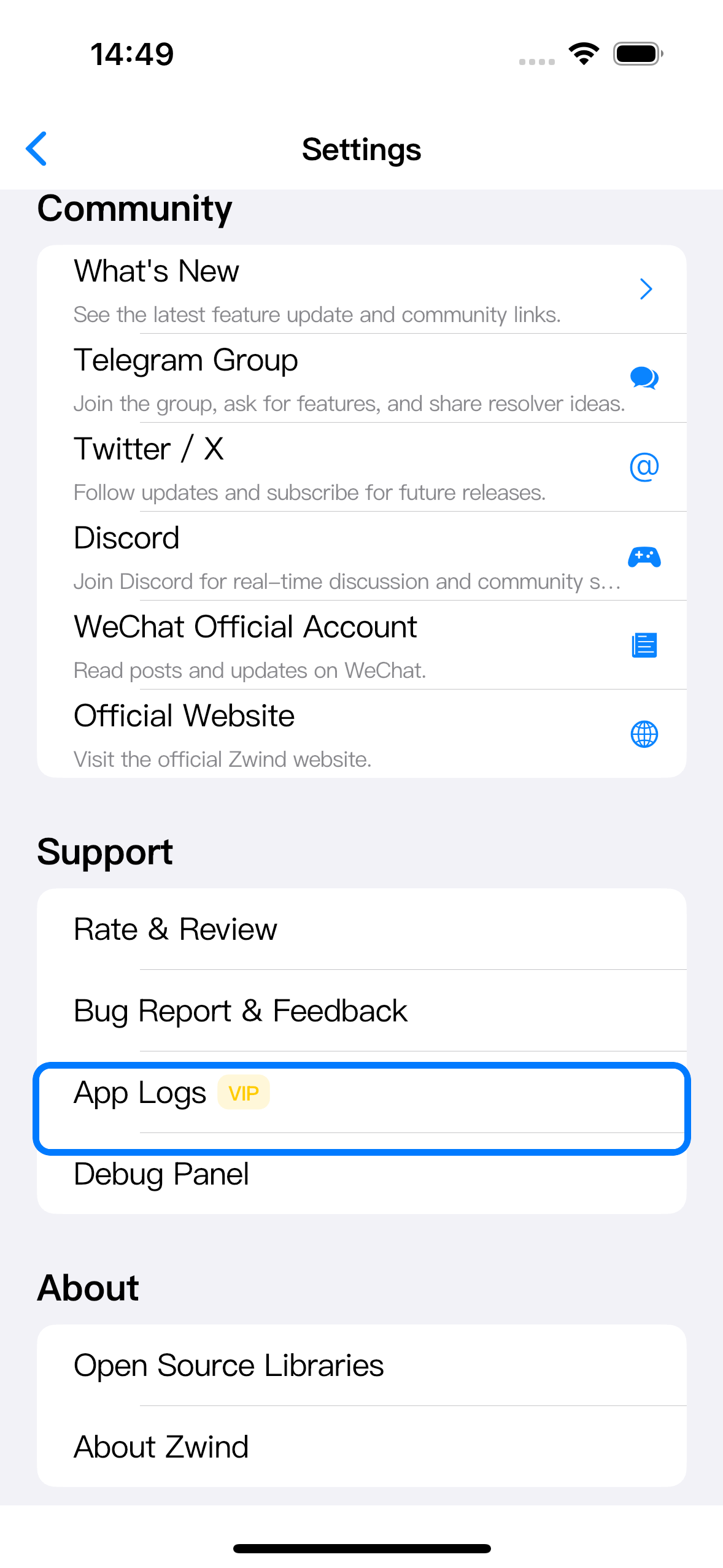
If VIP is not active, Zwind shows the VIP paywall instead of opening the log screen. A paid VIP entitlement and an active rewarded VIP ticket both count as VIP access while they are active. Buying a single resolver unlock does not unlock App Logs unless it also gives you VIP access.
Read log sources
The App Logs screen groups entries by source. Tap a blue source chip to hide or show that group, and tap a long log entry to expand it.
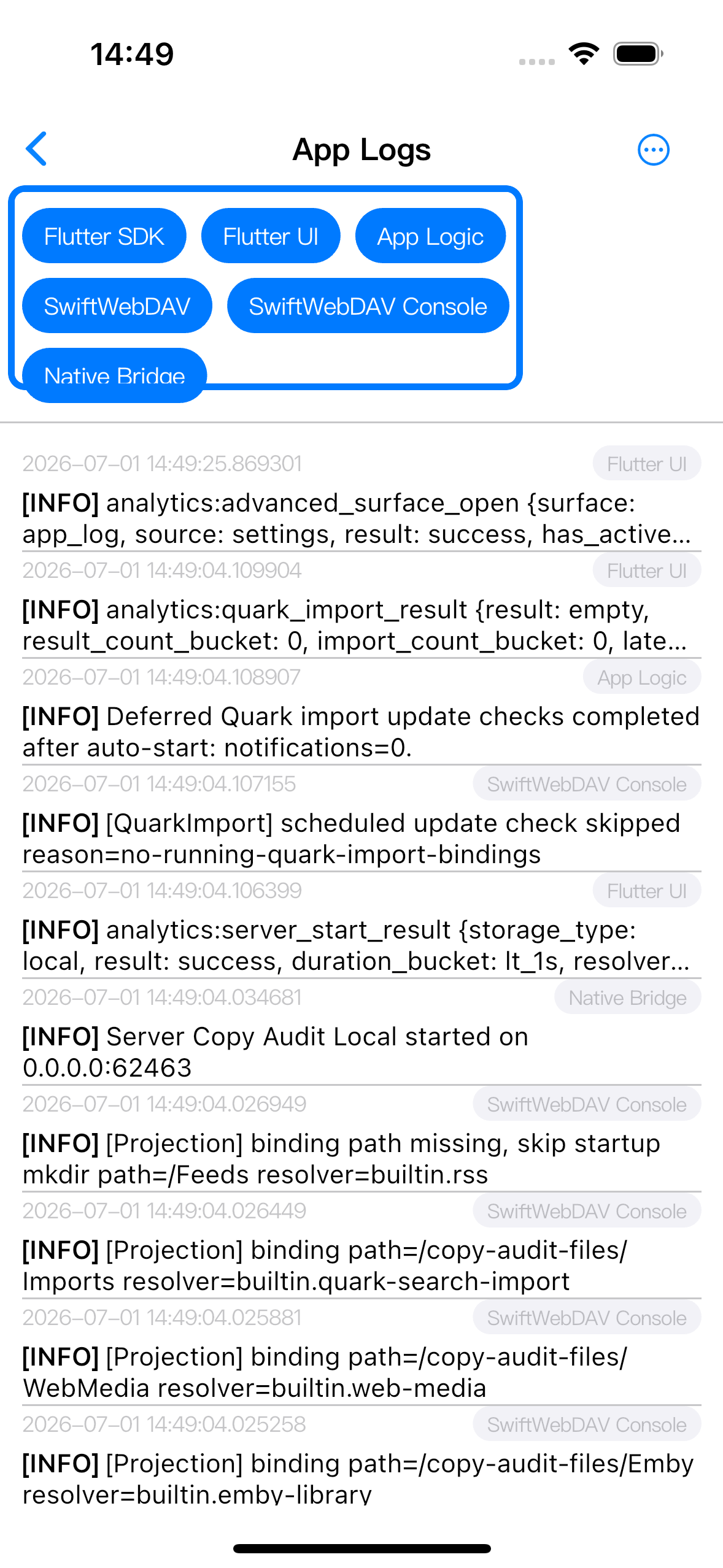
The usual sources are:
| Source | Useful for |
|---|---|
| App Logic | App-level events such as server start results, rewarded VIP state, import/update outcomes, and handled errors. |
| SwiftWebDAV | WebDAV request and response flow, status codes, route errors, and native server activity. |
| Native Bridge | Messages passed between Flutter and the iOS native layer, including server start or stop results. |
| Flutter SDK | Flutter framework errors captured by the app. |
Some builds or registered test devices may show extra sources such as Flutter UI or SwiftWebDAV Console. Those are intentionally hidden from ordinary devices because they are noisier and are mainly for copy review or deep debugging.
App Logs are local to the device. Zwind keeps the newest entries, with an in-app list limit and a log file size cap, so very old entries can disappear after enough new activity.
Share, copy, or clear logs
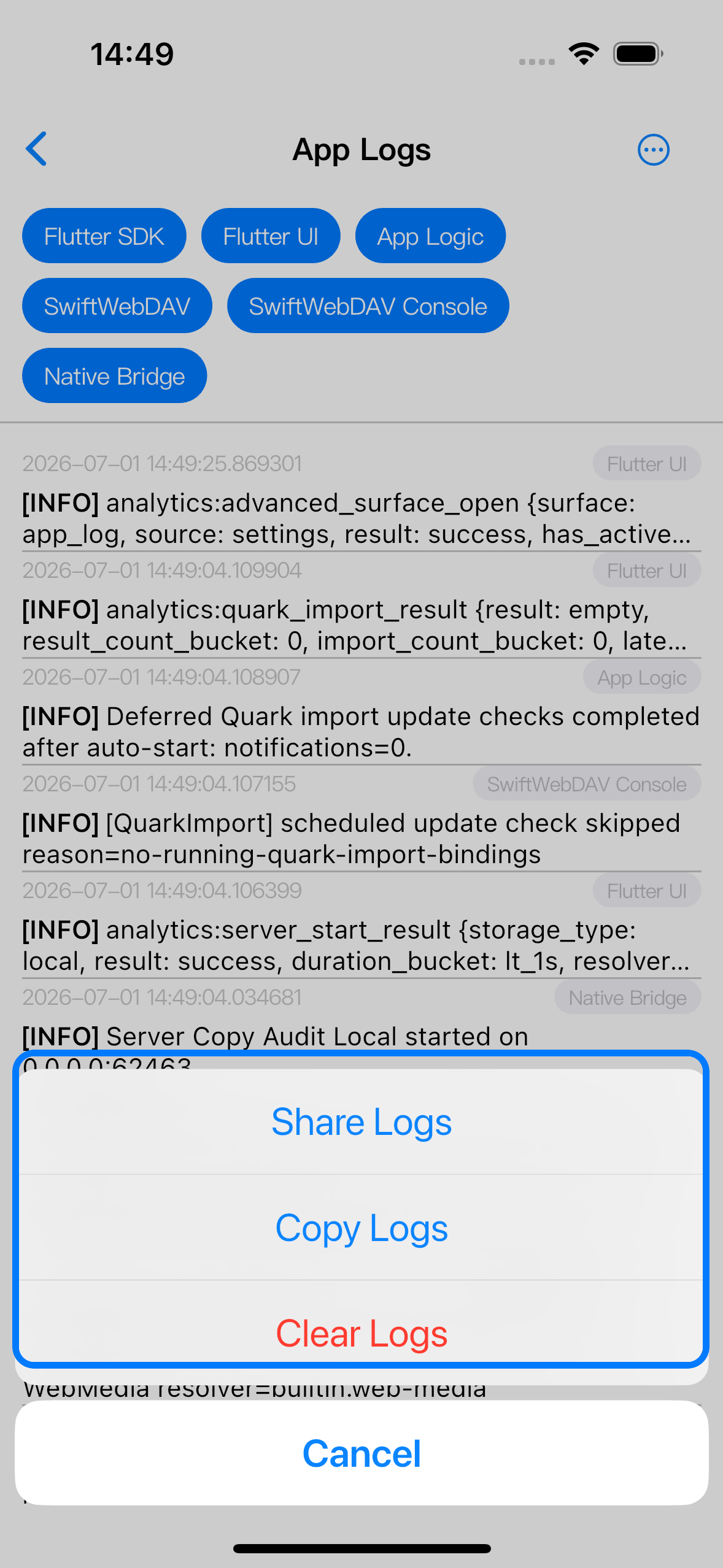
Tap the ellipsis button in App Logs to open the action sheet.
| Action | What it does |
|---|---|
| Share Logs | Opens the iOS share sheet with the currently stored log text. |
| Copy Logs | Copies the log text to the clipboard. |
| Clear Logs | Deletes the stored App Log entries from this device. |
Logs can include server names, file paths, WebDAV paths, URLs, request status, device identifiers, or error messages from external services. Read the text before sending it to someone else.
Clearing logs does not clear media previews, resolver caches, configuration, purchase state, or any file served by your WebDAV servers.