



Manage WebDAV bookmarks
Save local or external WebDAV URLs, add optional credentials, open saved locations, and delete bookmarks in Zwind.
Bookmarks save WebDAV URLs you expect to open again: a folder on a Zwind server running on the same device, another Zwind server on your LAN, or an external WebDAV endpoint reachable from your network. A bookmark stores the URL and, when needed, the WebDAV username and password for that URL.
The screenshots use the English app UI. In the current app build, Bookmarks opens directly from Home and saving a bookmark did not show a VIP prompt.
Open Bookmarks
On Home, tap the sidebar button in the top-left corner, then choose Bookmarks from Builtin Apps.
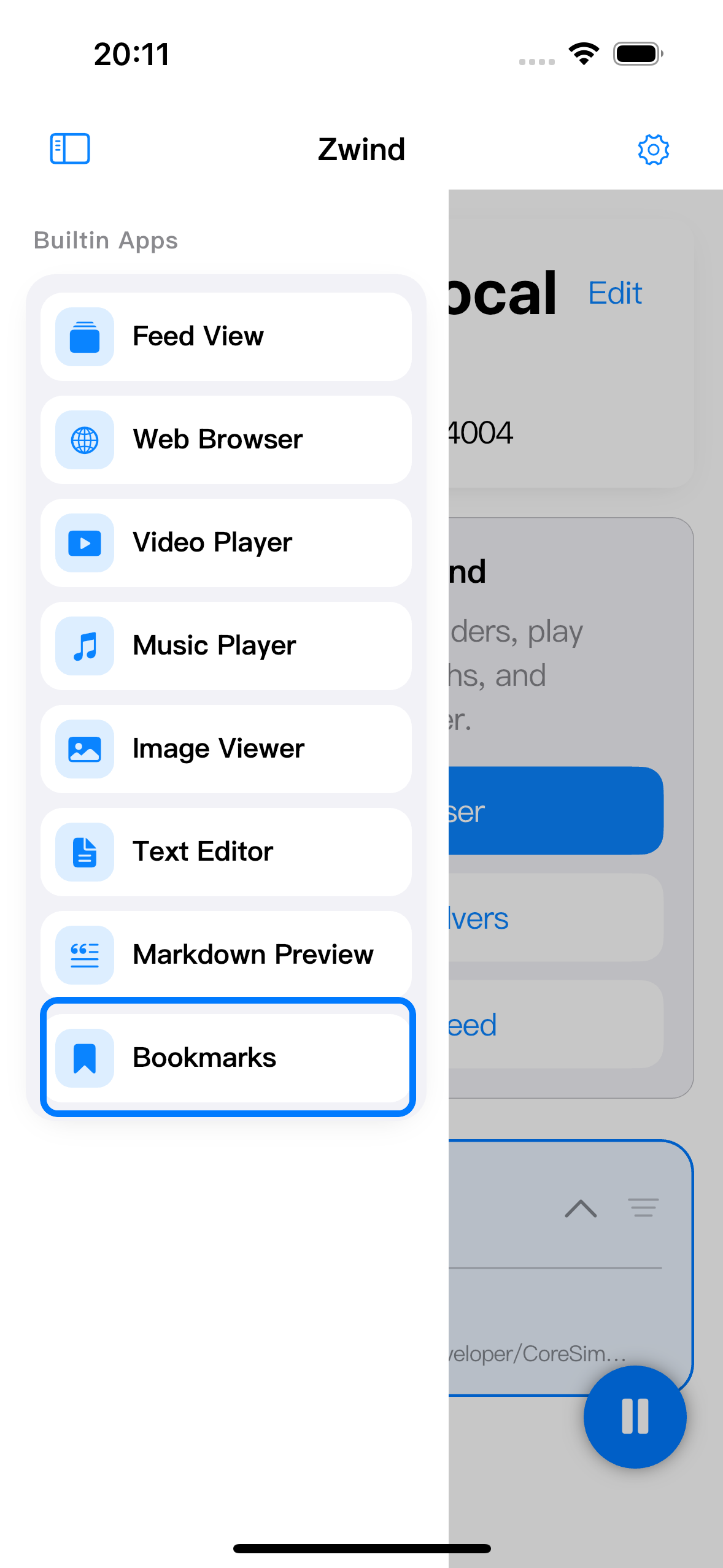
The Bookmarks screen lists saved WebDAV locations. Tap + to add a URL manually.
Add a WebDAV URL
Tap + and fill the bookmark form.
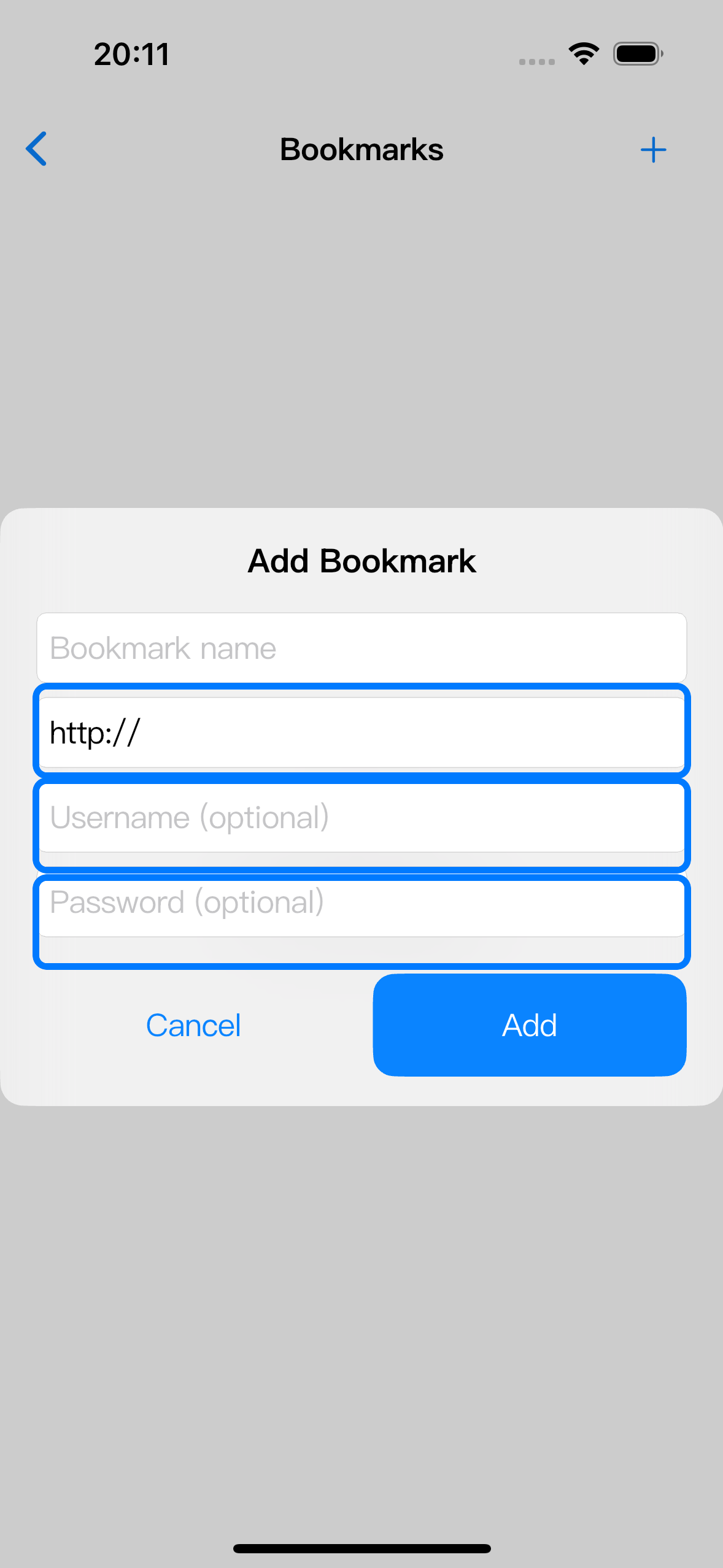
Use the fields this way:
| Field | What to enter |
|---|---|
| Bookmark name | Optional display name, such as Home NAS or Mac mini WebDAV. If you leave it empty, Zwind shows the URL host as the name. |
| URL | The full http:// WebDAV URL. It can point to a local Zwind server such as http://127.0.0.1:8080/webdav/, a LAN address, or an external WebDAV service. |
| Username (optional) | Fill this only when the WebDAV URL requires authentication. |
| Password (optional) | Fill this with the matching WebDAV password when the URL requires authentication. |
If the target WebDAV server allows anonymous access, leave Username (optional) and Password (optional) empty. If that server requires authentication, enter the same credentials you would enter in a third-party WebDAV client.
Tap Add to save the bookmark.
Save the current Browser location
When you are already browsing a WebDAV server in Zwind, long-press a file or folder and choose Bookmark from the action menu. Zwind saves that item URL and opens the Bookmarks screen. For a server that has WebDAV credentials configured, Zwind saves those credentials with the bookmark.
Use manual + entry when the URL is not currently open in Browser, or when you want to save a WebDAV URL from another device, NAS, or external service.
Open or edit a saved bookmark
In the Bookmarks list, tap a bookmark row to open it in Browser. If the URL points to a folder, Browser opens that folder. If the URL points to a file and Zwind can identify it, Browser opens the parent folder and then opens the file.
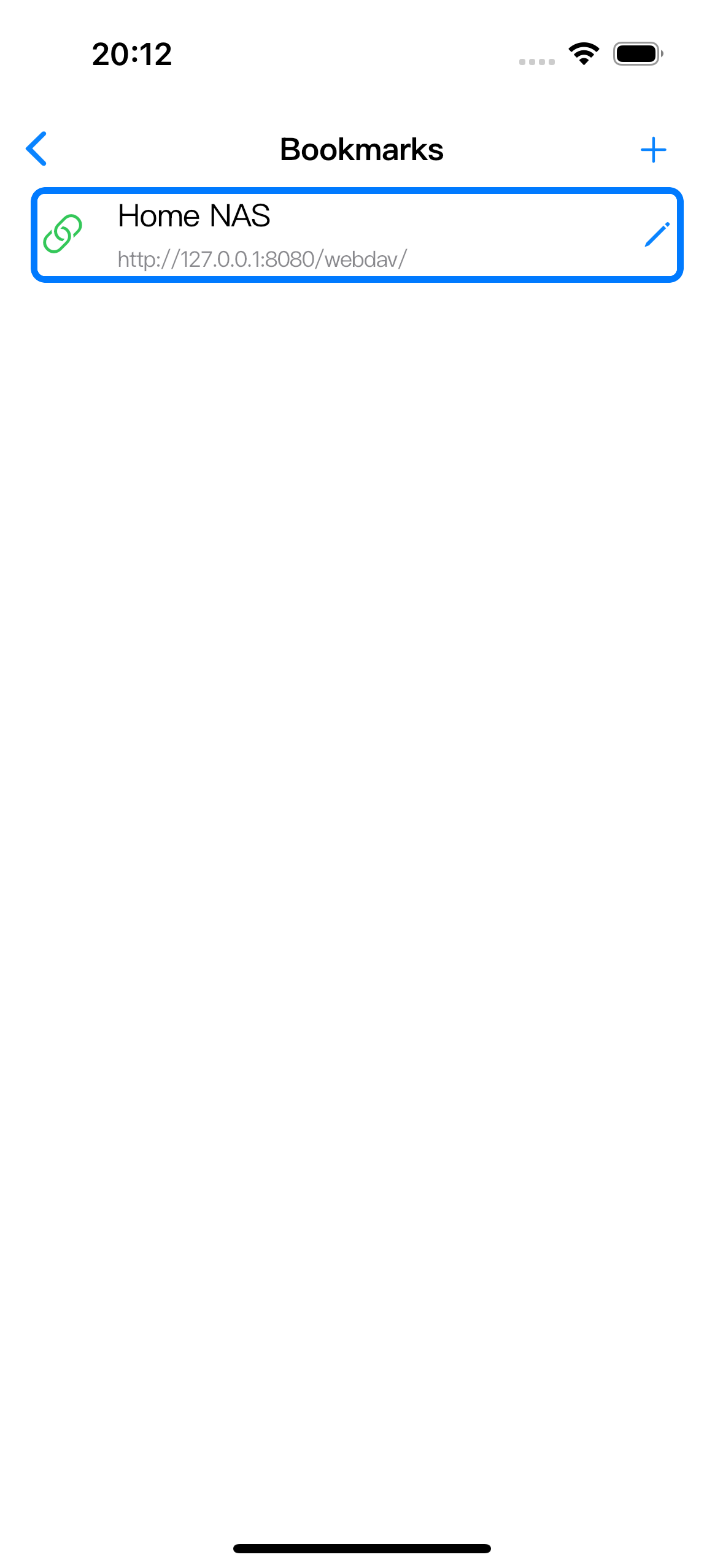
Tap the pencil button to edit the saved name, URL, username, or password. Save the edit after changing a credential for a WebDAV server that started requiring authentication, or after rotating the password on the server side.
Delete a bookmark
Swipe left on the bookmark row, then confirm Delete Bookmark.
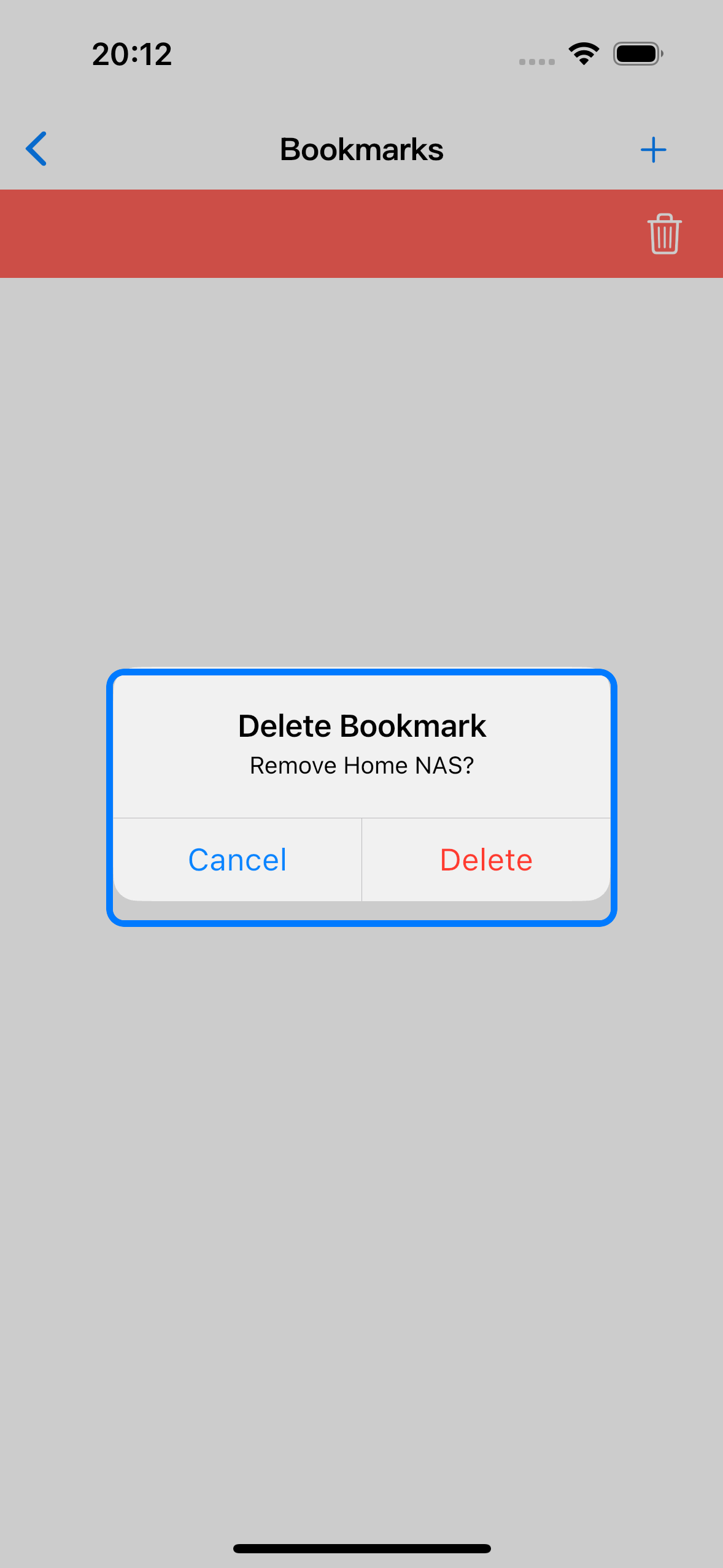
Deleting a bookmark only removes the saved shortcut from Zwind. It does not delete files from the WebDAV server and does not change the server itself.
VIP behavior
In the captured build, Bookmarks is available without a VIP prompt: the Home sidebar entry opens, the + form saves a URL, and the saved row opens from the list. If your app version shows an Unlock Zwind VIP prompt when you open or save a bookmark, complete that prompt before continuing; the bookmark steps are the same after access is allowed.