



Create and manage different server types
Choose between Local FileSystem, Quark Drive, and SMB Share servers, then edit or delete server entries in Zwind.
Zwind can expose three kinds of storage through a server entry: local folders on the iPhone or iPad, Quark Drive, and SMB shares on the local network. Pick the storage type first, then fill the fields that belong to that type.
Choose a server type
On a fresh install, the first server card shows three shortcuts: Use Local Folder, Use Quark Drive, and Use SMB Share. After you already have a server, use the + button at the bottom left to create another one.
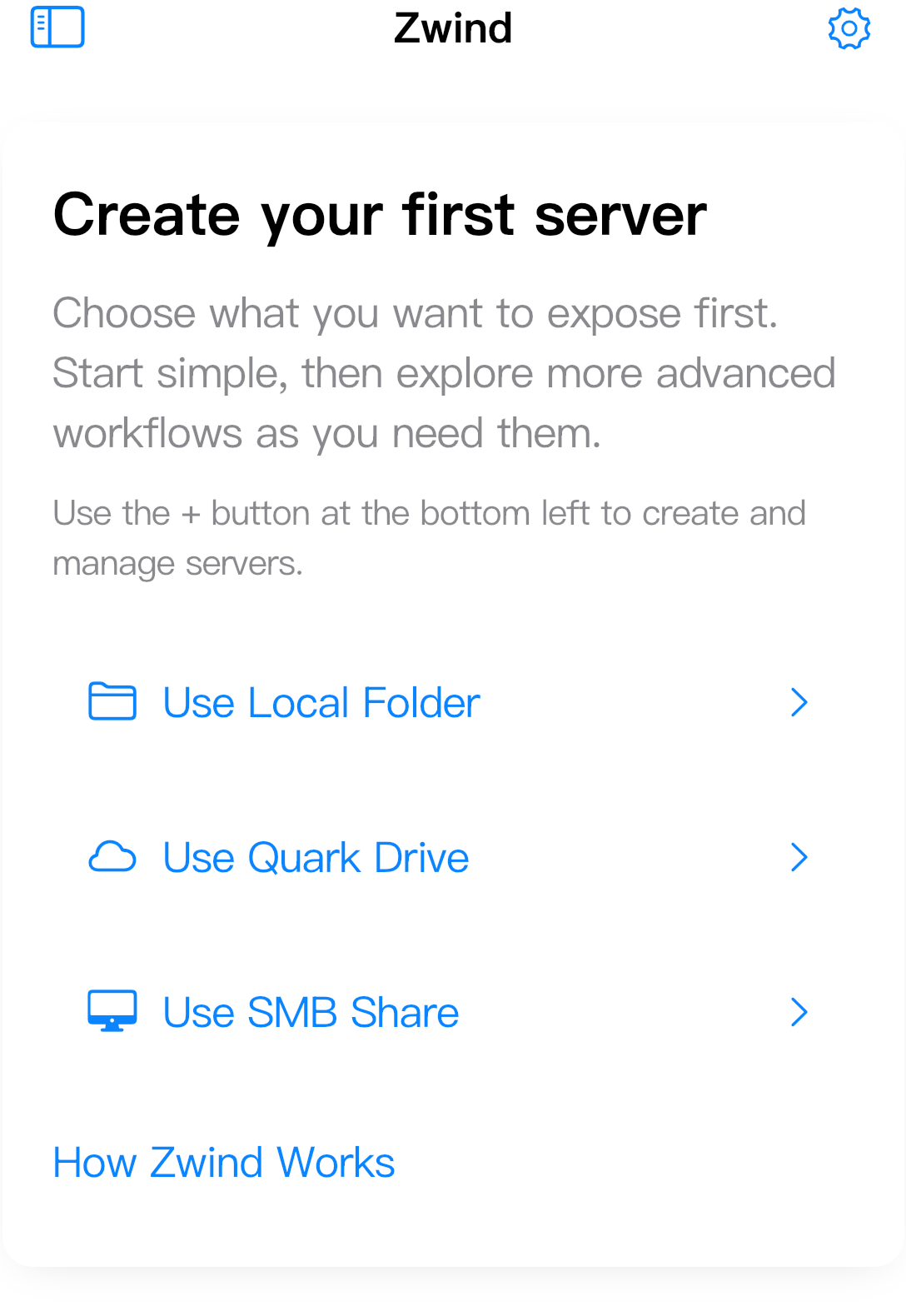
Use Local FileSystem when the files live on the iPhone or iPad, in iCloud Drive, or in another Files provider that iOS can open. A local server needs at least one data folder after it is saved.
Use QuarkDrive when you want Zwind to expose a Quark Drive account through a server entry. The server uses the Quark cookie saved in the configuration form.
Use SMB2/3 Share when the source is a NAS, a Mac or Windows share, or another SMB server on the same network. Zwind connects to the SMB share and presents it through the Zwind server.
Common fields
Every server type starts with the same basic fields.
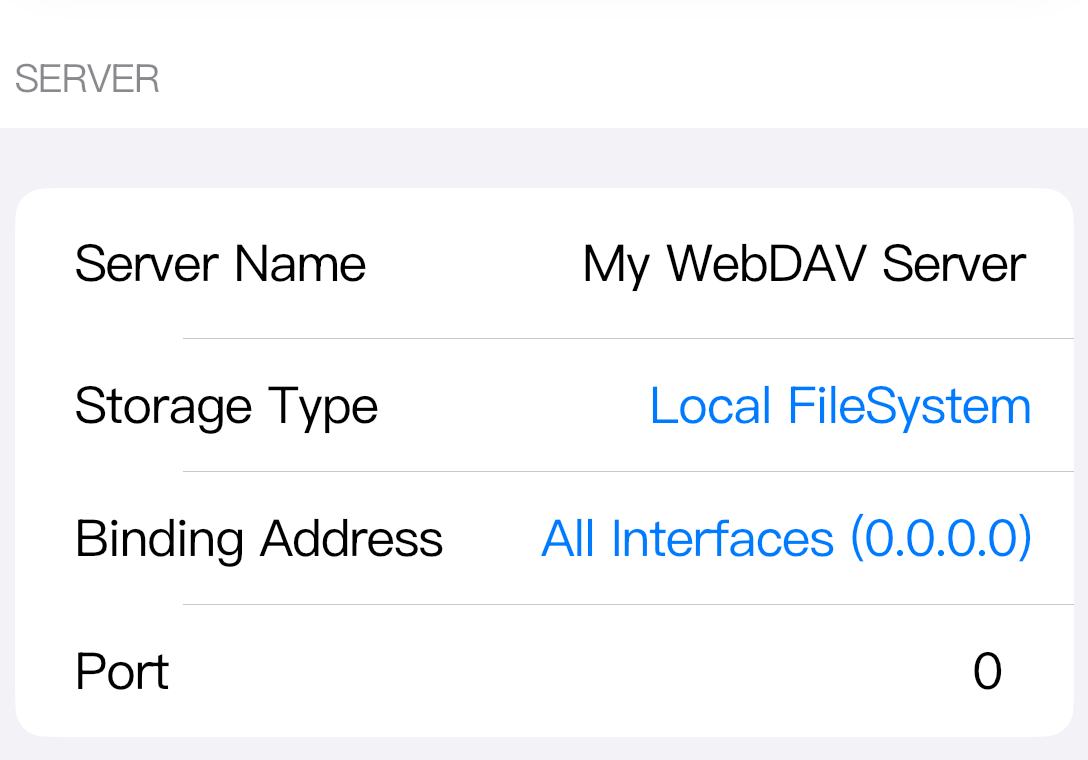
Server Name is the name shown on the Home server card and in server lists. Use a name that identifies the source, such as iPad Downloads, Quark Drive, or NAS Movies.
Storage Type decides what the server exposes. Changing it also changes the storage-specific fields below the common section.
Binding Address controls which local address the server listens on. All Interfaces (0.0.0.0) lets clients use the reachable address shown on the server card. More restrictive bindings are for cases where you only want the server to listen on a specific local interface.
Port controls the WebDAV port. When the port is 0, Zwind asks the system for an available port when the server starts, and you should use the address shown on the Running card. If you enter a fixed port, clients can keep using that port as long as the device address and other server settings still match.
Local FileSystem
For Local FileSystem, the form only needs the common fields. Save the server, then add one or more data folders from the Home card.
The server exposes the folders you add. The server name does not rename the folders themselves, and deleting the server entry does not delete the original files.
QuarkDrive
For QuarkDrive, fill the common fields and Quark Cookie.
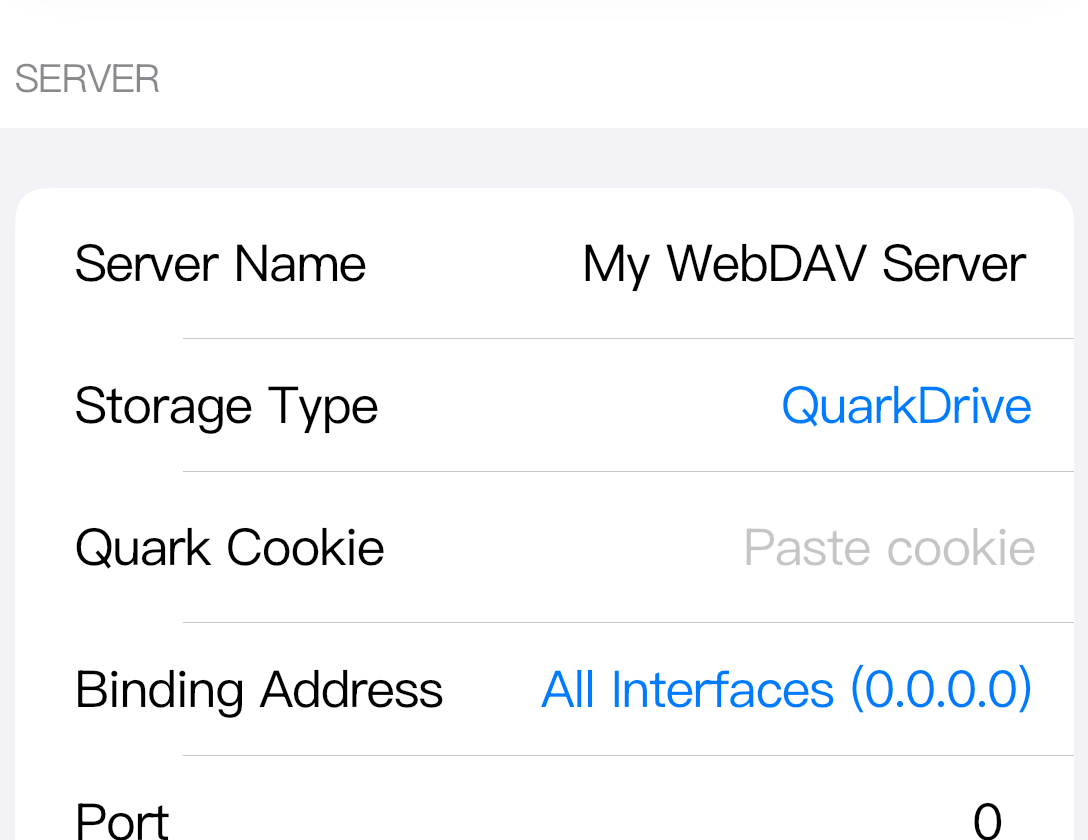
Quark Cookie is the Quark session cookie Zwind uses to access the account. Paste the cookie into this field before saving. This guide only covers where the field belongs; preparing and refreshing the cookie is covered separately.
If Save is disabled, check the required fields on the current form. For QuarkDrive, the cookie field must be filled.
SMB2/3 Share
For SMB2/3 Share, fill the SMB source fields after the common server fields.
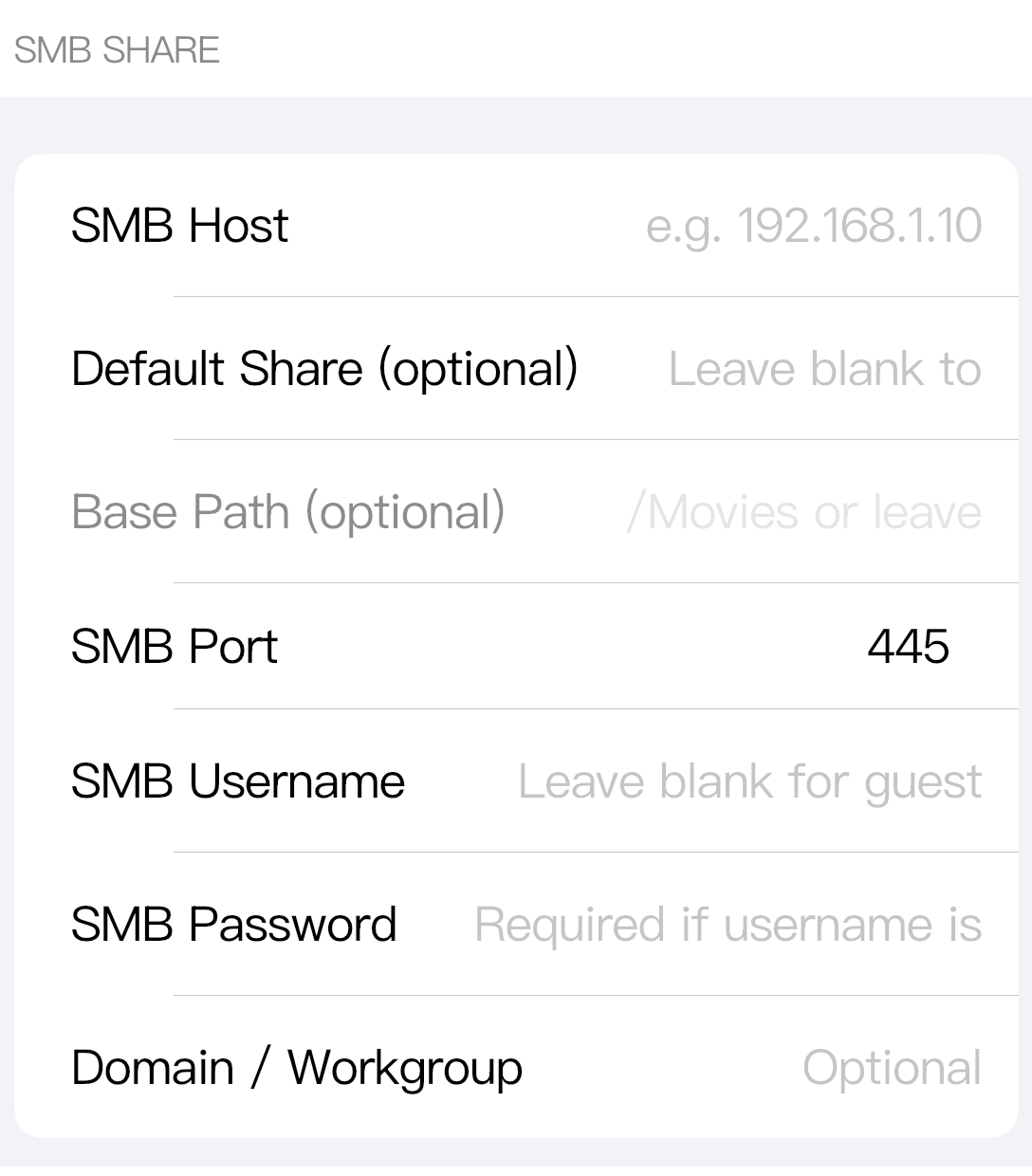
SMB Host is the host name or IP address of the SMB server, for example 192.168.1.10 or a NAS host name.
Default Share (optional) is the share name to open by default. Leave it blank if you want to browse the available shares first.
Base Path (optional) is a folder path inside the share, such as /Movies. Leave it blank to start at the share root.
SMB Port defaults to 445, which is the normal SMB port.
SMB Username can be blank for guest access. If the share requires an account, enter the username.
SMB Password is required when the username needs a password.
Domain / Workgroup is optional. Fill it only when your SMB server expects a domain or workgroup value.
Edit a server
Select the server on Home, then tap Edit on the selected server card. Zwind opens the same configuration screen used when creating the server.
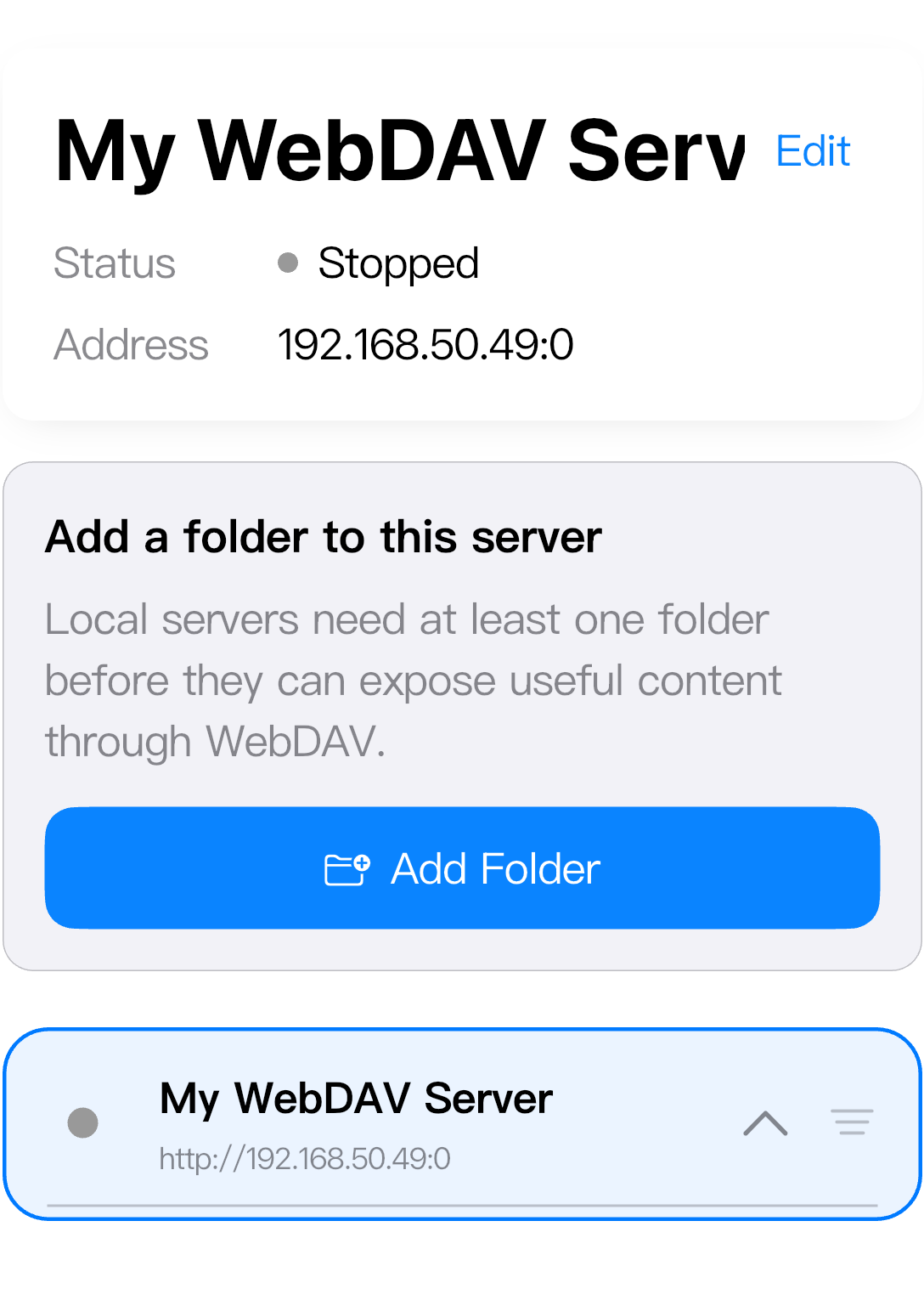
After saving changes, check the server card again. If the port is 0, the address can change the next time the server starts. If you changed the storage type, review the storage-specific fields before starting the server.
Delete a server
Open the server with Edit, scroll to the bottom of the configuration screen, and tap Delete Server. Confirm the deletion when Zwind asks.
Deleting a server removes that server entry from Zwind. It does not delete the local files, the Quark Drive account, or the SMB share that the server was pointing to.